Troubleshooting
Start from what you or your customer sees, check the likely causes in order, and fix it. Covers passes, scans, sign-in, staff phones, sign-ups, limits and payments.
Each section starts from a symptom, lists the likely causes with the quickest check first, and says how to fix each one. Messages in bold are quoted exactly as they appear on screen, so you can search this page for the words you are looking at.
Before you start#
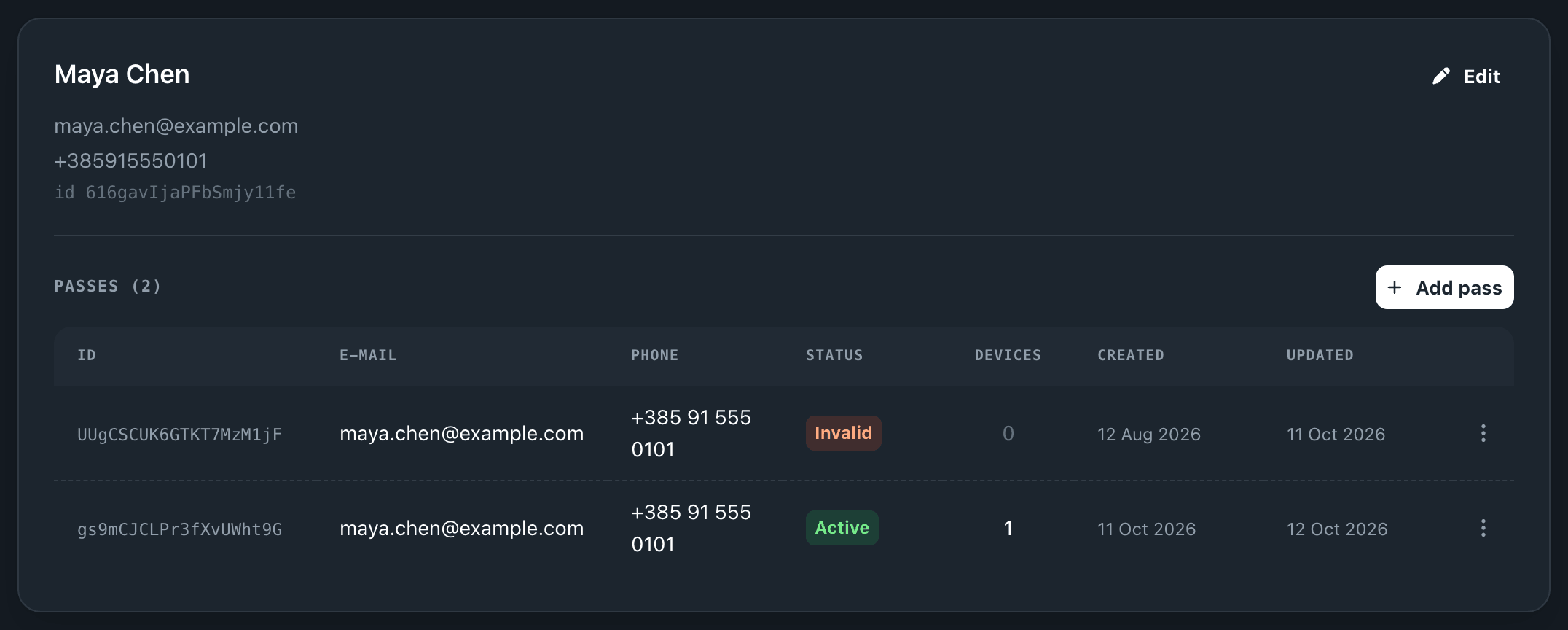
- Find the pass. Open the template's Members tab and search for the person's name, email address or pass ID. The pass row's Status and Devices columns answer most questions on this page. See Members.
- Note the exact message. The wording tells you which cause you are dealing with, and re-scanning or re-sending rarely changes it.
The pass doesn't reach the wallet#
A pass gets to a phone in four steps. Find the step where it stopped.
The customer didn't get the email or text#
- Nothing was sent. When you add a member, the dialog says what will happen on Create. No contact on this form — the pass won't be sent automatically. and Automatic delivery is off for this channel — the pass won't be sent. both mean no message went out. Send the link yourself; see the last item in this list.
- Text messages need messaging. On a plan without it, the dialog shows Subscribe to enable mobile messaging and the pass goes by email only. See Messaging.
- The email is in spam, or under another name. It arrives from your template's name "via Walletap", for example Coffee Card via Walletap. Ask the customer to search for that name.
- The customer unsubscribed. Every pass email has an unsubscribe link. After using it, a person gets no further pass emails from your account, so send the link another way.
- The address or number is wrong. Check the pass row's E-mail and Phone. Correct the member with Edit, then send the link.
To send the link yourself, use one of these:
- Dashboard. On the pass row, choose ⋮ › Open. The page that opens is the pass page, and its address is the link to send.
- Mobile app. Open the member and choose ⋮ › Resend on the pass. It sends the link to the phone number on file, by Viber, SMS or WhatsApp in your account's channel order. With no valid number the app says No valid phone number on file to resend the pass to. The QR button beside the pass shows a code the customer can scan to add the pass on the spot.
The pass page opens, but there's no button to add the pass#
- The link opened inside another app. Links tapped in Instagram, Facebook, LinkedIn or WhatsApp open in that app's own browser, where wallets do not work. The page shows Open in Browser with the steps: open the app's menu, choose Open in Safari or Open in Chrome, and add the pass from there.
- An Android phone, in a browser other than Chrome. The page shows Google Chrome Required and This pass can only be added to Google Wallet from the Google Chrome browser. Tap Open in Chrome.
- The link opened on a computer. The page shows a QR code instead, with Use your phone camera to scan this QR code and add the pass to your wallet. The customer scans it with their phone.
The page says Pass Not Found or Pass Unavailable#
- Pass Not Found with This pass could not be found or may have expired: the link is incomplete or the pass was deleted. Copy the link again with ⋮ › Open on the pass row. If the row is gone, issue a new pass.
- Pass Unavailable with We couldn't load this pass right now. Please try again in a moment.: a temporary problem loading the pass. Tap Try Again.
The customer says they added it, but it isn't there#
Check the pass row's Devices column first.
- Devices is 0. No wallet holds the pass. Adding was cancelled on the wallet's own screen, or the pass was removed later. Ask the customer to open the link again and finish adding it.
- Devices is 1 or more. The pass is in a wallet. The pass page now shows Pass added to wallet and an Add to wallet again button for a second phone or a wallet that was wiped. On a template whose pass sharing is One user, many devices it adds This pass is configured for single-device use and has already been added to a wallet.
The pass didn't update#
- The pass is not in a wallet. With Devices at 0 there is nothing to update. The customer adds the pass again and gets the current version.
- The phone is offline. Apple Wallet and Google Wallet fetch the new version when they are told about the change. A phone that is switched off or offline gets it when it reconnects.
- The pass expired or was invalidated. Check Status on the pass row. See A scan is refused.
A notification didn't appear#
- The campaign isn't active. A campaign sends only while its status is Active. Drafts and paused campaigns send nothing. If activating it says A subscription is required to send messages., the plan does not include campaigns. See Campaigns.
- The holder turned off notifications for the pass. The campaign still counts it as sent, because Apple or Google accepted it. See What the sent and failed counts mean.
- Google Wallet's own limit. Google Wallet allows a pass at most three messages that trigger a push notification in 24 hours, and can slow down an issuer it considers to be spamming.
A scan is refused#
The scanner names the reason. Find it in the table.
| Message | What it means | What to do |
|---|---|---|
| Pass not found or Pass not found in any template | No pass with this code exists in the account you are signed in to. It belongs to another business, was deleted, or you are signed in to a different account. | Check you are in the right account. Search the code on the Members tab. |
| Pass has been invalidated | The pass's status is Invalid. Someone invalidated it, its template was deleted, it was removed from every device on a One user, many devices template, or it expired: expired passes are marked Invalid overnight. | Reactivate it: ⋮ › Activate on the pass row, or Validate in the mobile app. For an expired pass, give it a later Valid Until or renew it. See Manage members. |
| Pass expired or Pass has expired | The pass's Valid Until date has passed. | Renew it, or give it a later Valid Until. See Renewals and freezes. |
| Pass not yet valid or Pass is frozen | The pass's start date is in the future. That is how a freeze works. | Unfreeze it in the app with Unfreeze, or wait for the start date. |
| Pass from another template | This device is set to accept passes from other templates only. | In the app's Settings, change Validate passes from. |
| Daily entrance limit exceeded | The member's plan caps entries per day, and today's are used. | Nothing is wrong with the pass. It works again tomorrow. |
| Arrival limit reached | A plan with a set number of visits has used them all. | Renew the membership. See Membership plans. |
| Connection error — please try again | The app could not reach Walletap, so nothing was decided about the pass. | Check the device's connection and scan again. |
| Please log in to validate passes | The app is signed out. | Sign in again. |
For how a scan is decided, see Scanning a pass.
The camera won't scan#
- Camera access denied: the app is not allowed to use the camera. Allow camera access for Walletap in the phone's settings, then reopen the scanner.
- The camera could not start: another app may be using the camera. Close it and try again.
- Scanning is unsupported on this device: the device has no camera the scanner can use. Scan with another phone, or use a card reader.
A door reader refuses the pass#
A reader at a door shows its answer with a light:
- Green for five seconds: accepted, and the door opens.
- Red: refused, for one of the reasons in the table above.
- A short orange flash: outside the location's working hours. Members are refused outside those hours; employee passes are not.
- A longer amber light: the check took too long and the pass was not judged. Tap again.
See Door access.
The sign-in link doesn't work#
No email arrives#
- Check spam. The email comes from Walletap with the subject Your Walletap sign-in link.
- Wait before asking again. The screen says If an account exists for your address whether or not an email went out, so it never reveals who has an account. A new link can be requested once a minute and up to five times an hour; extra requests send nothing.
- Stop requesting for a while. After three links in a row that nobody signed in with, the address gets no new link for up to 24 hours. Sign in another way meanwhile, with Use password instead, Google or Apple, and the count starts again.
This sign-in link is invalid or has expired#
Each link works once and only for a short time, as the email says. A link that was already used, or is too old, gives this message. Click Back to sign in and request a new one.
The page asks you to confirm your email#
Confirm the email address this link was sent to. appears when the page can't look up which address the link was sent to, usually because the link was opened once already or is old, and you are not in the browser that asked for it. Type the address the link was sent to and click Continue.
In the desktop app#
The link opens Walletap on the same computer. If nothing happens:
- The browser page says If Walletap is open on your Mac, check it — you may already be signed in. If not, finish here. Click Open Walletap, or Sign in here instead to finish in the browser.
- In the app, choose Didn't get the link?. Copy the link from the email without clicking it, then click Paste and sign in.
- That isn't a valid Walletap sign-in link. means the pasted text is not the whole link. This link has expired or was already used. Request a new one. means it is spent. A link that has already signed you in, in the browser or in the app, is spent.
In the mobile app#
Open the link on the same phone that asked for it; tapping it opens Walletap. To ask for another, tap Send a new link once its countdown ends.
For the other ways to sign in, see Profile and sign-in. For problems with a team invitation, see Team members.
A staff phone is blocked#
Every phone, tablet and front-desk computer that scans counts toward the account's devices. When a phone may not scan, the mobile app shows a screen instead of the scanner.
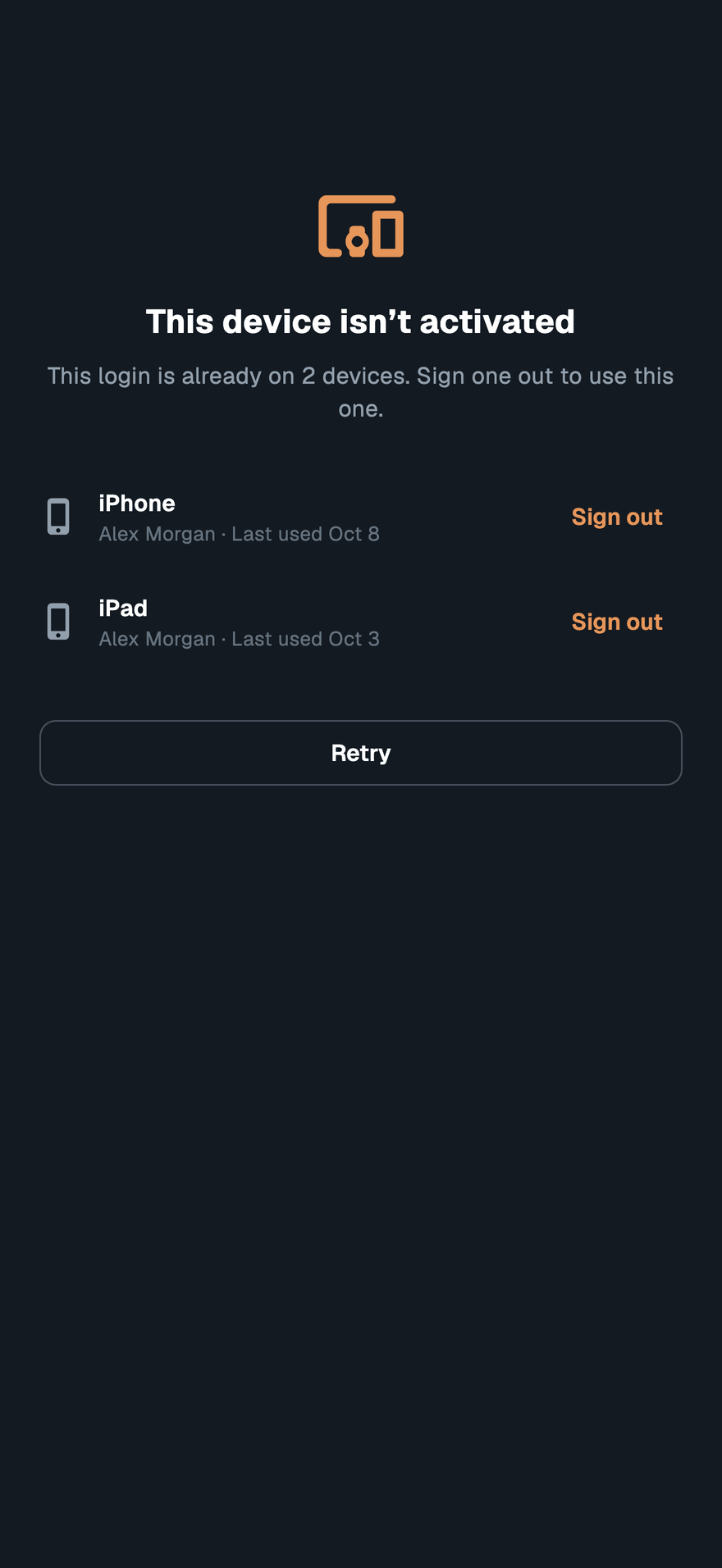
This device isn't activated#
The account's device allowance is in use. The screen shows how many devices the account has against how many its plan includes.
- The owner sees the account's devices on the same screen and can Sign out one that is no longer in use, then tap Retry. More devices changes the plan.
- A staff member sees Ask the account owner to free a device. The owner signs an old device out from SettingsDevices in their own app. Then tap Retry.
A device that has not been used for 30 days frees its slot on its own. Signing a device out frees its slot at once, three times in 30 days. After that, a device you sign out keeps its slot for seven more days.
This login is already on 2 devices#
The owner's login works on up to two phones or tablets at a time. Sign one of them out from the list on the screen, then tap Retry.
This device was signed out#
The owner signed this device out, or the same staff login signed in on another phone. A staff login works on one phone at a time, and signing in on a new phone signs the old one out. Sign in again on the phone that should scan.
On a computer#
The desktop app shows the same message in a warning bar at the top of the window, rather than on a screen of its own. A front-desk computer counts toward the account's devices but not toward the two-device limit of the person signed in on it.
See Devices.
A customer can't sign up#
The sign-up page reports a problem in a pop-up message.
- Sign-ups for this card are paused right now. Please ask a member of staff. The account cannot issue a new pass. The free plan's passes are used up, a trial has ended, the subscription is not active, or new cards are paused for active customers. Check SettingsBilling. The table under The API refuses a request explains each reason.
- Error: Failed to create pass: 403: sign-ups are not open for this template. Its sign-up form has no fields. Add them under DesignRegistration.
- Error: Failed to create pass: 429: too many sign-ups came from one network, or for one card, within an hour. At a busy venue on shared Wi-Fi, ask people to use mobile data, or wait and try again.
You can't issue a pass or add something#
A limit in the dashboard or the apps#
Plan limits apply when you create something new. Nothing you already have stops working. The dashboard offers an upgrade at the point you reach a limit, and the apps say which allowance is used up, for example You've reached the number of templates your plan includes. or Your plan's location allowance is used up. See Billing.
No event ticket credits left#
Issuing an event ticket uses a ticket credit, and the account has none left. Buy a pack under SettingsBilling. See Billing.
The API refuses a request#
401 API key required or Invalid API key#
The request reached Walletap without a key it recognises. Send the key in the
X-API-Key header, not as a bearer token, and copy it again from
SettingsAPI keys of the account that owns the template. See
Authentication.
402 upgrade_required#
A 402 with "code": "upgrade_required" means your key is fine and the account's
plan does not cover the request. Retrying with another key will not help. When a
paid capability is missing, feature names it. When a new pass is refused,
reason says why:
reason | Meaning |
|---|---|
free_cap | Every pass the free plan includes has been issued. The total includes passes issued during a trial and does not reset. |
trial_cap | Every pass included in the free trial has been used. |
trial_expired | The free trial has ended. |
subscription_inactive | The subscription is paused, cancelled or unpaid. |
active_customers_paused | The account was over its active customers in each of the last two complete months, so new cards are paused. |
Upgrade, or update the card on file, under SettingsBilling. In an
automation, stop and alert someone on a 402 rather than retrying. See
Errors.
Payments aren't arriving#
Membership and webshop payments go to the Stripe account of the company that owns the location where the sale happened. Check each link in that chain under SettingsIntegrationsPayments.
- Not connected: the company has no Stripe account connected. Click Connect.
- Live · charges not enabled yet: Stripe has not finished verifying the account, so it takes no payments. Sign in to that Stripe account and complete what Stripe asks for.
- Test account: the connection is set to Test, so payments are not real. Open the Test menu on the Stripe row and choose Live. If the live account is not connected yet, click Connect and connect it.
- The money went to another company. Payouts land on the bank of the company the location belongs to. Check the location's Company under SettingsLocations.
- The payment is in Stripe but not in your bank yet. Payout timing is set in Stripe. Sign in to the company's Stripe account to see its payout schedule.
Still stuck#
Write to support with the exact message, the time it happened and the pass ID or member's email. Contact support lists what to include.