Billing and your plan
See your plan and usage, start the free trial, change or cancel your plan, and find invoices and the details they are addressed to.
SettingsBilling is where the account owner sees what the account is on, what it is using this month, and what the next invoice will be. Plan prices are on the price list.
Before you start#
- You are the account owner. Team members do not see Billing.
What the Billing page shows#
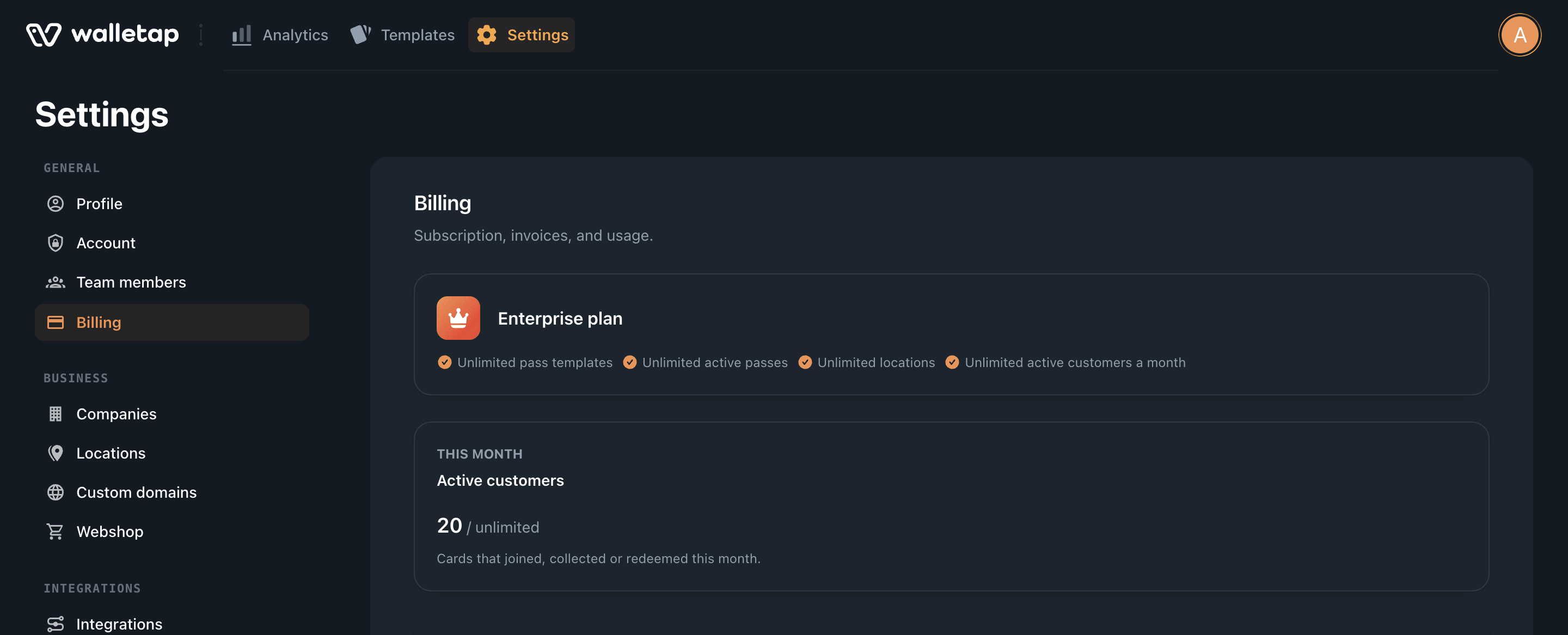
The page is built from cards, and only the ones that apply to your account appear.
| Card | What it tells you |
|---|---|
| Your plan (first card) | The plan you are on, how it is billed, and the current period or end date. On the free plan or a trial, what it includes. |
| Active customers | This month's active customers against your plan's allowance. |
| Add-ons | The add-ons on your subscription, with a control to change each quantity. |
| Withdraw from contract | For 14 days after a purchase on the web. See Withdraw within 14 days. |
| This period | Live active passes and the messages sent this billing period, by channel. |
| Next invoice estimate | The lines, any discounts, and the Estimated total of the next invoice. |
| Active passes | A chart of your peak active passes per day or per month. |
| Recent invoices | Your last five invoices. |
Accounts that issue event tickets also see a card with their remaining ticket credits, with packs to buy.
Usage#
Active customers#
Plans with unlimited cards include an allowance of active customers a month, set by the number of locations on the plan. An active customer is a card that joined, collected or redeemed in that calendar month, counted once however often it was used.
The card shows how much of the allowance is used. Over it, the card says Over the allowance. New cards pause after two full months over. If the account is over in two complete months in a row, new cards pause until you add locations or change plan, and the card shows New cards are paused with an Add locations button. Existing cards keep working throughout: stamping, redeeming and scanning are never stopped.
Active passes and messages#
This period shows how many passes are active and how many SMS, WhatsApp and Viber messages were sent this billing period. The Active passes chart shows the history over the last 90 days, 6 months or 12 months. What makes a pass active is defined in What counts as an active pass.
Start the free trial#
A free account can try a paid plan free for 30 days, once. Walletap offers the trial when the owner creates a loyalty card on a free account: click Start 30-day free trial in the dialog that opens. No payment details are asked for.
The plan card then shows the trial, the days left and its end date. When the trial ends, the account returns to the free plan unless you have chosen one; passes issued during the trial count toward the free plan's total.
If the dialog says This account has already had its free trial. or The free trial is for accounts that have not had a plan before., choose a plan instead.
Choose or change your plan#
- Open the plans
On a free account, click Upgrade next to the account menu, top right. On a paid plan, go to SettingsBilling and click Change plan.
- Pick a plan and a billing period
Choose monthly or yearly, then the plan. Prices exclude VAT.
- Pay or confirm
For a first plan, enter your card and billing details in the checkout that opens in the dialog. For a change to an existing plan, the dialog says what will happen; click Confirm change.
When a plan changes:
| Change | When it applies |
|---|---|
| To a bigger plan | Straight away. The difference for the rest of the period is charged today. |
| To a smaller plan | At the end of the current period. You keep the current plan until then. |
| Monthly to yearly, or back | From the end of the current period. |
If your bank asks to confirm the payment, the dialog says Your bank needs to confirm the payment before the change applies. Click Confirm the payment and finish it with your bank.
Add-ons#
Add-ons are changed on the Add-ons card, not through a new checkout. Set the new quantity, click Review, then Confirm. An increase charges the rest of the current period today; a decrease credits the unused time to the next invoice.
Invoices#
Recent invoices lists the date, number, period, amount and status of each invoice: Paid, Open, Draft, Uncollectible or Void. Use the icons on the right to open an invoice or download its PDF.
Manage billing opens the billing portal for your subscription, where you change the card or other payment method it is charged to.
Who the invoice is addressed to#
Invoices are addressed to the name, billing address and VAT ID entered at checkout. VAT is added according to that address and VAT ID. Enter the company's VAT ID at checkout if you want it on the invoice; an EU VAT ID is checked against the EU VAT register.
To correct these details later, open Manage billing. If the portal offers no way to change them, write to support@walletap.com with the correct details.
Cancel your plan#
- Open the billing portal
In SettingsBilling, click Manage billing.
- Cancel the subscription
Choose to cancel and confirm.
The plan stays active until the end of the period you have paid for; the plan card shows Ends on and the date. After that the account is on the free plan. Nothing you created is removed. The free plan's limits apply to what you create next.
Withdraw within 14 days#
For 14 days after you buy a plan or a pack on the web, Billing shows Withdraw from contract, with the date it is available until.
- Start the withdrawal
Click Withdraw from contract here.
- Confirm
Check the purchase, your name and the email for the confirmation, then click Confirm withdrawal.
A subscription is cancelled at once, and a confirmation is emailed to you. Walletap refunds you within 14 days to the payment method you used. If you asked for the service to start straight away at checkout, the refund is less the part of the period before you withdrew.
Plans bought in the app#
A plan bought in the iOS, Android or Huawei app is billed by that store, and the plan card says which: Billed monthly through the App Store, for example, with the renewal or end date. Change or cancel it in the store — the card links to the App Store or Google Play, or tells you where to look on a Huawei phone.
Other billing arrangements#
- Plan granted by Walletap — the plan card shows the plan and, if it ends, Until and the date. A Choose plan button lets you subscribe before then.
- Manual billing — Billing says Your account is on manual billing. Invoices are sent to you directly, and usage and past invoices are shown as usual.
If something goes wrong#
- Couldn't load billing details. Reload the page. If it persists, contact support.
- Checkout could not be started. Click Back to plans and try again.
- Failed to open Stripe billing portal. Reload the page and click Manage billing again.
- The plan could not be changed. or The add-on could not be changed. Nothing was changed. Try again, or contact support.