Locations
Add the places where you issue and accept passes, assign each one to a company, share a sign-up link per location, and set door opening hours.
A location is a place where your business meets its customers: a café, a branch, a gym. Scans, sign-ups and sales are recorded against a location, so reports can tell your sites apart and payments reach the right company.
Every planBefore you start#
- To assign locations to a company, create the company first. See Companies.
- Each team member sees and uses the locations you assigned them when you invited them. Whether someone can add or change them depends on their role.
Add a location#
- Open Locations
Go to SettingsLocations and click Create.
- Find the place
Type the business name or address into Search Location and pick the result. Walletap fills in Location Name and Address and places the pin.
- Check the details
Adjust Location Name — for example Harbour Coffee — Marina — and the Address if needed. Business Location Label is optional; it is printed on fiscal receipts if you use fiscalisation.
- Choose the company
Under Company, pick the company that takes this location's payments. Only the account owner sees this field.
- Save
Click Add Location. The location appears in Your Locations and as a pin on the map.
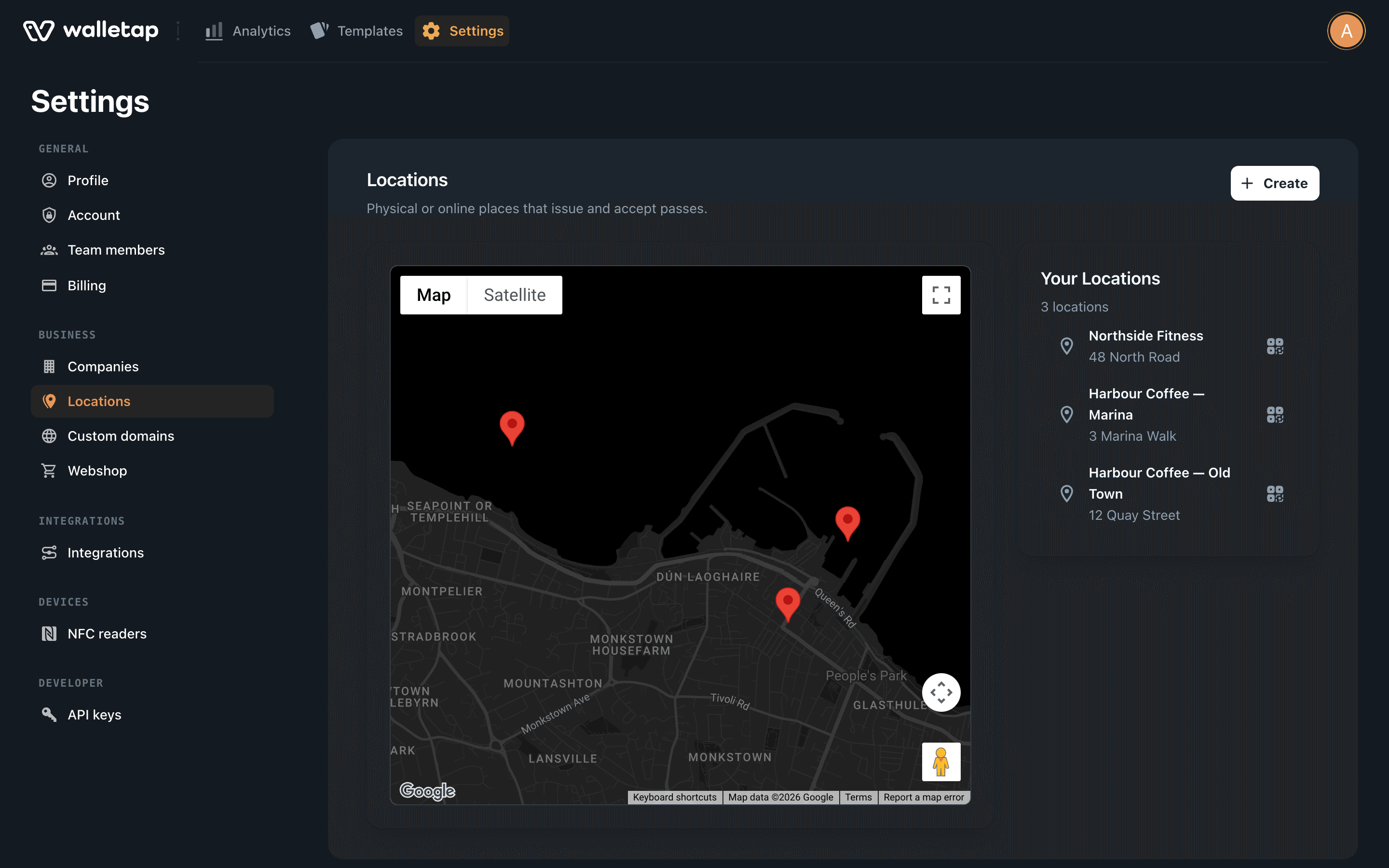
To change a location, click it in the list, edit the fields, and click Update Location. Delete is in the same dialog.
When the locations on your plan are all in use, Create is dimmed, with a crown badge, and clicking it offers more.
Share a sign-up link for a location#
Each location has its own sign-up links. A customer who joins through one is recorded as joining at that location, which is what per-location reports read.
- Open the location's links
In Your Locations, click the QR code icon next to the location.
- Copy the link
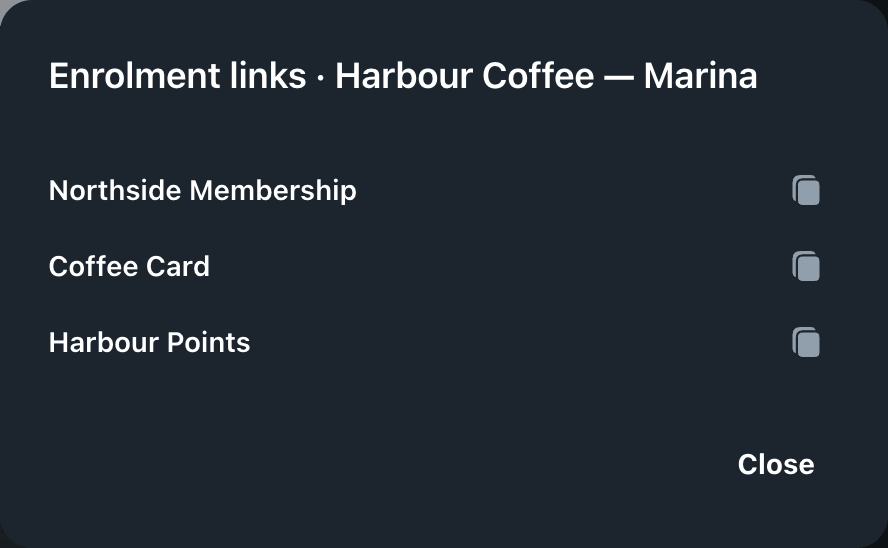
Enrolment links lists one link for each template with sign-up open. Click the copy icon next to the template you want.
Use the link wherever that location invites people to join — on its own QR code at the till, on its table cards, or in its social posts. If the dialog says No card design has sign-up open., turn on sign-up for the template first. See Sign-up page.
Locations in the apps#
Mobile#
SettingsLocations in the mobile app adds and edits locations with a name, address and company.
- Also notify passholders near here adds the location to every template, so passes show a reminder on the lock screen near it. It needs coordinates: pick an address suggestion or tap Use my current location.
- Set as scanning location tells this phone where it is. Scans made on it are recorded at that location.
Desktop#
SettingsLocations in the desktop app opens Business Locations, which holds the settings for a site with a door reader or a till.
- Set as current location tells this computer where it is.
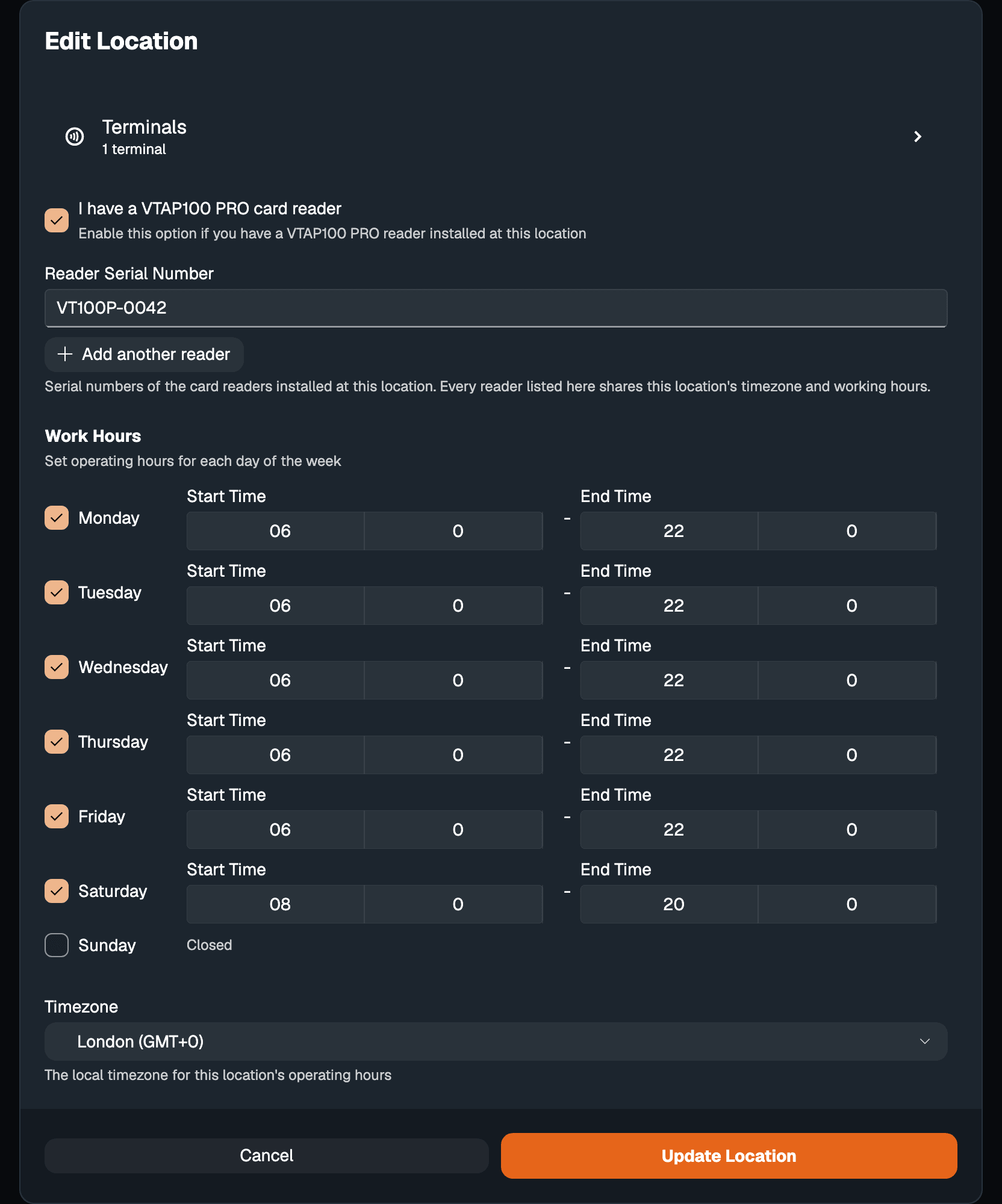
- I have a VTAP100 PRO card reader shows the reader's serial number, the location's working hours and its time zone.
Set working hours for the door#
Working hours decide when a door reader at the location lets members in. Outside them, the reader refuses a member's pass. Staff with an employee pass get in at any time.
- Open the location in the desktop app
In the desktop app, open SettingsLocations, then Edit Location on the location.
- Turn on the reader settings
Tick I have a VTAP100 PRO card reader if it is not ticked already.
- Set the hours
Under Work Hours, tick each day the location is open and set its Start Time and End Time. A day left unticked is Closed.
- Set the time zone and save
Choose the location's Timezone; the hours are read in it. Then click Update Location.
A location with no working hours set is open at all times. See Door access for the rest of the door setup.
Locations on the pass#
The locations in Settings are where your business operates. The locations on a pass are where the customer's phone shows it on the lock screen. They are set separately, on the template, unless you tick Also notify passholders near here in the mobile app. See Locations and relevance.
If something goes wrong#
- Add Location stays greyed out. Pick a result in Search Location and give the location a name.
- Saving opens an upgrade instead. The locations your plan includes are all in use. If you sell memberships, each location also needs its own memberships add-on line. Follow the dialog to add one, or delete a location you no longer use.
- Your plan's location allowance is used up. The same limit, in the mobile app.