Set up door access
Let a valid membership open a door on its own — register the door reader, set the location's opening hours, and see why a tap was refused.
A door reader lets members in with the pass on their phone or their membership card, with nobody at the desk. Walletap decides at every tap, from the membership's current state and the location's opening hours.
Add-onHow a tap opens the door#
The door reader holds no member list. Everything is decided online at the moment of the tap, so a renewal, a freeze or an invalidated pass counts from the very next tap. No app needs to be running.
Before you start#
- A VTAP100 PRO reader is installed at the door, wired to the lock and online. Walletap connects the reader to your account when the door is installed; you only need its serial number, printed on the device.
- The membership template is NFC-enabled, so phones can tap. See NFC passes. Physical membership cards work either way.
- The desktop app is installed and signed in, as the account owner or as a team member allowed to manage locations. Door setup lives in its Settings. See the desktop app.
Each registered reader counts as one door against your plan's door allowance.
Register the door reader#
- Open Terminals
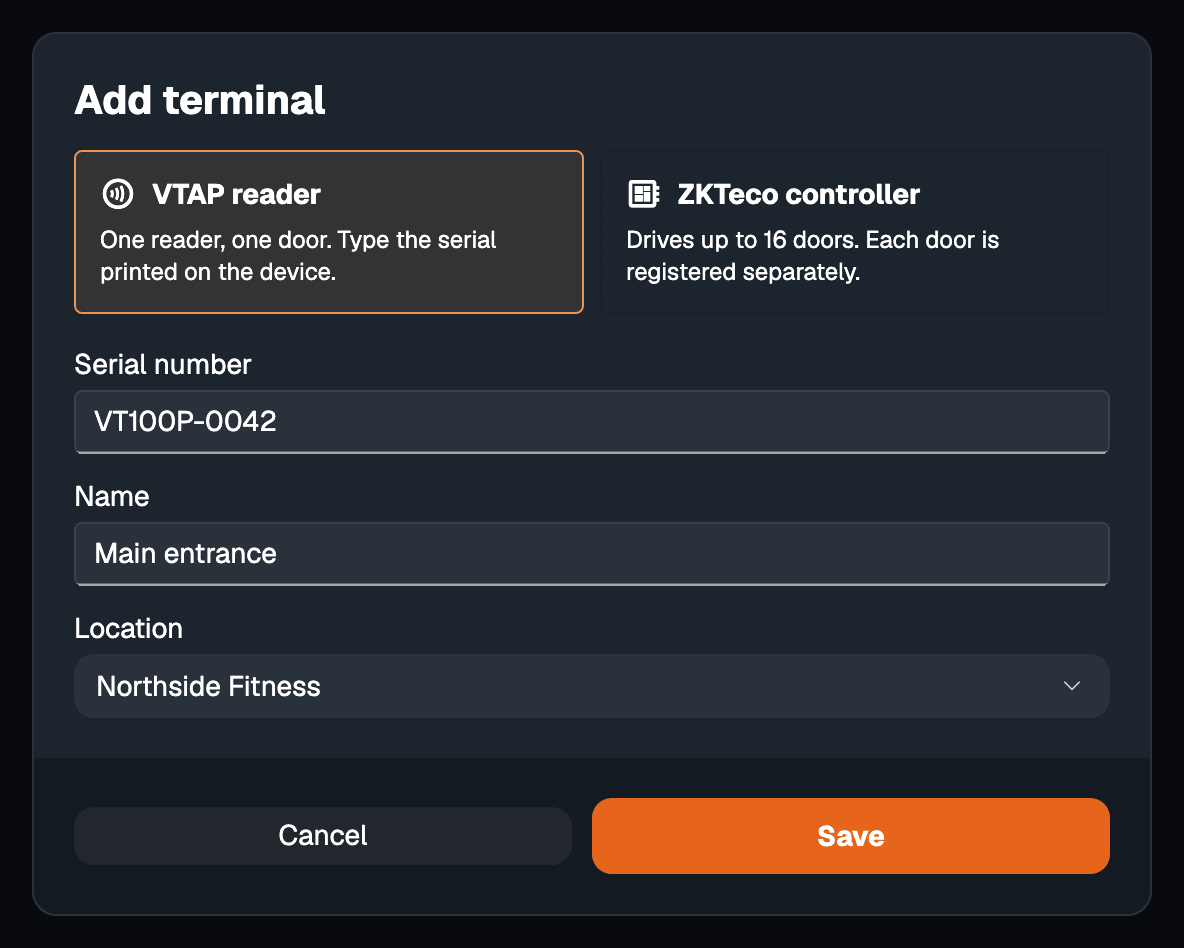
In the desktop app, go to SettingsTerminals and click Add terminal.
- Choose VTAP reader
Select VTAP reader — one reader, one door.
- Enter the reader's details
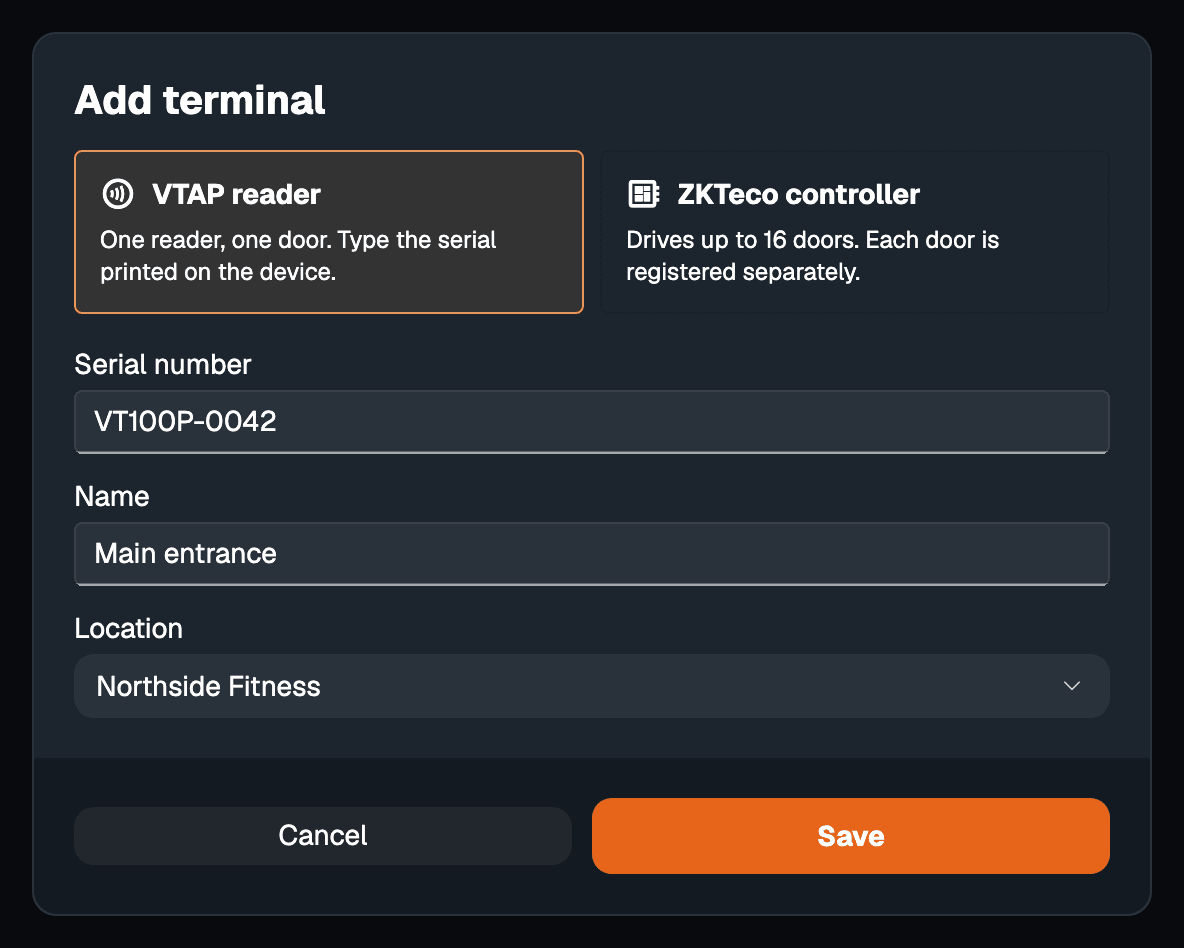
Type the Serial number exactly as printed on the reader. Give the door a Name staff will recognise, such as Main entrance, and choose its Location — Northside Fitness.
- Save
Save. The door appears under its location in the Terminals list, and the reader answers from the next tap.
To change a door's name or location later, open it and choose Edit. Its type and serial number cannot be changed: remove the terminal and register it again instead.
Set the opening hours#
Opening hours belong to the location, and every reader at the location shares them.
- Edit the location
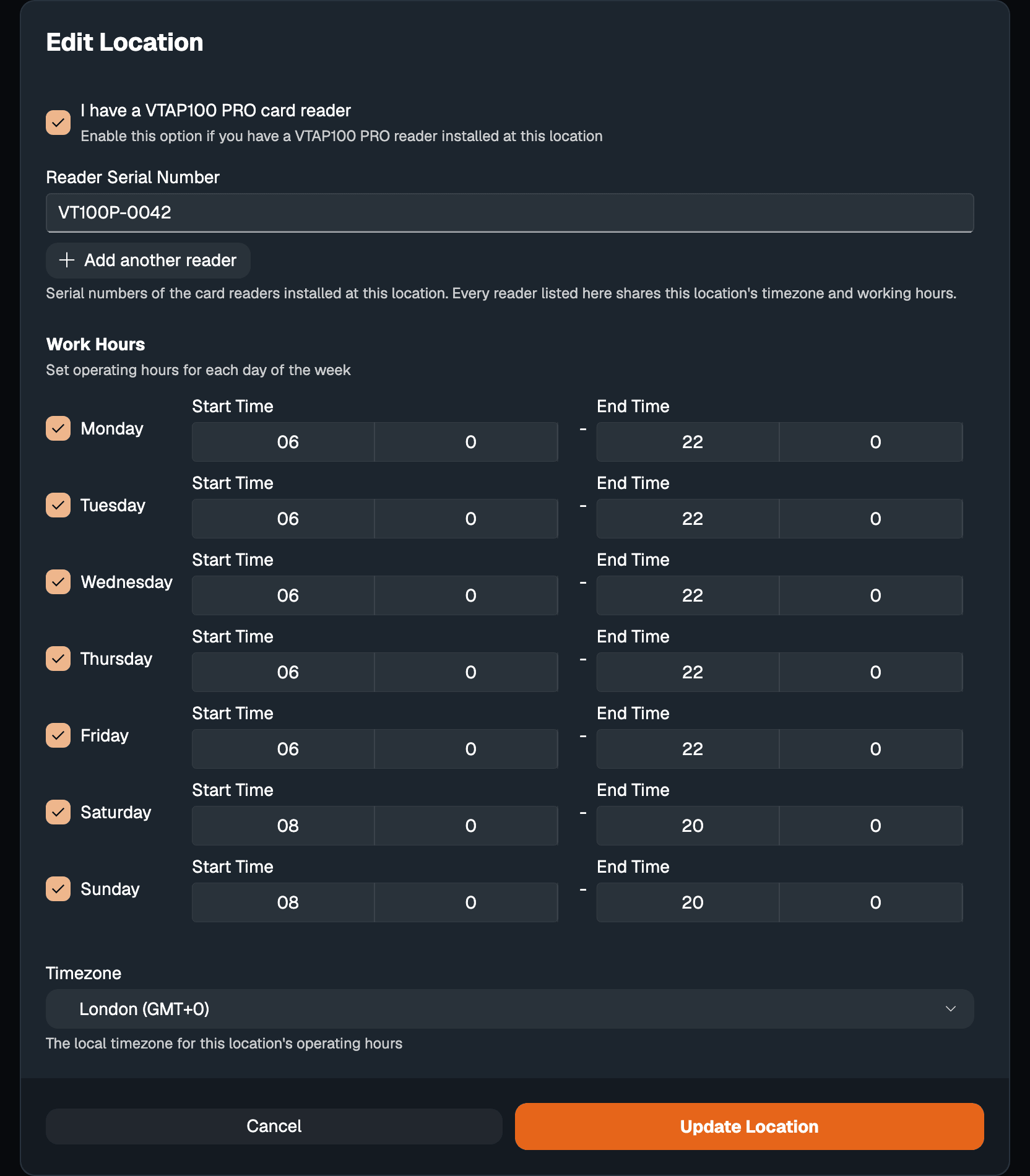
Go to SettingsLocations and edit Northside Fitness.
- Turn on the reader settings
Tick I have a VTAP100 PRO card reader. The reader's serial number is listed under Reader Serial Number.
- Set the timezone
Choose the location's Timezone. Hours, and the day a membership ends, are judged in it.
- Set the hours
Under Work Hours, give each day a Start Time and an End Time, or mark it Closed.
- Save
Click Update Location.
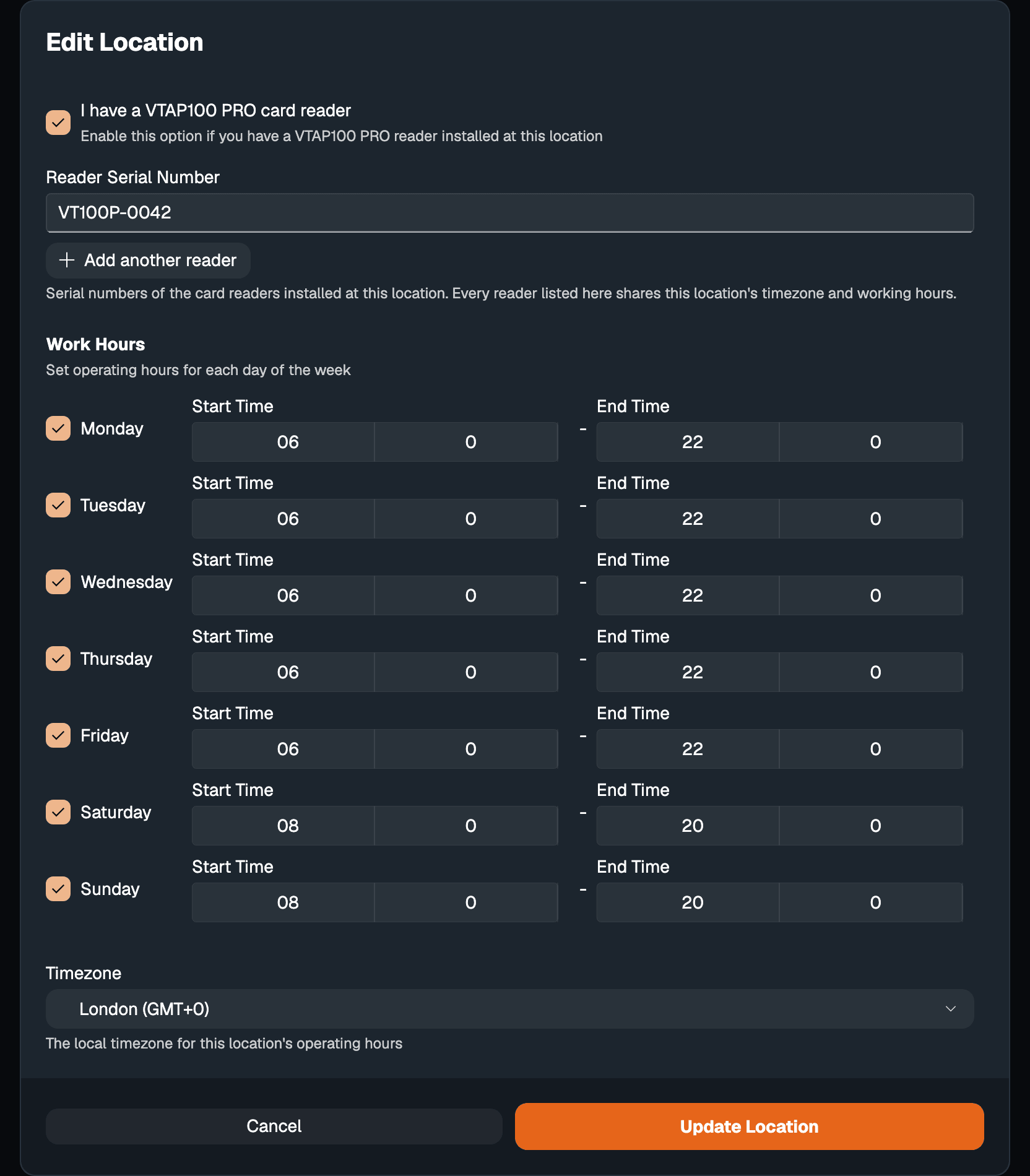
A location with no hours set is open around the clock. Staff passes — passes on an Employees plan — open the door at any hour.
What decides a refusal#
Walletap answers a tap in this order. The first check that fails refuses the tap.
| Check | Refused when | Reason | Light |
|---|---|---|---|
| The pass | No pass on your account matches the tap | Pass Not Found | Red |
| Opening hours | The location is closed now, unless it is a staff pass | Closed | Orange |
| Invalidated | Staff invalidated the pass, or its subscription was cancelled or left unpaid | Pass Revoked | Red |
| Staff pass | — a staff pass is let in here, skipping the checks below | Employee Pass - Valid | Green |
| Frozen | The membership is frozen | Pass is Frozen | Red |
| Ended | The membership's end date has passed | Pass Expired | Red |
| Visits | A visit-based membership has used all its visits | Arrival Limit Exceeded | Red |
Otherwise the light turns green and the lock opens for five seconds. A visit-based membership uses one visit — but not again for a second tap within five minutes, so a member who taps twice is charged once. Every tap that matched a pass, allowed or refused, is recorded with its outcome.
See doors and entrances#
Terminals, in the desktop app's Settings, lists every door by location. Open a door to see its details. A door reader only reports in when somebody taps, so its status reads Status unavailable rather than online or offline.
Doors in the mobile app shows the same list. The tab is there when a membership template is selected.
Entrances, in both apps, lists the taps with the member, the time, the location and whether they were let in. It is the first place to look when a member says the door would not open. See activity in the apps.
Remove a door#
Open the door in SettingsTerminals and remove it. The reader stops opening the door straight away, and the door no longer counts against your allowance. Removing cannot be undone; register the reader again to bring it back.
If something goes wrong#
A red light, and nothing in Entrances. The tapped pass or card does not match any pass on your account — it belongs to another business, or it was deleted. A phone whose pass is not NFC-enabled does not register a tap at all.
An orange light during opening hours. Check the location's Timezone — the hours are read in it.
A member renewed online and is still refused. If they bought through New Member, they paid for a second pass and are tapping the old one. The new pass is in their wallet; ask them to tap that one, and point returning members to Existing Member next time. See the webshop.
"Your plan includes … Upgrade to add more." Every door on your allowance is in use. Remove one you no longer use, or add doors from billing.
"terminal already exists". That reader is already registered. Find it in the Terminals list.
No light at all. The reader is not reaching Walletap. Check its power and network, then contact support.