Entrances and activity
What the Entrances screen, a member's Activity, the loyalty History and staff shifts list, how to filter them, and how to read each row.
Every scan is recorded, valid or refused, with the time, the place and the pass. The apps show those records, and your staff's shifts, in four places, each for a different question.
| Screen | Answers | Where |
|---|---|---|
| Entrances | Who came in today, across the account? | Mobile tab for every type but loyalty; desktop navigation |
| Activity | What has this member done? | A member's page, on mobile and desktop |
| History | What did this phone scan? | Mobile tab for loyalty templates |
| Staff shifts | Who is working, and for how long? | Employees, in the desktop navigation and in mobile Settings |
Entrances#
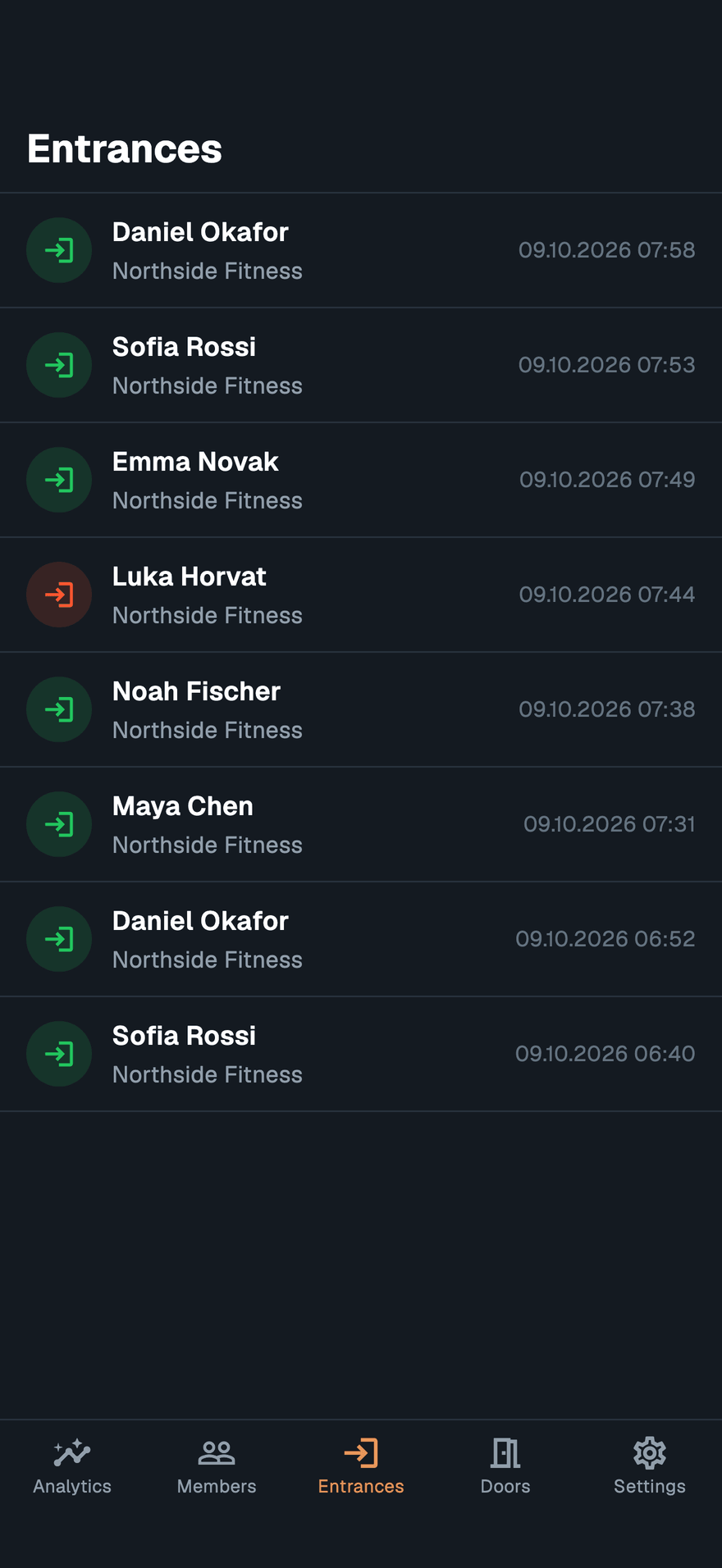
Entrances lists the account's entries, newest first: every scan at a door, a reader or a phone camera, accepted or refused. Tap a row to open the member.
Filters#
Tap the filter button at the top right on mobile, or use the bar above the list on desktop.
| Filter | Choices | Default |
|---|---|---|
| Time | Today, Yesterday, Last 7 Days, Last 30 Days, This month (Current Month on desktop), Custom Range (Custom Period on desktop) | Today |
| Location | All Locations, or one location | All Locations on mobile; on desktop, the computer's current location when one is set |
A dot on the mobile filter button means a filter other than the default is on. The mobile list shows the latest 200 entries for the filter; desktop loads more with Load More.
Which templates it covers#
Each device chooses which templates' entries it lists. Set it in SettingsActive templateEntrances on mobile, or the Entrances card in desktop Settings.
| Choice | Lists entries for |
|---|---|
| Templates of the same type | Every template of the active template's type. The default. |
| Selected templates | Only the templates active on this device |
| All templates | Every template on the account |
On the desktop#
The desktop list has four columns: Scan Time, Member Name, Location and Status. Analytics above the list opens Entry Analytics for the period: Total Entries, Avg / Day, Peak Day, Peak Hour, Valid Rate, and entries per location.
A member's Activity#
A member's page ends with Activity: the member's own history, newest first. It lists their entries, and when they added the pass to their wallet or removed it — with the wallet's name, such as Apple Wallet or Google Wallet.
The filter above the list narrows it to one kind of record. All shows everything, and the device remembers the choice.
History#
Loyalty templates have a History tab instead of Entrances. It lists the passes scanned on this phone, newest first, with the member's name on each row. Use it at the till to check what was just scanned. For the whole account, see loyalty analytics.
Reading a row#
Rows carry no action text. The icon says what happened and its colour how it went. Long-press or hover the icon for the words.
| Icon | Colour | Means |
|---|---|---|
| Arrow through a door | Green | Entry — the pass was accepted |
| Arrow through a door | Red | Entry refused |
| QR code | Green | Scan — a loyalty card was scanned |
| QR code | Red | Invalid scan |
| Card with a plus | Grey | Added to wallet |
| Card crossed out | Grey | Removed from wallet |
In Entrances the member leads the row, then the location. In History the member leads, with no location: every row is from this phone. On a member's page the time leads, then the location. Times read day.month.year and 24-hour, in the device's time zone.
A row reads Unknown when the pass carries no member name — a pass issued without one, or a scan of a pass that was later deleted.
Why a scan is missing#
- It is outside the filter. Entrances opens on Today at All Locations, or, on a desktop with a current location set, at that location. Widen the time range, or pick All Locations.
- It is outside the device's templates. Check SettingsActive templateEntrances.
- It was scanned on another phone. History shows only this phone's scans.
Staff shifts#
An employee is a member whose pass is on an Employees membership plan. Each check-in to check-out at the desktop app is one shift.
Check in and out#
When an employee's pass is scanned at the desktop app, the result shows Check In, or Check Out while they are on shift. Check Out asks you to confirm. With Automatic employee check-in/check-out on in SettingsCard Reader, the scan itself checks them in or out.
A shift is recorded at the computer's current location, so set one on every desk.
Who is on shift#
| Desktop | Mobile | |
|---|---|---|
| Where | Employees in the navigation | SettingsBusinessEmployees, for every template type but loyalty |
| On shift | Checked In, with the Location | A green dot, with the location under the name |
| Off shift | Checked Out | A grey dot |
An employee's hours#
Click or tap an employee to see their shifts for a period, newest first: the check-in and check-out times, the location and the duration. A shift still open reads Still Active on desktop and active on mobile.
| Desktop | Mobile | |
|---|---|---|
| Totals | Total Duration and Total Sessions | Total hours and Shifts |
| Period | Current Month, Previous Month, Current Week, Previous Week, Last 30 Days, Custom Period | Today, Yesterday, Last 7 Days, Last 30 Days, This week, This month, Last month, Custom Range |
| Opens on | Current Month | This month |
On mobile, change the period with the filter button at the top right. A shift counts toward the period it started in. The desktop lists five shifts at a time; Load More Sessions adds the next five.