Scan a pass
Scan passes with the phone camera or a card reader, read the result, and fix the reason when a pass is refused.
A scan answers one question — may this person have what they came for — and records the answer as an entry. The result screen says who the pass belongs to, and when the answer is no, it says why.
Before you start#
- The template's passes carry a barcode for camera scanning, or the location has a card reader. See barcodes and NFC.
- The device is signed in to the account that issued the passes.
- On a phone, the scanning location is set: in SettingsLocations, open a location's menu and tap Set as scanning location. Entries are filed under it.
Ways to scan#
| Where | How | Reads |
|---|---|---|
| Phone or tablet | Camera | The barcode on the pass |
| Phone or tablet | Card reader attached to the phone | A tap of a phone or card |
| Desktop app | USB card reader | A tap of a phone or card |
| Door | A terminal on the wall | A tap, with no one watching. See door access. |
Each way checks the same pass record, against the checks listed under why a scan was refused.
Scan with the camera#
- Open the scanner
Tap Scan in the middle of the bottom bar. On a membership template, go to SettingsRedemption methodsScan passes.
The first time, allow the app to use the camera.
- Hold the pass in the frame
Ask the member to open the pass and hold the barcode inside the square. The phone beeps or vibrates and the result opens.
In a dim room, tap the flash button at the top right to turn on the light. The button beside it switches between the back and front camera.
- Act on the result
Use the buttons at the bottom — Stamps, Points or Renew Membership where they apply — then tap Continue to scan the next pass. The cross at the top closes the scanner.
The scanner opens on the phone's active template, and also reads passes from every other template on the account. A pass of a template that is not active on the phone shows a Template row with its name, so staff at a shared door can see which ticket type a guest holds.
A pass still in front of the camera after Continue is not read again until it leaves the frame, so the same arrival is not counted twice.
Read the result#
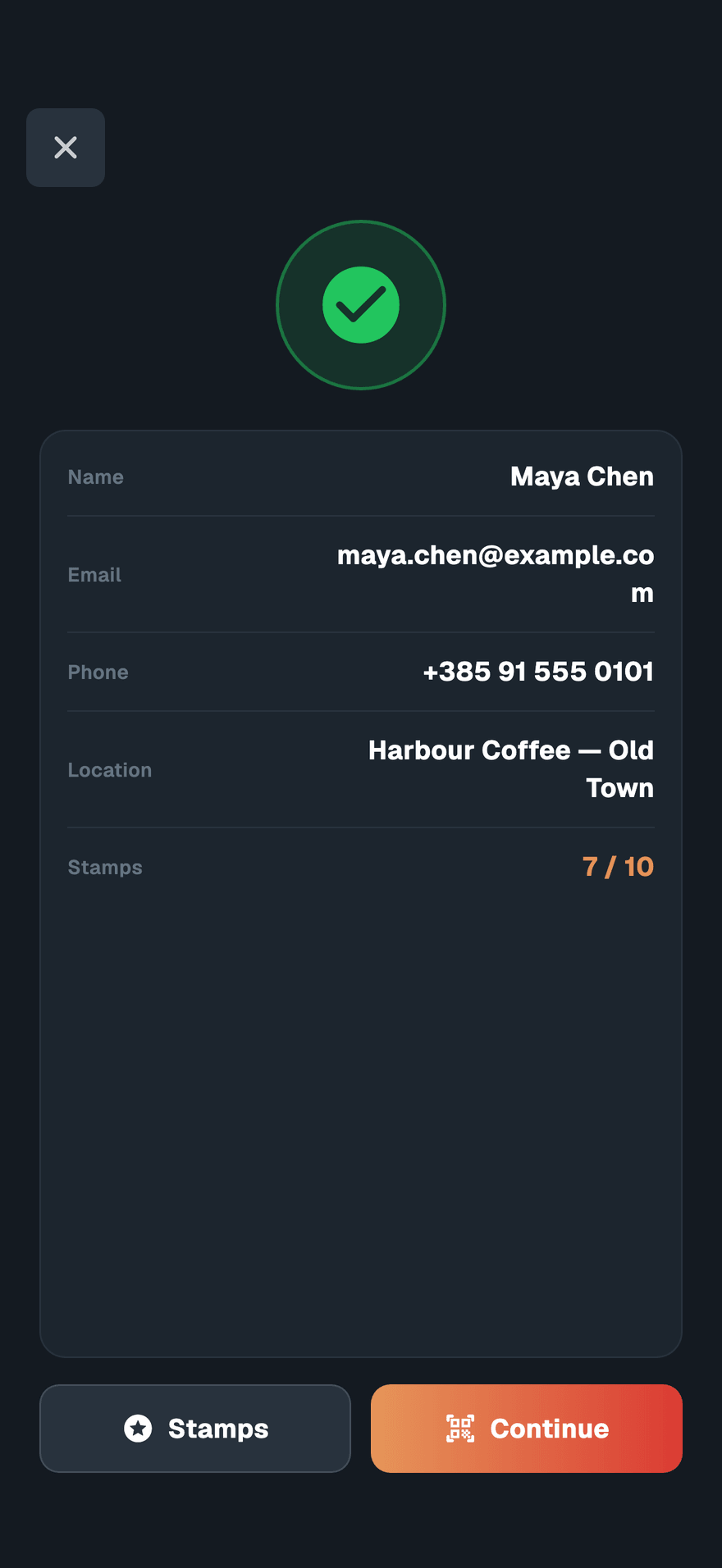
A green check means the pass is valid. Below it are the holder's details from the pass: name, contact details, and the template's own fields, such as a membership's Valid Until or a loyalty card's stamps.
Under Valid Until, a line says how much time is left, such as "12 days left". It turns orange in the last week, so you can offer a renewal at the desk, and red when the membership is about to run out or has expired.
A red icon means the pass was refused, with the reason in one line above the details. See why a scan was refused.
A valid pass with no holder details shows No member information — "This pass is valid but has no member details attached." The pass works; it was issued without a name.
The buttons depend on the pass:
| Button | Shown for | What it does |
|---|---|---|
| Stamps | A valid stamp card | Set the new stamp count, or redeem a full card. See stamp and redeem. |
| Points | A valid points card | Add points, subtract them, or set the balance. |
| Renew Membership | A membership template with plans, valid or not | Starts a new period on a plan. See renewals and freezes. |
| Continue | Every result | Back to the camera for the next pass. |
Stamps, points and renew act on passes of the phone's active templates. A pass from any other template is validated and shown, without those buttons.
Scan at the desk with a card reader#
On the desktop app, a tap on the connected USB reader opens the result in a dialog — Pass Valid or Invalid Pass — with the holder's details. From the dialog you can Renew a membership, Unfreeze a frozen pass, open the Member, or Check In and Check Out a staff member.
The dialog shows the same time-left line under Valid Until. For a membership sold as a number of visits, Near arrival limit appears under Arrivals Used once 80% of the visits are used, and Arrival limit reached when all of them are.
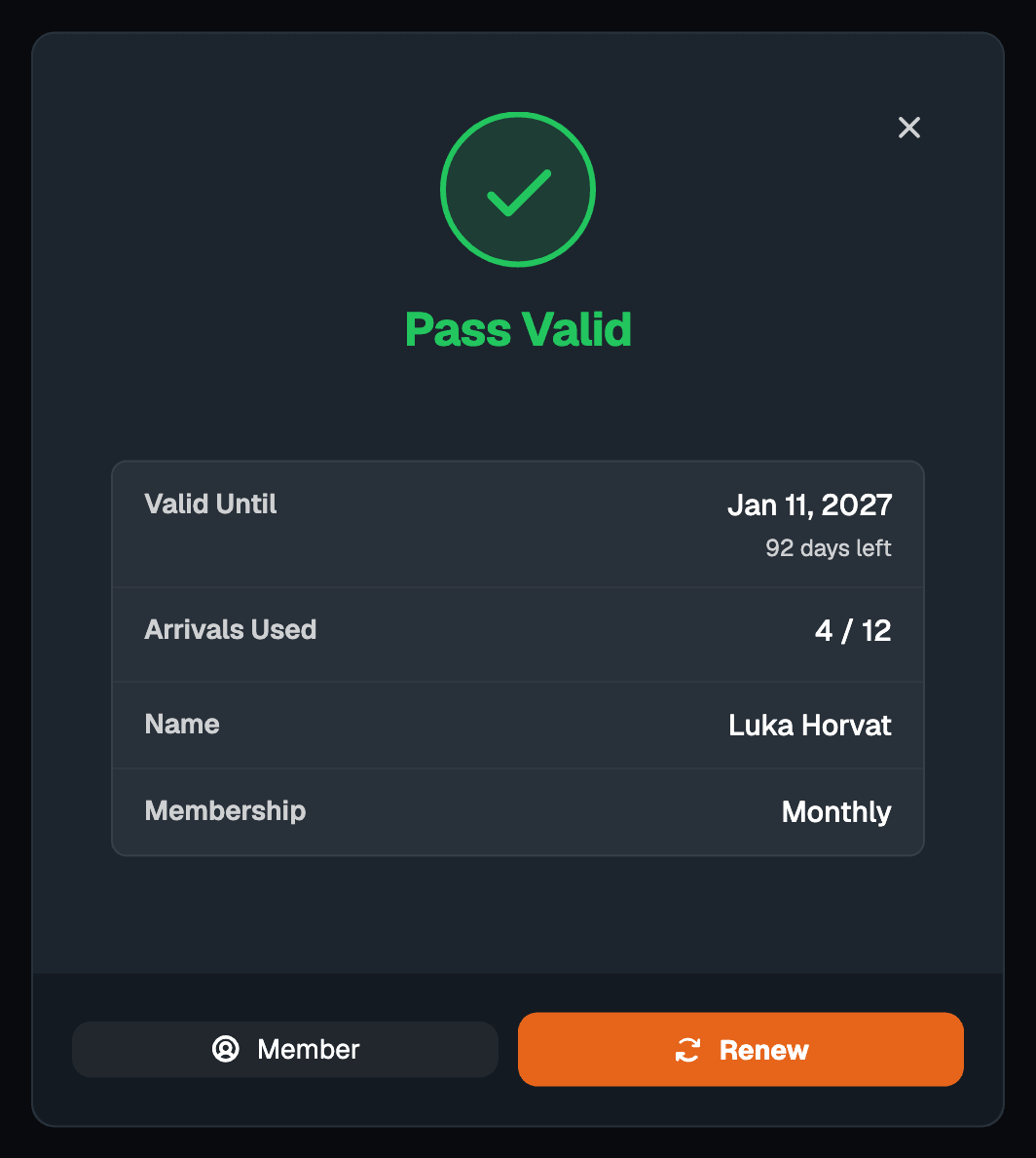
On a phone with a card reader attached, a tap opens the same result screen as the camera, with a Close button. The reader appears under SettingsRedemption methodsCard Reader when the plan includes NFC passes.
To connect a reader, see the desktop app and readers.
Choose which passes a device accepts#
By default a device accepts passes from every template on the account. To narrow it — Northside Fitness's front desk should not let in a Coffee Card — set Validate passes from:
- Mobile: SettingsRedemption methodsValidate passes from
- Desktop: SettingsCard ReaderValidate passes from
| Choice | Accepts |
|---|---|
| All templates | Any pass on the account |
| Selected templates | Only the templates active on this device |
| Templates of the same type | Every template of the active template's type — all memberships, or all loyalty cards |
A pass outside the choice is refused with Pass from another template. At the reader, staff passes are always accepted, so employees can check in. The setting belongs to the device, so each one can differ.
Why a scan was refused#
The message names the reason. Read it before scanning again: scanning again changes the answer only for a connection error.
| Message | Meaning | What to do |
|---|---|---|
| Pass not found | No pass with this code belongs to this account. It was deleted, issued by another business, or the code is not a Walletap pass. | Look the member up in Members and check they hold a pass. |
| Pass has been invalidated | Someone switched the pass off with Invalidate. | Open the member and tap Activate, if it should work. |
| Pass expired | The pass's valid-until date has passed. With the camera, also a membership with no arrivals left. | Renew Membership from the result, or renew from the member's page. |
| Pass not yet valid (camera), Pass is frozen (reader) | The membership is frozen, or starts on a later date. | Unfreeze it: Unfreeze on the desktop result, or from the member's page. |
| Arrival limit reached | A membership sold as a number of visits has used them all. Shown at the reader. | Renew onto a new plan. |
| Daily entrance limit exceeded | The membership plan allows a set number of entries per day, and today's are used. Shown at the reader. | The member can come back tomorrow, or change plan. |
| Pass from another template | The device does not accept this template. | Check Validate passes from on this device. |
| Connection error — please try again | The device could not reach Walletap, so nothing was decided. | Check the connection and scan again. |
| Please log in to validate passes | The app is signed out. | Sign in again. |
Visits and repeat scans#
A membership sold as a number of visits shows Arrivals Used, and each valid scan counts one. At the reader, a second scan of the same pass within five minutes is let through without counting another visit, so a phone resting on the reader is not charged twice.
Apart from counting visits, a scan records an entry and leaves the pass as it was. To stop a pass working after one use, such as a single-entry ticket, invalidate it from the member's page.
If something goes wrong#
"Camera access denied". The phone blocked the camera for Walletap. Allow it in the phone's settings under Walletap, then open the scanner again.
"The camera could not start". Close the scanner and open it again. If it keeps happening, close and reopen the app.
There is no Scan button. The active template's passes have no barcode, or it is a membership template, which scans from SettingsRedemption methodsScan passes.