Renew, freeze and expire memberships
Extend a membership, pause it for a holiday or an injury, and know what the member and the scanner see as its dates change.
A membership has two dates: the day it ends, and the day it starts. Renewing moves the end date, freezing moves both, and a scanner compares them with today. All three are done on the member's existing pass, so the card in their wallet updates rather than being replaced.
Before you start#
- The member has a pass on a membership template, for example Northside Membership. See how memberships work.
- To renew onto a plan, the template has plans. See membership plans.
- The desktop or mobile app is signed in. Renewals, freezes and unfreezes are done in the app.
Show the end date without archiving the card#
Wallets have their own expiry date. Once it passes, Apple Wallet and Google Wallet move the card to their expired passes — right for a concert ticket, wrong for a membership that will be renewed next week.
Memberships therefore keep their end date in a custom field. Plans, renewals, freezes and the webshop all write it there, and every scanner reads it. It is displayed on the card and never archives it.
| Field on the card | Comes from | Wallet archives the card when it passes |
|---|---|---|
Custom field with Field ID validUntil | The membership's own end date | No |
| Valid Until | The wallet's expiry date | Yes |
A new Generic template comes with a Valid Until field. To show the membership's end date instead, turn that field into a custom one:
- Open the field
Go to TemplatesNorthside MembershipDesign and choose Fields in the rail. Find the field labelled Valid Until.
- Change its type
- Pick a date format
Set Format to a date format, so the card shows a date rather than a raw timestamp. Save the template.
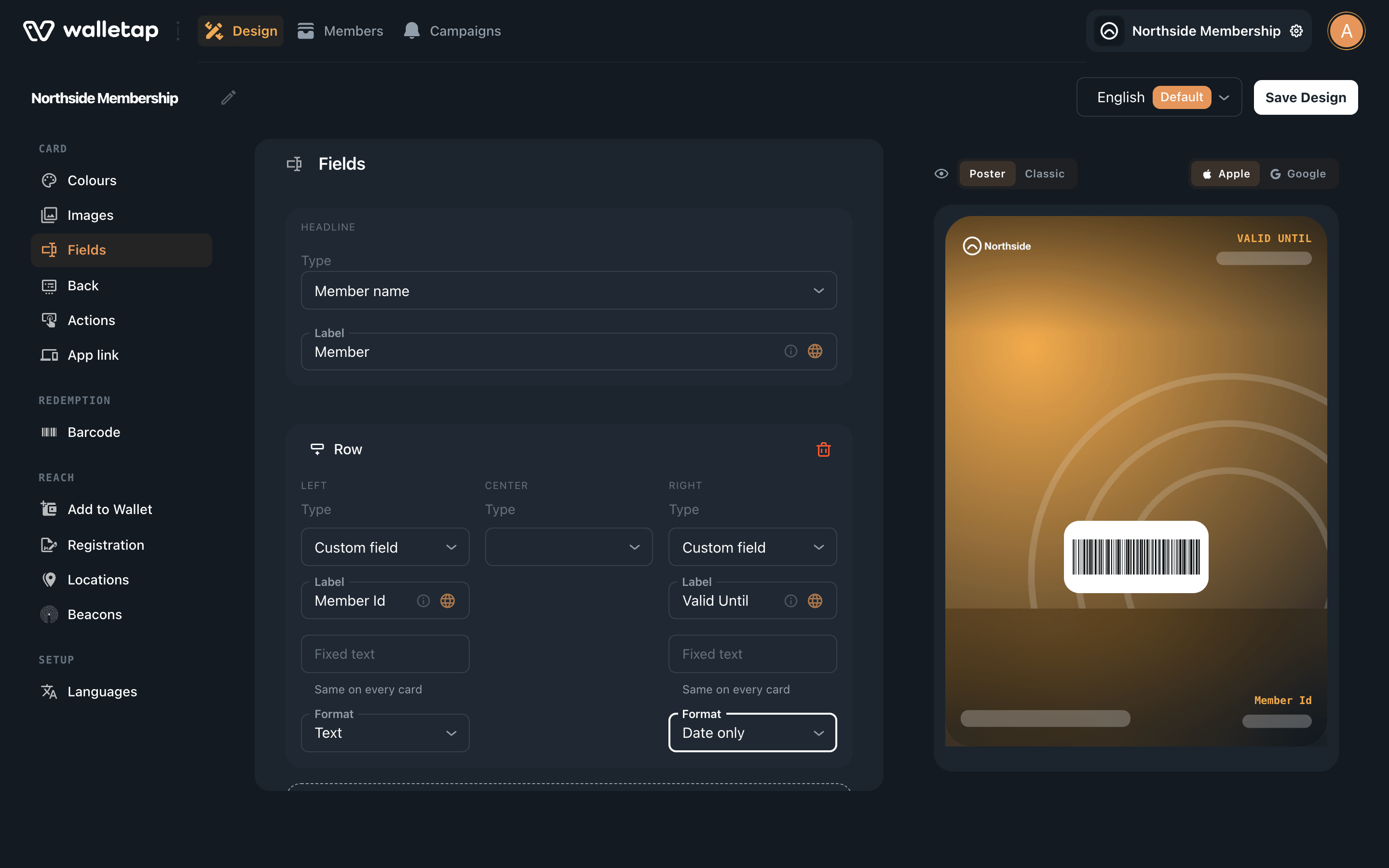
Keep the Valid Until binding for passes that should leave the wallet when they end: event tickets, coupons, day passes you never renew.
Renew a membership#
- Open the member
Go to Members, search for the member — for example Luka Horvat — and open them. Each membership pass shows its plan and end date.
- Click Renew
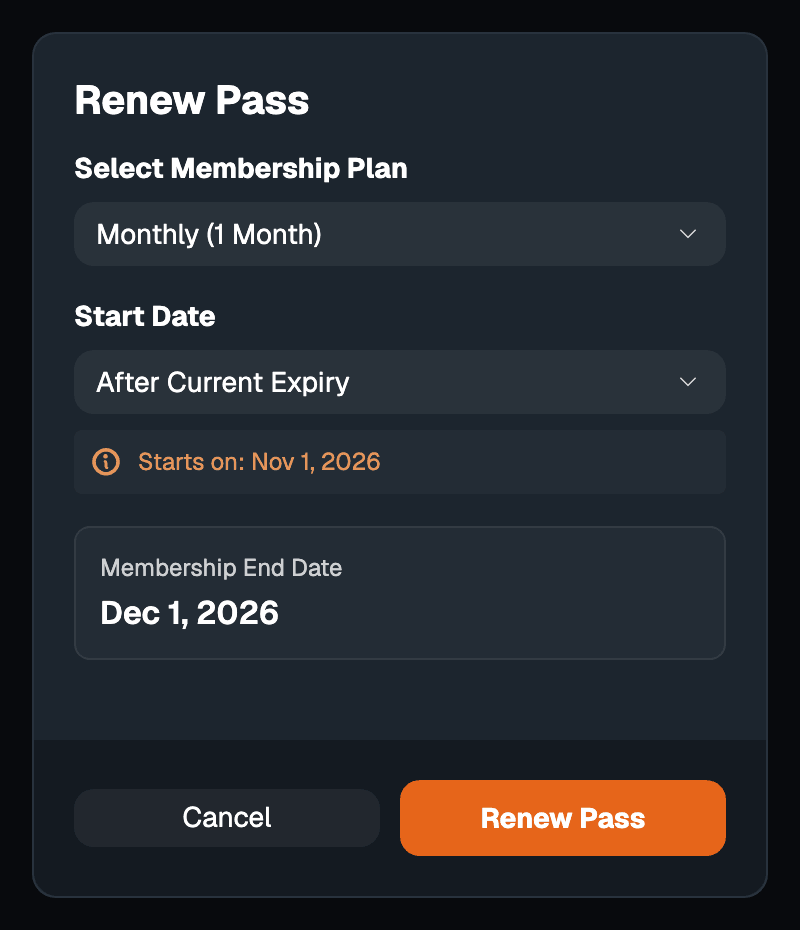
Click Renew on the pass. The Renew Pass dialog opens.
- Pick the plan and the start
Choose the plan under Select Membership Plan. Under Start Date, choose Today, After Current Expiry to add the new period on top of time the member still has, or Custom date. Membership End Date shows the result.
For a visit-based plan, Initial Arrivals sets how many visits are already used — normally 0.
- Confirm
Click Renew Pass. The app reports Pass renewed successfully and the member's card updates in their wallet.
- Open the member
Open the member from Members, or scan their pass.
- Choose Renew
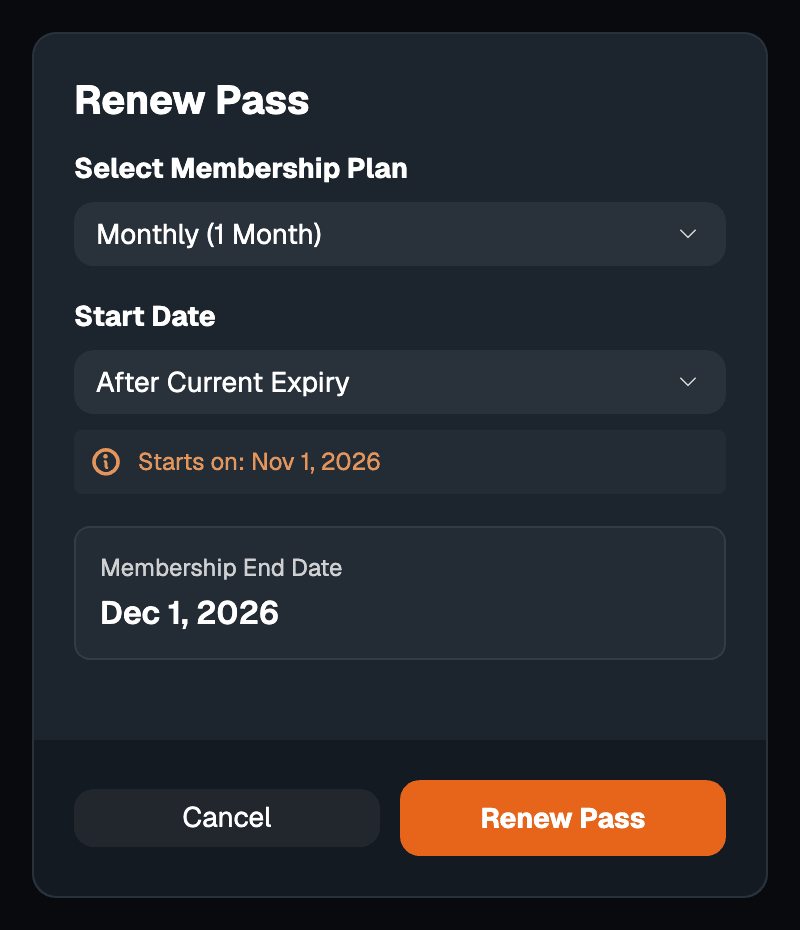
On the membership pass, open the menu and tap Renew. From a scan result, tap Renew Membership.
- Pick the plan and confirm
Choose the plan and start, check the end date, and tap Renew Pass.
A renewal that applies a visit-based plan resets the visit counter. An Employees plan sets the pass to never expire.
Webshop renewals and recurring plans need no staff at all. A renewal bought in the webshop extends the pass from its current end date, or from today if that date has passed. A visit-based pass whose visits are all used starts again from today.
Freeze a membership#
A freeze pauses a membership — for an injury, a holiday, a semester abroad. The pass is refused while frozen, and the frozen days are added to the end date, so the member loses nothing.
- Open the member's pass
In the desktop app, open the member and click the ⋮ button next to Renew. In the mobile app, open the pass's menu.
- Choose Freeze
Choose Freeze. The freeze starts today.
- Enter the length
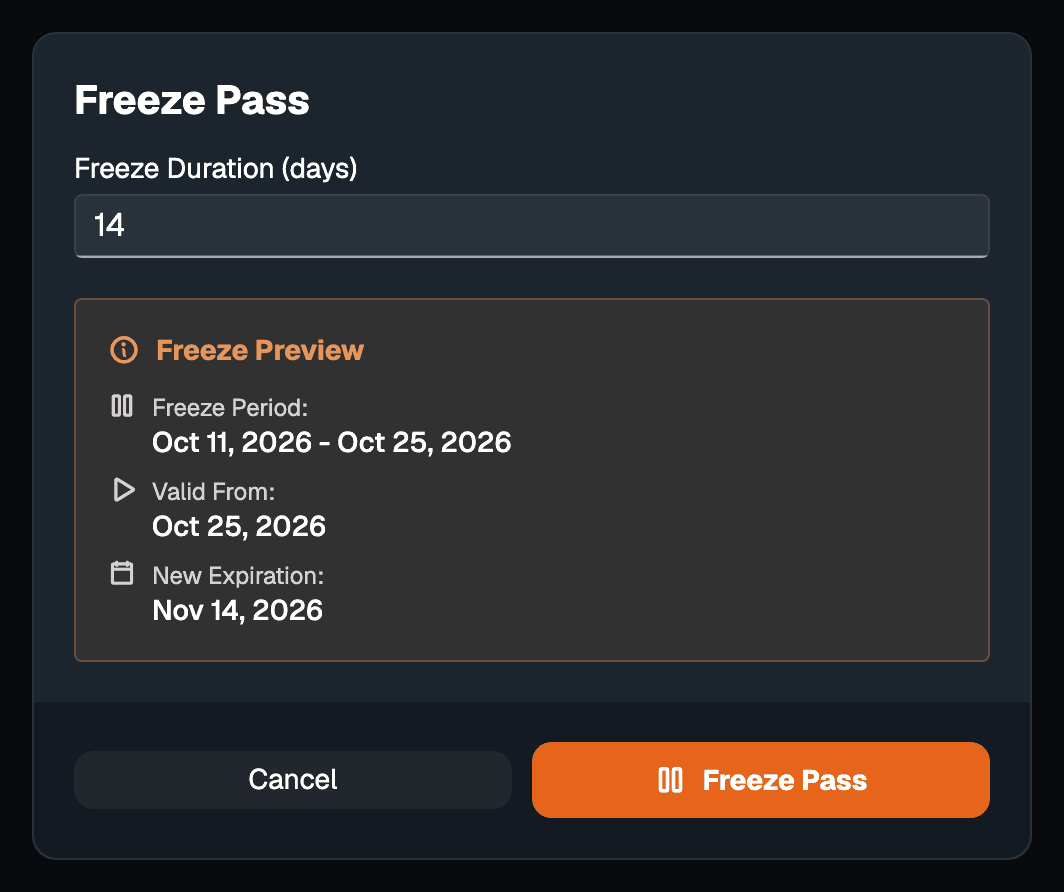
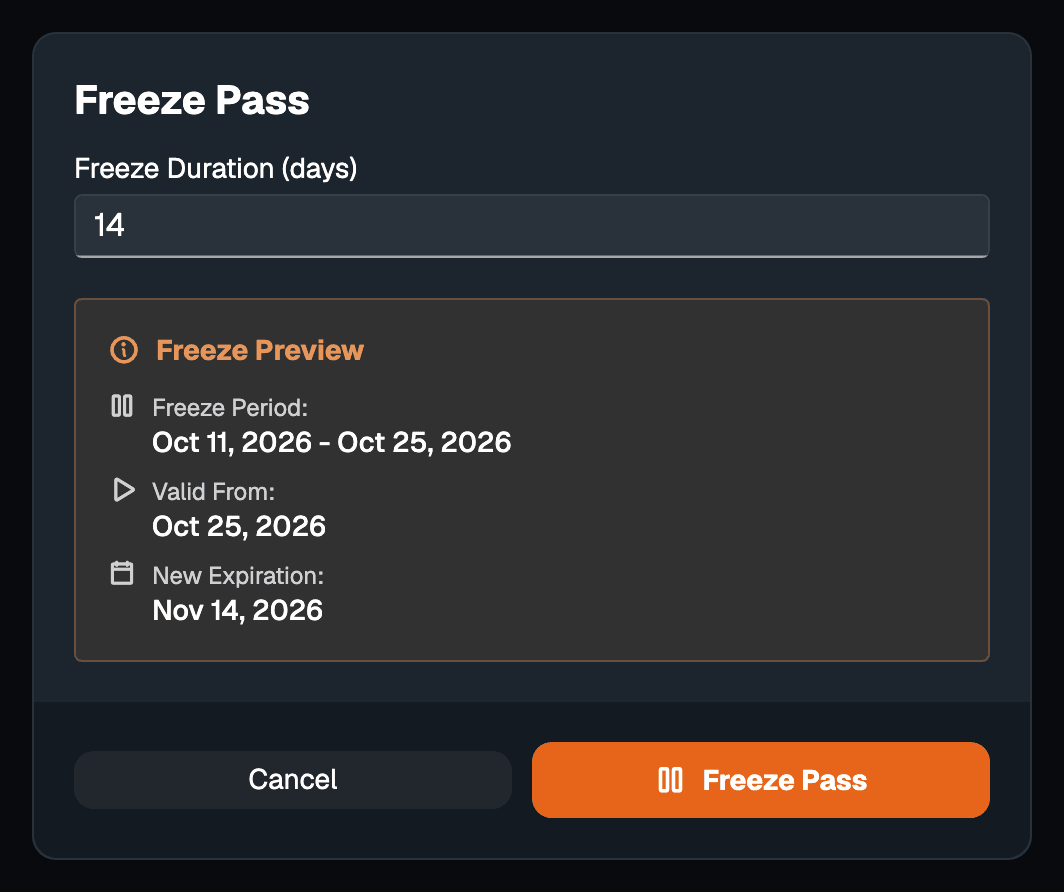
Type the Freeze Duration in days, up to 365. The Freeze Preview shows the freeze period, the new Valid From date — the day the membership resumes — and the new end date.
- Confirm
Click Freeze Pass. The app reports Pass frozen successfully.
Unfreeze early#
When a member comes back before the freeze ends, choose Unfreeze from the same menu, or, in the desktop app, from the scan result when their frozen pass is scanned. The days not used are taken back off the end date, and the membership is valid again from today. The desktop app asks you to confirm first.
Unfreeze a pass before you renew it. A renewal leaves the freeze in place, and in the desktop app Renew is greyed out while the pass is frozen.
When a membership ends#
Nothing is deleted, and nothing is sent unless you set up a Before expiry automated campaign. At the end of the last day — or at the time of day it was sold, depending on the plan screen's Normalize membership expiration to end of day switch — the pass starts being refused. The card stays in the member's wallet showing its date, ready to be renewed.
What everyone sees#
| State | The member's card | Desk scanner | Door reader |
|---|---|---|---|
| Active | Its end date | Pass Valid | Opens, green light |
| Frozen | The new, later end date | Pass is frozen | Refused, red light |
| Ended | The past end date | Pass expired | Refused, red light |
| Visits used up | The visits used, if the card shows them | Arrival limit reached | Refused, red light |
| Invalidated | Unchanged | Pass has been invalidated | Refused, red light |
The mobile app's member screen sums each pass up the same way: Expires, Frozen until, Expired, and the number of visits used where there is a limit.
Invalidate in the same menu stops a pass immediately, whatever its dates, and Validate restores it. Renewing an invalidated pass to a future date also restores it.
If something goes wrong#
"This pass has no expiry date". The pass has no end date to extend, so it cannot be frozen. Staff passes on an Employees plan never expire and have nothing to freeze.
"Duration cannot exceed 365 days". Freeze for 365 days at most, then freeze again if needed.
The card shows no date, or a date that never changes. The template's field
is still bound to Valid Until rather than the custom validUntil field. Change
it as described above.
The card disappeared into the wallet's expired passes. The pass carries a wallet expiry date — a value in a Valid Until field — and the wallet archived it when that date passed. Use the custom field from the start on membership templates, so renewable cards never get a wallet expiry date.