Create membership plans
Define how long a membership lasts, how many visits it allows and what it costs, and give it a Stripe price on each company that sells it.
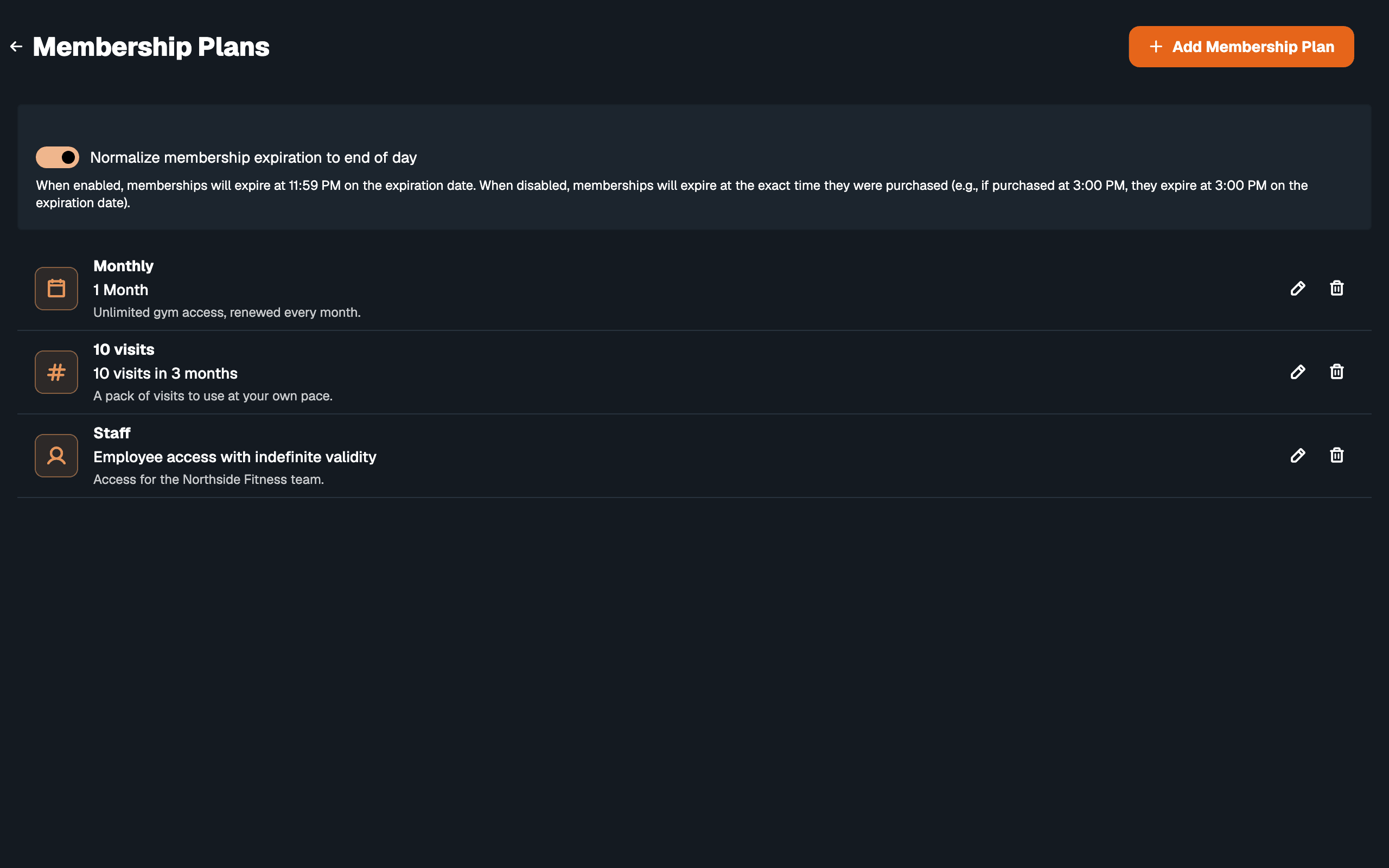
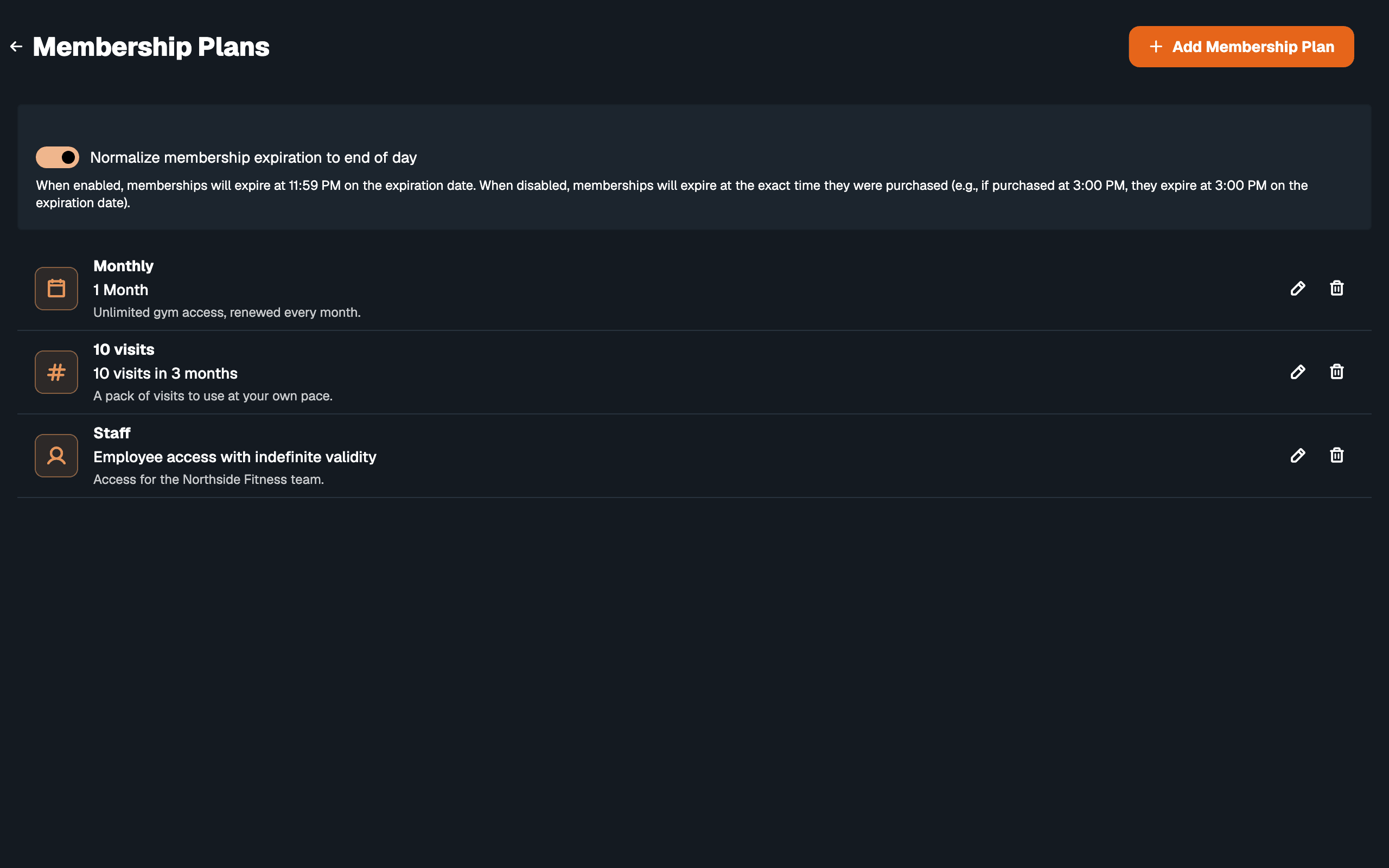
A plan is what a member actually buys: one month, 10 visits in 3 months, or staff access with no end date. Plans belong to one membership template and are managed in the desktop app.
Add-onBefore you start#
- The Walletap desktop app is installed and signed in. See the desktop app.
- You have a membership template — a Generic template such as Northside Membership — and it is the template selected in the app. See create a template.
- To sell plans online or take card payments, a Stripe account is connected to the company that owns the location. See Stripe.
Plan types#
| Type | What the member gets | Fields you fill in |
|---|---|---|
| Time-based Plan | Entry until an end date | Duration |
| Quantity-based Plan | A number of visits, used before an end date | Number of Arrivals, Duration |
| Employees | Staff access that never expires | None — validity is indefinite |
A visit-based pass counts one arrival per accepted scan. A second scan of the same pass within five minutes does not count again, so a member who taps twice at the door is charged one visit.
Add a plan#
- Open the plans
Go to SettingsManage Membership Plans. The list shows the plans of the template currently selected in the app.
- Start a new plan
Click Add Membership Plan.
- Name it
Enter a Plan Name. Staff see it in the app, buyers see it in the webshop, and it is written on the member's pass. If you sell to English-speaking customers in another language, also fill in Plan name (English) and Description (English).
- Set the price
Enter the Price and the VAT rate (%). Tick Price includes VAT if the price you typed already contains it. Tick Requires document verification if buyers must upload a document, such as a student card, before they can pay online.
- Choose the type and length
Pick the Plan Type. For a time-based or quantity-based plan, set the Duration as a number and a unit: days, weeks, months or years. A quantity-based plan also needs the Number of Arrivals.
Optionally set a Daily Entrance Limit — the most times a member can enter in one day. Leave it empty for no limit. It applies to time-based plans.
- Make it payable
This section appears when at least one company has Stripe connected. Leave Sync to Stripe ticked to create a Stripe price as you save. Choose One-time payment or Recurring subscription, keep Public Plan ticked to offer the plan in the webshop, and under Sync to Stripe accounts tick each company that sells it.
- Save
Click Create Plan. The app confirms with Membership plan created successfully and the plan joins the list.
How a plan reaches the right bank#
A plan has a separate Stripe price for every company you ticked. When someone buys at a location, the webshop uses the price on the Stripe account of that location's company, so the money lands in that company's bank. A plan with no price on a company's account does not appear in that company's webshop.
- Prices are created in euros, from the Price you entered.
- A Recurring subscription charges again every plan length: a one-month plan is charged monthly, a three-month plan every three months. Each successful charge extends the member's pass.
- A One-time payment buys one plan length. The member renews by buying again.
- Untick Public Plan for plans you only sell at the desk, such as staff access. A plan that is not public gets no Stripe price.
Which company a location belongs to is set on the location. See locations and companies.
End-of-day expiry#
The switch at the top of the plans screen, Normalize membership expiration to end of day, decides when a membership sold or renewed in the app ends. On, it ends at 11:59 PM on its last day. Off, it ends at the time of day it was sold. A webshop purchase ends on its last day, counted in the location's timezone. Each renewal of a Recurring subscription then runs to the end of the billing period it paid for.
Edit or delete a plan#
Click the pencil next to a plan to open Edit Membership Plan, change it and click Update Plan. With Sync to Stripe ticked, the Stripe prices are updated as you save. Unticking a company under Sync to Stripe accounts archives that company's price.
If a price ended up on the wrong Stripe account, click the refresh icon next to that account. It creates a fresh price there and reports Stripe price re-synced.
Click the bin to delete a plan. Deleting cannot be undone.
A plan's name, end date and visits are copied onto a pass when the plan is applied, so editing or deleting a plan does not change memberships already sold. The daily entrance limit is the exception: the scanner reads it from the plan at every scan, so a new limit applies straight away.
If something goes wrong#
The Stripe section is missing from the dialog. No company on the account has a connected Stripe account yet. Connect Stripe on a company, then open the dialog again.
A plan does not appear in the webshop. Check that Public Plan is ticked and that the company of the webshop's location is ticked under Sync to Stripe accounts.
"Failed to create membership plan". The plan was not saved; the message carries the reason. A Stripe price that cannot be created does not stop the save: the plan is saved without a price on that company and stays out of its webshop. Open it with the pencil, tick the company under Sync to Stripe accounts and click Update Plan.