Set up the desktop app
Install Walletap on a front-desk computer, sign in, finish the account setup, and connect a USB card reader.
The desktop app turns a reception or counter computer into a front desk: it reads passes through a USB card reader, shows who just arrived, and keeps members, entrances and invoices one click away.
Every planBefore you start#
- A Walletap account, or an invitation to one.
- A computer running Windows 10 or later.
- For tap-to-scan, a supported USB card reader. See readers.
Install on Windows#
- Download the installer
Go to the Windows app page and click Download for Windows.
- Run it
Open the downloaded
WalletapSetupfile and follow the installer. Choose whether to add a desktop shortcut and whether to start Walletap when Windows starts — a front desk usually wants both. - Launch Walletap
Leave Launch Walletap ticked on the last screen and click Finish.
Sign in#
- Enter your email
On Sign in to your account, type your email address and click Continue with email.
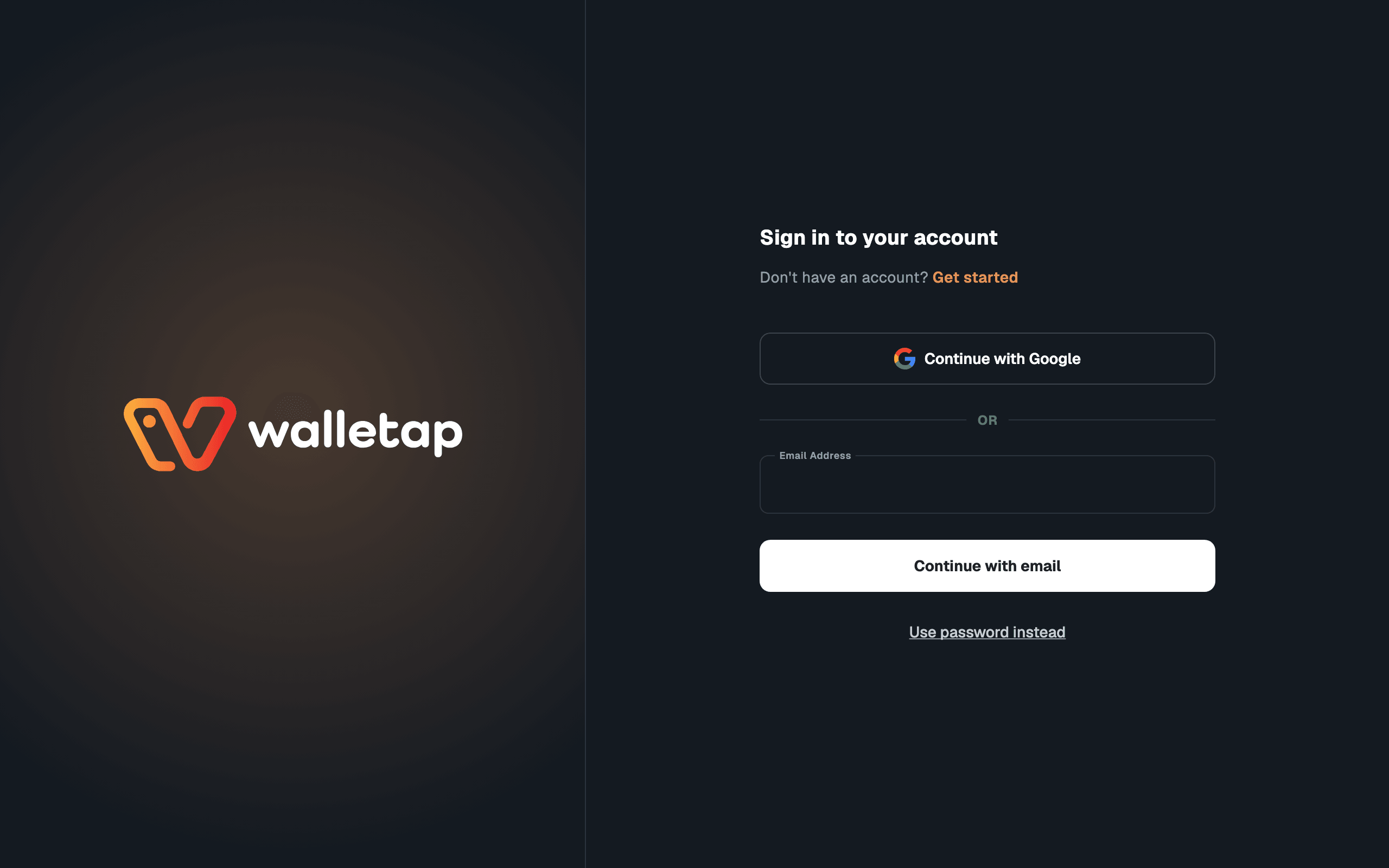
- Open the link on this computer
Open the email on the same computer and click the link. The browser hands the sign-in back to the app, and you can close the browser tab.

If the app does not pick the link up, click Didn't get the link?, copy the link from the email without opening it, and click Paste and sign in. This also works when the email is on another device.
Continue with Google works the same as on the web. Use password instead signs in with an email and password, and Forgot password? sends a reset link.
A team member signs in with the email address they were invited with. The app then works in the account that invited them.
To sign out, for example to hand the desk to someone with their own login, click your account at the bottom of the navigation, then Logout, and confirm.
Finish the business details#
An account that has never been set up opens on Business details: your name, business name, country, and optionally a tax number and phone. Fill them in and click Continue. With a tax number entered, the screen shows the registered business it belongs to.
This happens once per account, not once per computer.
Choose the template#
The desktop works with one template at a time. After sign-in it shows Choose your default template: click the template the desk works with, usually your membership. Create Template opens the dashboard in your browser.
To switch later, use the template selector at the top of the navigation.
The front desk is a device#
The first sign-in registers the computer as a front desk on the account, named after the computer. A desk is shared by whoever is on shift, so it counts toward the account's devices but not toward the person signed in on it — the owner's phones keep working, and so does a staff member's.
If the account has no free device, or the owner signs the desk out, a notice appears above the page. See devices.
Connect a USB card reader#
- Plug the reader in
Connect the reader to a USB port on the computer.
- Select it
Go to SettingsCard Reader and pick the reader from the list. If it isn't listed, click the refresh button beside the list.
- Test a pass
Tap a member's phone or card on the reader. The scan result opens on screen. See scanning.
The Card Reader card also holds these options. Validate passes from is always there; the others appear once a reader is connected.
| Option | What it does |
|---|---|
| Validate passes from | Which templates' passes this desk accepts. See scanning. |
| Pass type priority | Which templates the reader reads from Apple Wallet: the top two of the list. Drag to reorder. From Google Wallet it reads every template. |
| Beep for invalid passes | The reader beeps when it refuses a pass. |
| Automatic employee check-in/check-out | A staff pass on the reader checks the employee in or out. |
Choose what a scan does on screen#
SettingsNotifications controls what happens on screen when a pass is scanned:
| Setting | Use it when |
|---|---|
| Show system notification after scan | The app is minimised and staff still need to see each result. |
| Bring window to front when pass is scanned | The computer is used for other work between scans. |
| Keep running in background when closed | Closing the window should keep the reader working. |
| Stack scan dialogs on top of each other | Several people arrive at once; new scans stack instead of replacing the last. |
| Auto-close valid pass dialogs | With stacking on, valid results close themselves. |
| Valid pass notification sound, Invalid pass notification sound | Staff should hear the result. They are the system notification's sounds, so they appear while Show system notification after scan is on. |
On Windows, SettingsPower Management keeps the desk awake: Prevent system sleep, Prevent USB devices from sleeping and Start automatically on system startup.
Find your way around#
| Navigation | What it is for |
|---|---|
| Members | Find a member, add one, renew or freeze a pass. See manage members. |
| Campaigns | Messages to members. See campaigns. |
| Employees | Who is on shift, and each employee's hours. See staff shifts. |
| Entrances | Every entry, valid and refused. See activity. |
| Invoices | The invoices issued for memberships, to download or cancel. |
| Settings | The reader, notifications, membership plans, message preferences, companies, locations, terminals, language and updates. |
Update the app#
On Windows, go to SettingsApplication Updates and click Check for Updates. If a newer version exists, Download & install fetches it, and the app closes while the installer runs.
If something goes wrong#
"That isn't a valid Walletap sign-in link." The pasted text is not the link from the email, or the mail program changed it. Copy the link again, the whole of it.
"This link has expired or was already used. Request a new one." Each link signs in once. If you opened it in a browser first, it was used there. Click Send a new link.
"No readers found". The computer does not see a reader. Plug it in again, click refresh, and check the model against readers.
"This device isn’t activated". Every device slot on the account is taken. See devices.
"No Network Connection" or "Unreliable Network Connection" across the top. The computer is offline, or its connection is too unreliable to count on. Passes are checked online, so scans can fail until it is back. The bar clears itself when the connection returns; Retry checks at once, and the info button beside it opens Network Status Details, with when the connection was last lost and restored.