Campaigns
What a campaign is, how it differs from a one-off message, and which channel reaches a customer for which job.
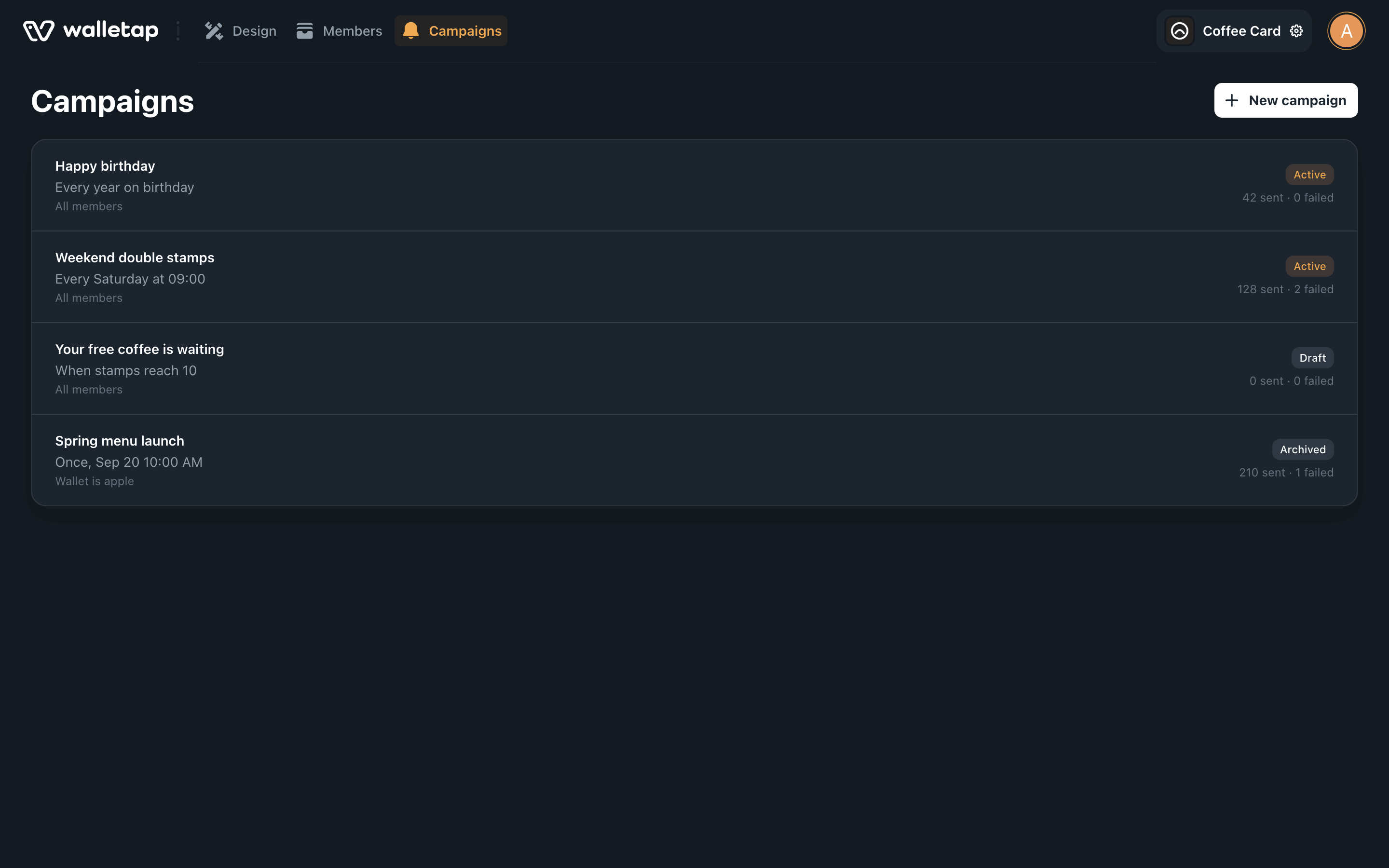
A campaign is a rule that sends a notification to passes in your customers' wallets: it decides when to send, who gets it, and what it says. Every template has its own campaigns, on the template's Campaigns tab.
Paid plansA campaign is a rule, not a message#
A one-off message goes out once, to everyone who holds the pass, the moment you send it. A campaign keeps working after you set it up: it can send every Saturday morning, on each member's birthday, three days before a membership ends, or the moment a stamp card fills up.
Every campaign is built from three parts, and ends in a notification on the pass.
A one-time scheduled campaign is how you send a single message from the dashboard, so the Campaigns tab covers both jobs. The desktop app and the API can also send a message to every holder straight away — see push notifications.
Which channel does which job#
Walletap reaches a customer in five ways. They are not interchangeable: wallet notifications only reach someone who already has the pass in a wallet, and email and text messages are how the pass gets there in the first place.
| Channel | What it does | Where you set it up |
|---|---|---|
| Pass updates | Notifies the holder when a field on their pass changes — a new stamp, a points balance, a new end date. | Automatic. The field's label is what the notification names. |
| Campaigns | Sends a notification on a schedule, on a birthday, before an end date, or when something happens to the pass. | Templatesyour templateCampaigns |
| One-off message | Sends one notification to every holder of a template now. | The desktop app's Campaigns screen, or the API |
| Location reminder | Brings the pass onto the lock screen when the holder is near one of your locations — see locations and relevance. | Templatesyour templateDesign |
| Pass delivery | Sends the link to add the pass by email, SMS, Viber or WhatsApp — see email and text messages. | SettingsIntegrationsMessagingDelivery |
Campaigns never send email or text messages. A customer who has not added the pass to Apple Wallet or Google Wallet has nothing on their phone to notify, so they are outside every campaign's audience until they add it.
Statuses#
A campaign is always in one of four states. The badge on each row shows which.
| Status | What it means |
|---|---|
| Draft | Saved and complete, but sends nothing until you activate it. |
| Active | Sends every time its trigger fires. |
| Paused | Sends nothing. Messages already queued for it are dropped. Resume makes it active again. |
| Archived | Finished. It starts no new sends; messages already queued still go out. Its delivery history is kept. |
Some campaigns archive themselves. A one-time campaign moves to Archived as soon as it has sent, and a repeating campaign with an end date moves to Archived once that date has passed.
In the dashboard, drafts can be saved on any plan. Activating a campaign, or resuming a paused one, needs a plan that includes campaigns. If an account's plan stops including them, its active campaigns stop sending until the plan does again.
What the sent and failed counts mean#
Each campaign row shows sent · failed. Sent counts passes the message went
out to, including a pass the holder has since removed from their wallet. It is not a count of people who opened or read the
message: a holder who turned off notifications for the pass is still counted as
sent. Failed counts notifications that could not be handed over after
several attempts.
Who can work with campaigns#
Campaigns follow your team's permissions. The Marketing and Admin roles can create, activate, pause and archive campaigns. A Manager can see them. See team members for the full list of roles.