Automated campaigns
Build a campaign that sends on a schedule, on a birthday, before a pass ends or when a pass changes, and choose who receives it.
An automated campaign keeps sending after you set it up. It fires on a date, on a repeating schedule, around each member's birthday, before a pass ends, or when something happens to a pass — and sends a wallet notification to the passes that match its audience.
Paid plansBefore you start#
- Customers have the template's pass in Apple Wallet or Google Wallet. Only those passes can receive a notification.
- For a birthday campaign, members have a date of birth on their profile — usually because the sign-up form asks for it.
- For a reminder before a pass ends, the passes have an end date, such as a membership's renewal date or a ticket's last day.
- Your role can create campaigns. Marketing and Admin can; see team members.
Create a campaign#
- Open the template's campaigns
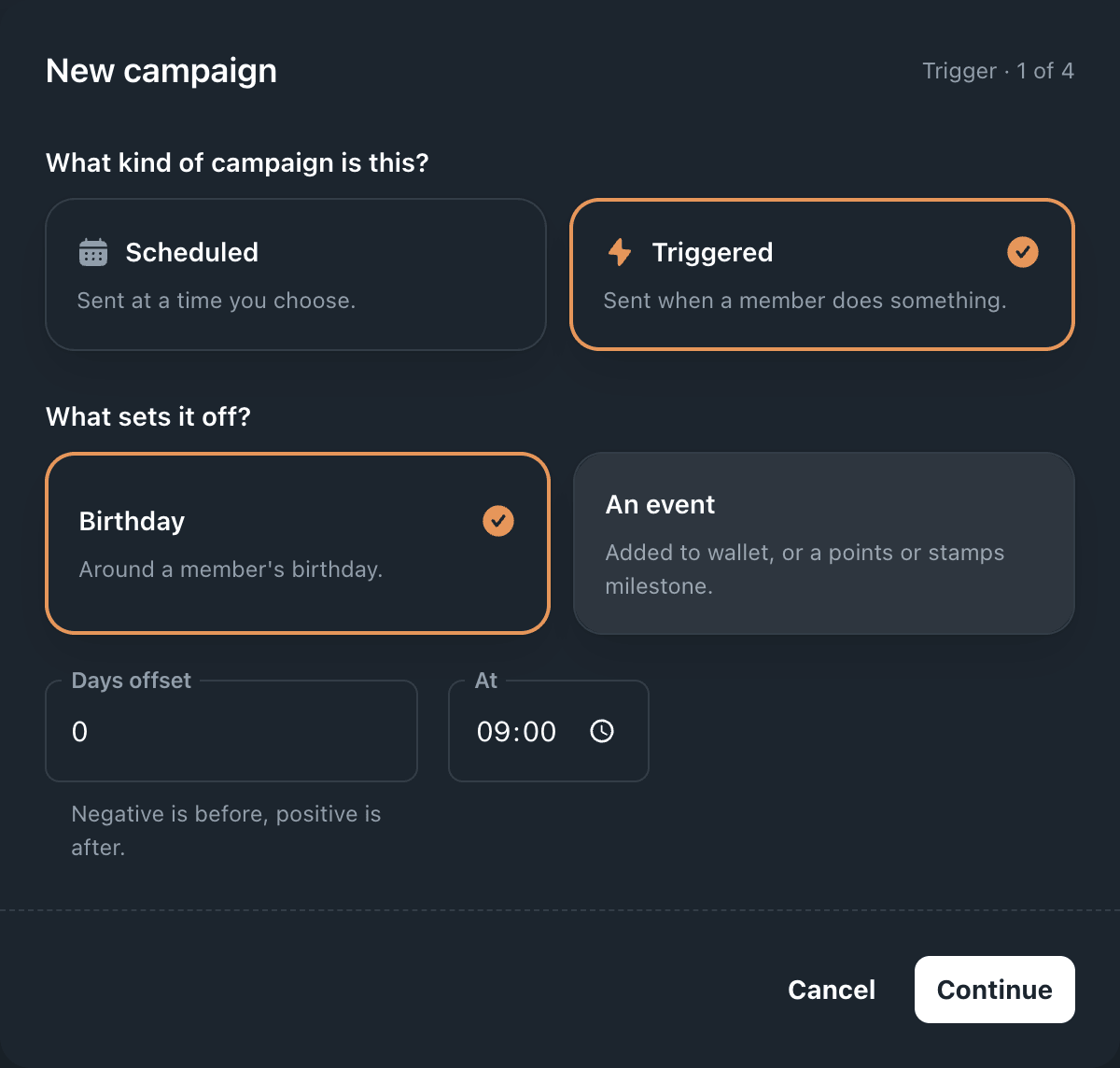
Go to TemplatesCoffee CardCampaigns and click New campaign. The wizard opens on Trigger · 1 of 4.
- Choose when it sends
Under What kind of campaign is this? choose Scheduled (a time you pick) or Triggered (something a member does), then fill in the details described under Triggers. Click Continue.
- Choose who gets it
The audience starts as All members. Click a chip under Add a rule to narrow it — a pass has to match every rule in the list. See Audience rules. Click Continue.
An event trigger skips this step, because the event already picks the pass.
- Write the message
Enter a Title (up to 200 characters) and a Message (up to 500). The campaign is named after its title. To link to a page, put the full web address in the message text — that is what becomes tappable on the pass.
- Activate it or save a draft
The review step repeats the message, WHEN it sends and WHO gets it. Under Start it now, or save it for later? choose Activate or Save as draft — neither is preselected, and Create campaign stays disabled until you choose. Click Create campaign.
The campaign appears on the Campaigns tab with its schedule, audience and status. An active campaign sends from its next trigger onwards.
Triggers#
Scheduled#
| Choice | When it sends | Settings |
|---|---|---|
| Once | A single send at the date and time in Send at, read in your own time zone. Goes out within a few minutes of that time, then the campaign archives itself. | Send at |
| Repeating | Every day, on chosen weekdays, or on one day of the month, at the time in At. A month without the chosen day — the 31st in April — is skipped. | Repeats (Daily, Weekly, Monthly), At, weekday chips or Day of month |
Triggered#
| Choice | When it sends | Settings |
|---|---|---|
| Birthday | Every year, around each member's birthday. | Days offset: 0 on the day, -2 two days before, 3 three days after. At: the time. |
| Before expiry | Around each pass's end date. Starts at -3, three days before. Offered on membership and event ticket templates. In the mobile app, where it is called Pass expiry, it is offered on every template except loyalty cards. | Days offset, At |
| An event | When something happens to a pass — see below. | Event, and Reaches for a milestone |
The three events:
- Added to wallet — once per pass, when it is first added to Apple Wallet or Google Wallet. A welcome message.
- Points milestone — when the points balance goes from below the number in Reaches to that number or more. It fires again if the balance drops below and climbs back.
- Stamps milestone — the same for stamps. On a stamp card that is emptied
after a reward, it fires again each time the card fills back up to the number.
On the Coffee Card, a milestone at
10is a "your free coffee is waiting" message.
Event campaigns send about 30 seconds after the change, so their alert lands after the pass update that caused it rather than being merged with it.
Timing rules#
- Times are read in the time zone of the browser you created the campaign in.
- Repeating, birthday and before-expiry campaigns send during the hour you choose.
The minutes are ignored, so
09:30goes out shortly after 09:00. - A scheduled, birthday or before-expiry campaign reaches a pass at most once a day.
- The audience is worked out each time the campaign fires, so members who join later are included without editing anything.
Audience rules#
| Rule | Matches passes that… |
|---|---|
| Everyone | belong to the template. Shown as All members; it narrows nothing, so it can stay alongside other rules. |
| Apple Wallet | were added to Apple Wallet. |
| Google Wallet | were added to Google Wallet. |
| Installed on a device | are on at least one phone right now. |
| Not installed | are on no phone right now. These holders have nowhere to see a notification. |
| Signed up in 30 days | were issued in the last 30 days. |
| Expiring within 30 days | end within the next 30 days. |
Whatever the rules say, a notification only reaches a pass that is in Apple Wallet or Google Wallet.
Manage a campaign#
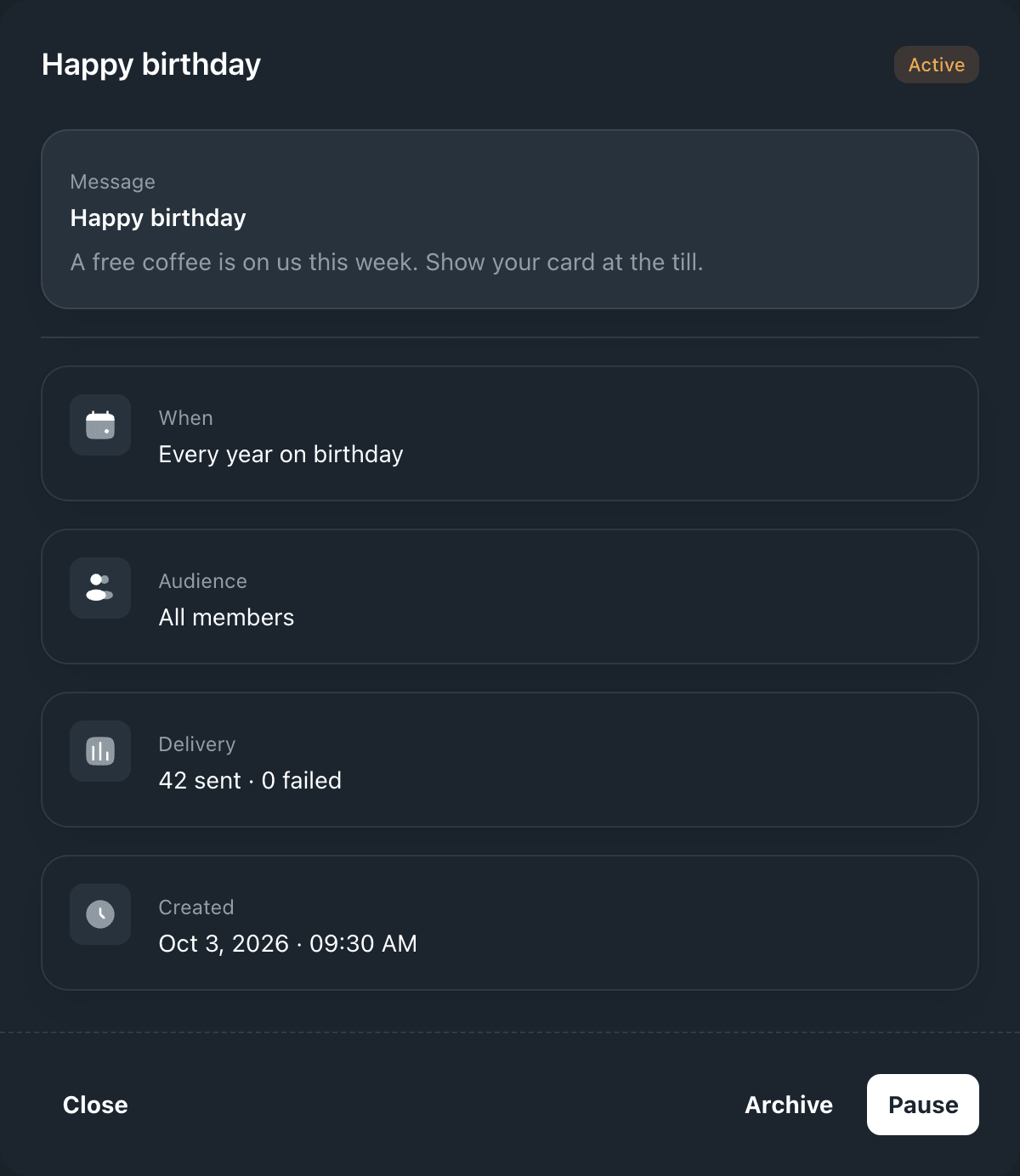
Click a campaign on the Campaigns tab to open it. The dialog shows the message,
When, Audience, Delivery (sent · failed) and Created, with the
actions for its status.
| Action | What happens |
|---|---|
| Activate | A draft becomes active and sends from its next trigger. |
| Pause | Stops sending at once. Messages already queued for it are dropped. |
| Resume | A paused campaign becomes active again. |
| Archive | Asks "Archive this campaign?", then stops future sends and moves it to Archived. Delivery history is kept, and messages already queued still go out. |
To change the wording or the schedule, archive the campaign and create a new one.
Campaigns in the mobile app#
The same campaigns are in the mobile app, under SettingsCampaigns, for the template you are working in. Creating one walks through the same four steps, and the app adds a few options:
- One-time sends have a Start time and an End time. The end decides how long the message stays on the pass; Indefinite, the default, sets no end. On Google Wallet the message then stays on the pass; on Apple Wallet it stays until another message replaces it.
- Recurring sends can have an End date. When it passes, the campaign archives itself.
- Rules can target pass details: Points, Stamps, Installed devices, Expiry date, Last scan, Signup date, Plan or Wallet, with conditions such as at least, before or 30 days ago.
- An archived campaign shows Reactivate.
If the account's plan does not include campaigns, the app offers an upgrade when you start a new one.
If something goes wrong#
A birthday campaign sends nothing. Members have no date of birth on their profile. Add a birthday question to the sign-up form, or add the date to existing members.
A before-expiry campaign sends nothing. The passes have no end date, so no day matches.
It sent at the wrong hour. The campaign uses the time zone of the browser it was created in, and repeating campaigns ignore the minutes.
An event campaign shows 0 sent · 0 failed. An audience rule excluded the pass. The campaign's Audience row warns: "This rule also applies when the trigger fires — a member who does not match it will not be notified."
A stamps milestone never fires. The number in Reaches is higher than the card holds, or the passes were issued already at that number. Only a change from below to at-or-above counts.
Create campaign answers "A subscription is required to send messages." Choose Save as draft to keep the campaign, and activate it once the plan includes campaigns.