Push notifications
How a message reaches a pass on the lock screen in Apple Wallet and Google Wallet, and how to send one to every holder now.
A push notification is a short message that appears on the customer's lock screen and stays on the back of their pass. Walletap sends one when a pass changes, when a campaign fires, and when you send one yourself.
Every planBefore you start#
- The customer has added the pass to Apple Wallet or Google Wallet. A pass that only exists as a link or a web page has no phone to notify.
- Notifications are allowed for that pass on the customer's phone. This is the customer's own setting, in the pass's details in their wallet.
How a notification reaches the lock screen#
The two wallets work differently, which explains most of what you will see.
Apple Wallet has no message inbox. A notification is a change to the pass itself:
- Walletap writes your message onto the back of the pass, labelled with your title.
- Apple tells every device holding the pass that it has changed.
- The phone fetches the new version of the pass and shows your message text on the lock screen, with your pass's icon.
The lock screen shows the message text. The title is the label above it on the back of the pass.
Apple only raises an alert when the text on the pass changes. Sending exactly the same wording again while the previous message is still showing produces no new alert.
The message stays on the back of the pass for 24 hours, then Walletap removes it. A one-time campaign created in the mobile app uses its End time instead; with Indefinite, the default there, the message stays until another campaign message replaces it.
Google Wallet keeps a list of messages on each pass. Walletap adds yours to that list, with your title as its heading, and Google notifies the holder.
The message stays on the pass for its display window — 24 hours unless you set a different end — and then disappears on its own.
Google limits how often one pass can notify: at most three notifications in 24 hours. Google may also slow delivery for a business it judges to be sending too many.
To link to a page, write the full web address in the message text. It becomes a tappable link on the back of the pass in both wallets. Links should lead to your own website or app, related to the pass.
Pass updates notify on their own#
When a labelled field on the pass changes, the holder is notified without you sending anything. Stamping a card, adding points or renewing a membership tells the customer by itself.
On Apple Wallet the alert names the field and its new value, for example "Stamps changed to 7". The wording follows the field's label, so a clear label makes a clear notification — see fields. Google Wallet can notify of updates too; Google decides which changes raise an alert.
A campaign triggered by the same change — a stamps milestone, say — sends its message about 30 seconds later, so the two alerts arrive separately instead of being merged into one.
Send a message to every holder now#
There are three ways to send one message straight away.
From the dashboard#
Paid plansA one-time campaign scheduled for now is a one-off message.
- Start a campaign
Go to TemplatesCoffee CardCampaigns and click New campaign.
- Schedule it for now
Choose Scheduled, then Once. In Send at, pick today's date and the current time — it is read in your own time zone. Click Continue.
- Keep everyone, or narrow it
The audience starts as All members. Add a rule only if the message is for part of your customers, for example Apple Wallet. Click Continue.
- Write it
Enter a Title and a Message, for example Fresh pastries and Our spring menu is in — show your Coffee Card for a free croissant until Sunday.
- Send it
On the review step, choose Activate, then click Create campaign.
The message goes out within a few minutes, usually under ten. The campaign then moves to Archived by itself, and its row shows how many were sent.
From the desktop app#
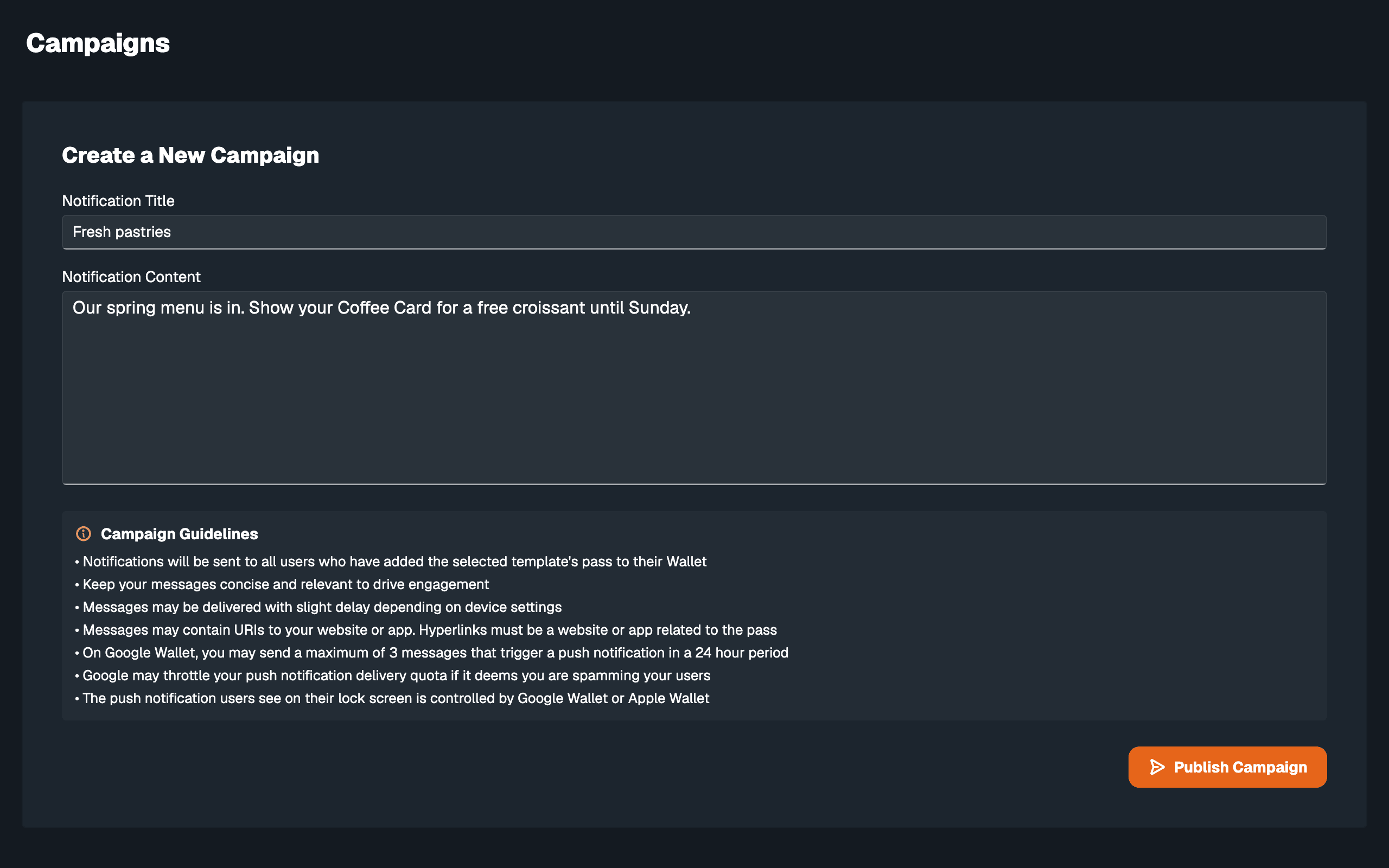
The desktop app's Campaigns screen sends one message to every holder of the template you are working in.
- Open Campaigns
In the desktop app, check the selected template is the right one, then click Campaigns in the sidebar.
- Write the message
Fill in Notification Title and Notification Content.
- Publish
Click Publish Campaign. The app confirms with "Notification has been sent successfully".
Google Wallet holders get the message at once. Apple Wallet holders get it within a few minutes when the account's plan includes campaigns Paid plans. In the dashboard it appears on the template's Campaigns tab as an archived campaign named Template broadcast. Its sent count covers the Apple Wallet holders only.
From your own system#
Paid plansSends title and content to every holder of the template. The optional
validFrom and validUntil (ISO 8601) set how long the message stays on Google
Wallet passes; without them it shows for 24 hours from now. The API key needs
permission to send campaigns.
curl -X POST https://api.walletap.com/template/tmpl_123/notification \
  -H "Content-Type: application/json" \
  -H "X-API-Key: $WALLETAP_API_KEY" \
  -d '{
    "title": "Fresh pastries",
    "content": "Our spring menu is in. Show your Coffee Card for a free croissant until Sunday."
  }'
The full request and response are in the API reference.
Test before you send to everyone#
To test, use a pass that only you hold:
- Use a copy of the template. Duplicate the template, add a pass from the copy to your own phone, and run the campaign there first. The copy looks the same and has an audience of one.
- Check a welcome message on yourself. An Added to wallet campaign fires about 30 seconds after a pass is added. Issue a pass to yourself, add it, and watch the message arrive. The campaign greets every new member after you, so pause it if it was only a test.
On the phone, check both places: the lock-screen alert, and the back of the pass, where the message stays for its display window.
If something goes wrong#
The campaign shows 0 sent · 0 failed. No pass matched when it fired. Either nobody in the audience had the pass in a wallet, or an audience rule excluded them. On an event campaign, audience rules apply too — the campaign's detail says so under Audience.
It says sent, but a customer saw nothing. Sent means the message went out to the pass, including a pass the holder has since removed from their wallet. The customer may have removed the pass or turned off notifications for it, Apple may have skipped an alert because the text had not changed, or the pass may have reached Google's three-a-day limit. If the pass is still in their wallet, ask them to look at its back: the message is there even when no alert appeared.
The campaign never sent. It is still a Draft. Open it and click Activate.
"A subscription is required to send messages." The account's plan does not include campaigns. Choose Save as draft to keep the campaign; Upgrade opens the plans.
The desktop app says "Failed to send notification". The status code after it gives the reason. A 403 means the account you are signed in to cannot send to this template.