Locations and lock-screen relevance
Make a pass surface on the holder's lock screen near your shop, and how a template's places relate to the locations in Settings.
A pass is most useful at the moment the customer walks past your door. Add your places to a template, and the wallet can bring the pass up on the holder's lock screen when they are nearby — with a short line of your own, such as Harbour Coffee is round the corner.
Before you start#
- Know the address of each place, or be standing at it with the mobile app.
- Holders see these suggestions only if they allow their wallet to use their location.
How it works#
Each template holds its own list of places. Each place is a point on the map with a Relevant text — the line shown on the lock screen. Apple Wallet uses the places to suggest the pass on the lock screen; Google Wallet receives the same places.
| Limit | Value |
|---|---|
| Places per template | 10, the most Apple Wallet accepts. Your plan allows one place for each location it covers, up to that. |
| Beacons per template | 10. Apple Wallet only. |
The Locations section shows how many places the template holds against its limit, for example 2 / 3.
Add a place on the web#
- Open Locations
Go to TemplatesCoffee CardDesignLocations.
- Add the place
Click Add location at the top of the section. Search for the address, then enter the Relevant text — a short note shown on the lock screen, for example Your next coffee is nearby. Click Save.
- Place the pin
The place appears on the map and in the list beside it. Drag the pin to the exact entrance if the address lands on the wrong side of the block.
- Save the design
Click Save Design. Passes already in wallets pick up the new places.
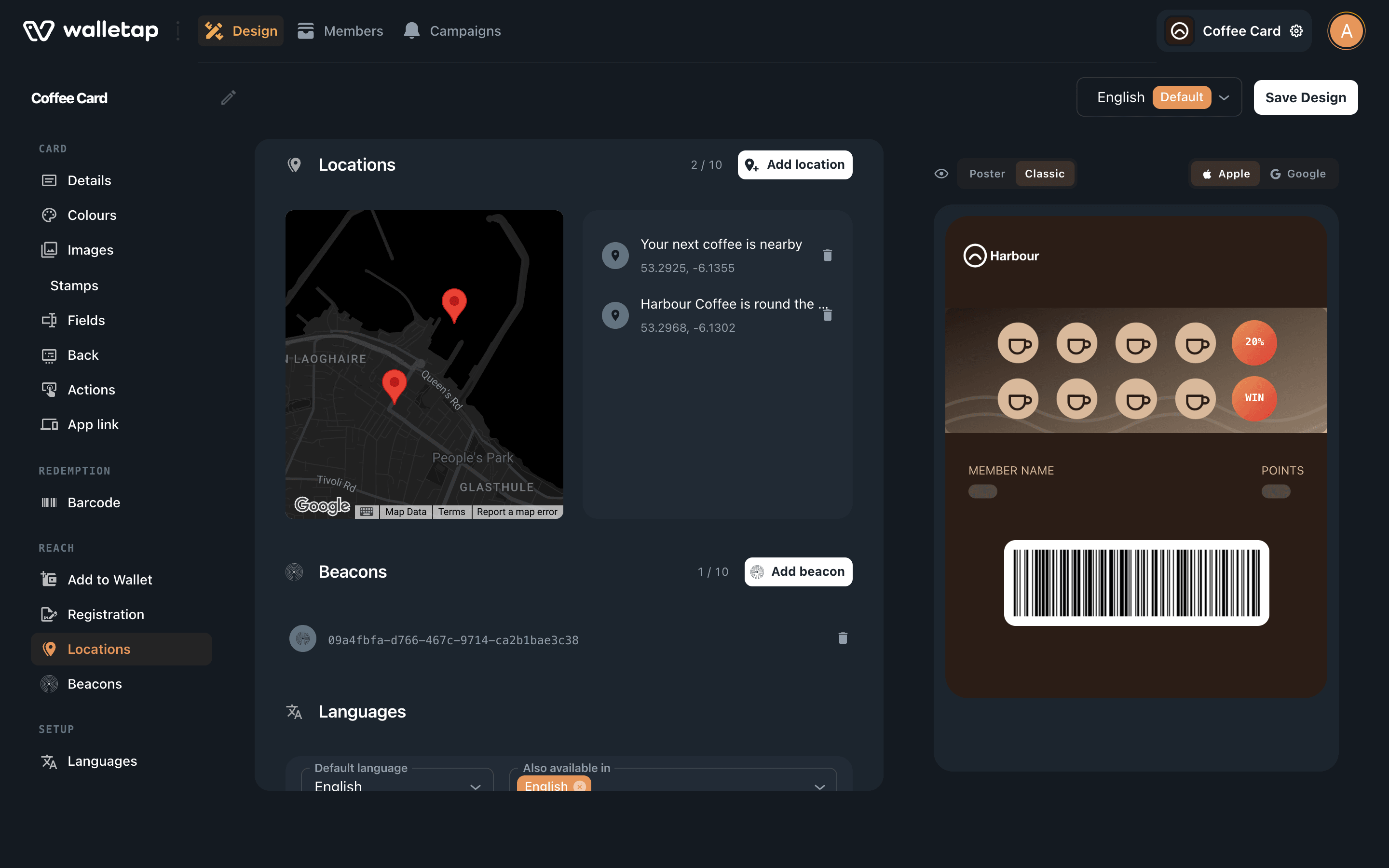
To remove a place, click the bin icon beside it in the list, then save.
Add a beacon#
A Bluetooth beacon marks a spot more precisely than an address — a till inside a shopping centre, say. Apple Wallet suggests the pass when the phone comes within range of it.
- In the Beacons section, click Add beacon.
- Enter the beacon's Proximity UUID, and its Major and Minor numbers if it uses them — your beacon's setup app shows all three.
- Enter the Relevant text and click Save, then Save Design.
A new template's list already holds one beacon with a generated identifier, which matches no real beacon. Replace it with your own or delete it.
Template places and Settings › Locations#
These are two different lists.
- Settings › Locations is your business's sites — Harbour Coffee — Old Town, Harbour Coffee — Marina. Staff, scanning, sign-up links and per-location reports are organised around them. See Locations.
- A template's places decide where that pass shows up on a lock screen. On the web, you add them in the template's Locations section.
The two meet in the limit: a template can hold one place for each location your plan covers.
From the mobile app#
The mobile app can do both at once. In SettingsBusinessLocations, add or edit a location, choose its address from the suggestions or tap Use my current location, and tick Also notify passholders near here. When you save, the app adds that place to every template, and tells you how many it updated — for example Location added to 3 templates for nearby alerts. A template already at its limit is left as it is.
The same box appears on the Location step when you create a template in the app; there it adds the place to the new template.
If something goes wrong#
Add location is greyed out, or shows More locations — the template holds as many places as your plan allows. Remove one, or upgrade to cover more locations.
"Pick an address suggestion or use your current location so the geofence has coordinates." (mobile) — a typed address has no map position. Choose one of the suggestions under the address box, or use your current location.
"Saved, but couldn't add the geofence (no templates yet, or you're signed out)." (mobile) — the location was saved without being added to any template. Create a template first, or add the place in the template's Locations section on the web.
The pass does not appear on the lock screen — the holder may not allow the wallet to use their location, and the phone decides when a suggestion is worth showing. Check the place's pin is on your entrance, and that the template was saved after you added it.