Members
The Members tab of a template — who holds its passes, how to find someone, and what each pass status means.
Every pass template has a Members tab. It lists the people who hold that template's passes and, for each person, every pass they hold. It is where you look someone up, add a person, and change or switch off a pass.
Where to find it#
Go to TemplatesCoffee CardMembers.
The list belongs to one template. Someone who holds a Coffee Card and a Northside Membership appears on both templates' Members tabs, once on each.
The header has three buttons:
| Button | What it does |
|---|---|
| Export | Downloads every pass on this template as a CSV file. See Import and export. |
| Import | Issues passes from a CSV or Excel file. See Import and export. |
| Create | Adds one member, with or without a pass. See Add members. |
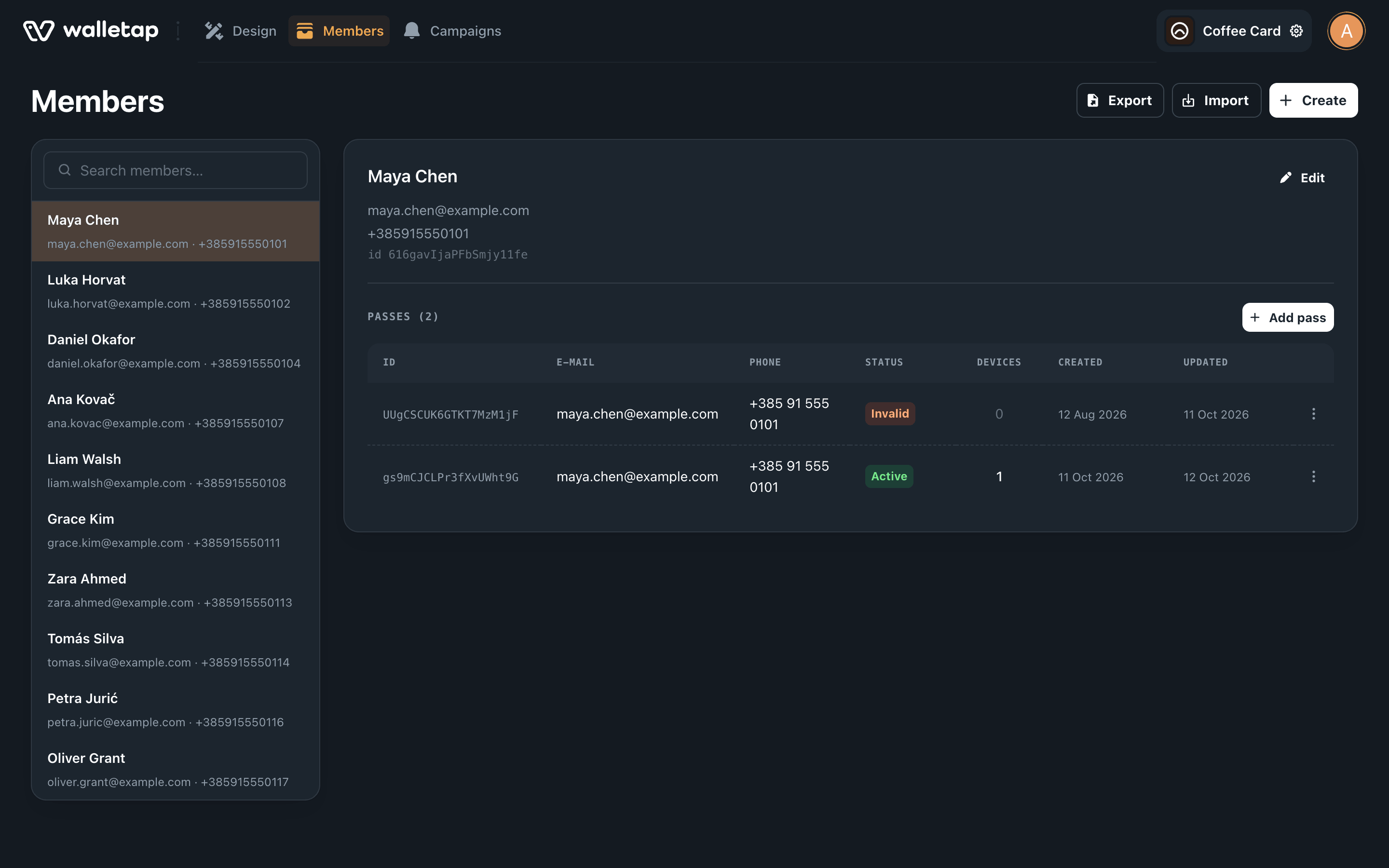
The page has two columns: the member list on the left, and the selected member's details and passes on the right. On a narrow screen the details move below the list.
Who appears in the list#
The list shows members first, newest first, followed by passes that were issued without a member record. It loads 50 rows at a time; Load more at the bottom fetches the next 50.
Each row shows a name and, under it, the person's email and phone. When there is no name, the row shows the email, then the phone.
A row is one of three kinds. The details pane says which.
| Kind | How it got there | The details pane shows |
|---|---|---|
| Member | Signed up on the sign-up page, added with Create, imported with an email or phone, or added in the apps | The member ID and an Edit button |
| Grouped from passes | Passes issued with an email or phone but no member record — for example over the API. Passes that share an email or phone are grouped into one row | "not enrolled — grouped from their passes" |
| Single pass | A pass issued with no contact details and no member | "no contact details — a single pass" |
Only a member has an Edit button. For the other two kinds the name comes from the pass itself, so you change it on the pass row — see Edit a pass.
Find a member#
Type at least two characters in Search members… at the top of the list. Results replace the list as you type, up to 20 at a time. Clear the box to get the full list back.
Search matches:
- The start of a member's name, spelled as it was saved —
Mayafinds Maya Chen;mayadoes not. - A full email address, in any letter case.
- A pass ID, or the external ID a pass was issued with over the API. The matching pass is highlighted in the member's passes.
- A full phone number in international format, such as
+385915550101, for passes issued without a member record.
Selecting a result opens that person's details.
Member details#
The details pane shows the selected person's name, email and phone. For a member it also shows their member ID, in a small line under the contact details.
Below that is the Passes section, with a count and an Add pass button. Add pass issues another pass to the same person — see Give an existing member another pass. A member added without a pass shows "No passes for this member yet."
The passes table#
| Column | Meaning |
|---|---|
| ID | The pass's ID. Unless the pass was given its own barcode value, this is also what its barcode holds. |
| The address the pass was issued to. | |
| Phone | The number the pass was issued to. |
| Status | Active or Invalid — see below. |
| Devices | How many wallets hold the pass right now. 0 means it has not been added yet, or was removed. |
| Created | The date the pass was issued. |
| Updated | The date the pass last changed: a field edit, a stamp, a change of status. |
The ⋮ button at the end of each row opens the pass actions:
- Open — opens the pass page in a new tab, as the holder sees it.
- Update — opens the pass's fields for editing.
- Invalidate or Activate — switches the pass off or back on.
All three are described in Manage members.
Pass statuses#
A pass on the Members tab is either Active or Invalid.
| Status | Means | At the counter or door |
|---|---|---|
| Active | The pass is in use. | Scans are accepted, subject to the pass's dates. |
| Invalid | The pass has been switched off. | Scans are refused. |
A pass becomes Invalid when:
- You invalidate it — from the Members tab or the apps.
- Its valid-until date passes. Expired passes are marked Invalid overnight.
- It is removed from every device, on a template whose pass sharing is set to One user, many devices.
An invalid pass becomes active again with Activate.
A frozen membership stays Active on this tab. Freezing moves the pass's start date into the future, so scans are refused until the freeze ends. See Renewals and freezes.
Who can use the tab#
What a team member sees and can change here depends on the permissions you gave them. Viewing the list needs access to member contact details; adding, editing and exporting are separate permissions. See Team members.