Manage members
Correct a member's details, edit a pass, switch a pass off and on again, and remove a member — and what the holder sees after each.
People change their email, mistype their name, lose their phone or leave. Every change you make here reaches the pass in their wallet, so it is worth knowing which action does what to the card they carry.
Before you start#
- You need permission to edit members to correct someone's details, and permission to edit passes to update, invalidate or activate a pass. See Team members.
- Find the person on TemplatesCoffee CardMembers. See Find a member.
Correct a member's details#
- Select the member
Select the person in the list — for example Luka Horvat — and click Edit next to their name. The Edit member dialog opens.
- Change the details
Correct the name, email or phone number. The email and phone fields appear when the template's sign-up form asks for them, or when the member already has one.
- Save
Click Save. You see "Member updated — 1 pass will refresh in the wallet", with the number of passes the change reached.
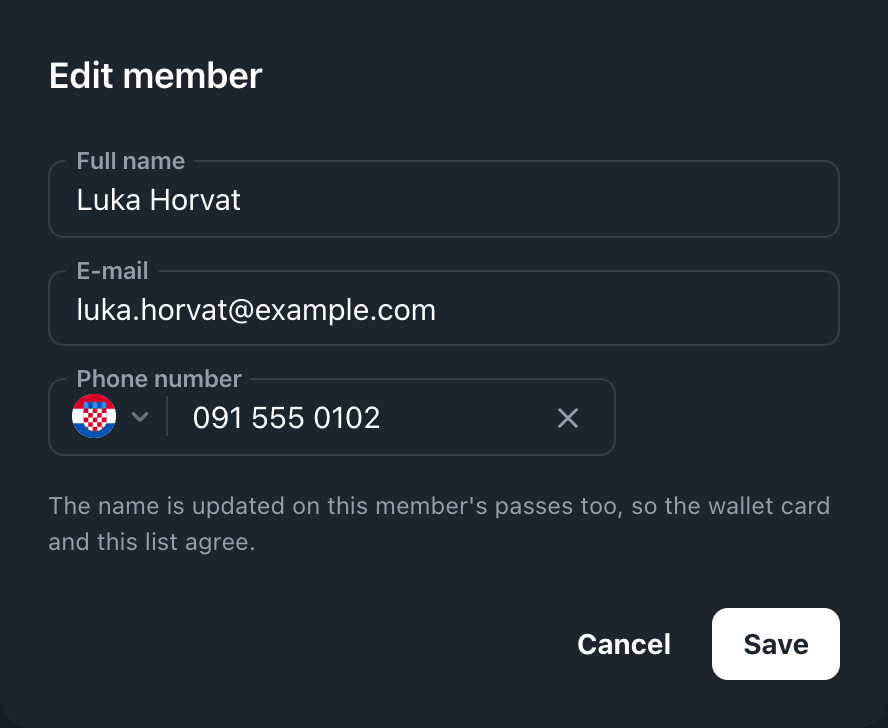
The new name is written onto every pass this member holds on the template, and each card refreshes in the holder's wallet. A new email or phone number is used the next time the pass is sent. Clearing a field removes it from the member record but leaves the card as it is.
Edit appears only for members. A row grouped from passes, or a single pass, takes its name from the pass: change it with Update on the pass row, below.
In the desktop and mobile apps#
Open the member and click Edit (on a phone, the pencil icon at the top). The Edit Member dialog opens.
- Desktop app — Full Name, Phone Number and, when the sign-up form requires an email, Email. Answers to the template's other sign-up questions are under Additional Information. Click Save Changes.
- Mobile app — Name, Email and Phone. Tap Save.
You see "Member updated successfully". The apps save the change to the member record. To put a corrected name on the member's cards as well, change it with Edit in the dashboard, as above.
Edit a pass#
- Open the pass
In the member's passes table, click ⋮ on the pass and choose Update. The Update Pass dialog opens on the Manual tab.
- Change the fields
The dialog shows the pass's own values:
- Front fields and Back fields — the per-pass fields of the design.
- Validity — Valid From and Valid Until.
- Redemption — Barcode / NFC value, the value in the barcode.
- Stamp collection, on a stamp card. It opens at 0 rather than at the card's current count. Click the stamps to set how many in total are collected.
- Save the change
Click Update. You see "Pass successfully updated", and the card updates in the holder's wallet. Depending on the field, their phone may show a notification about the change.
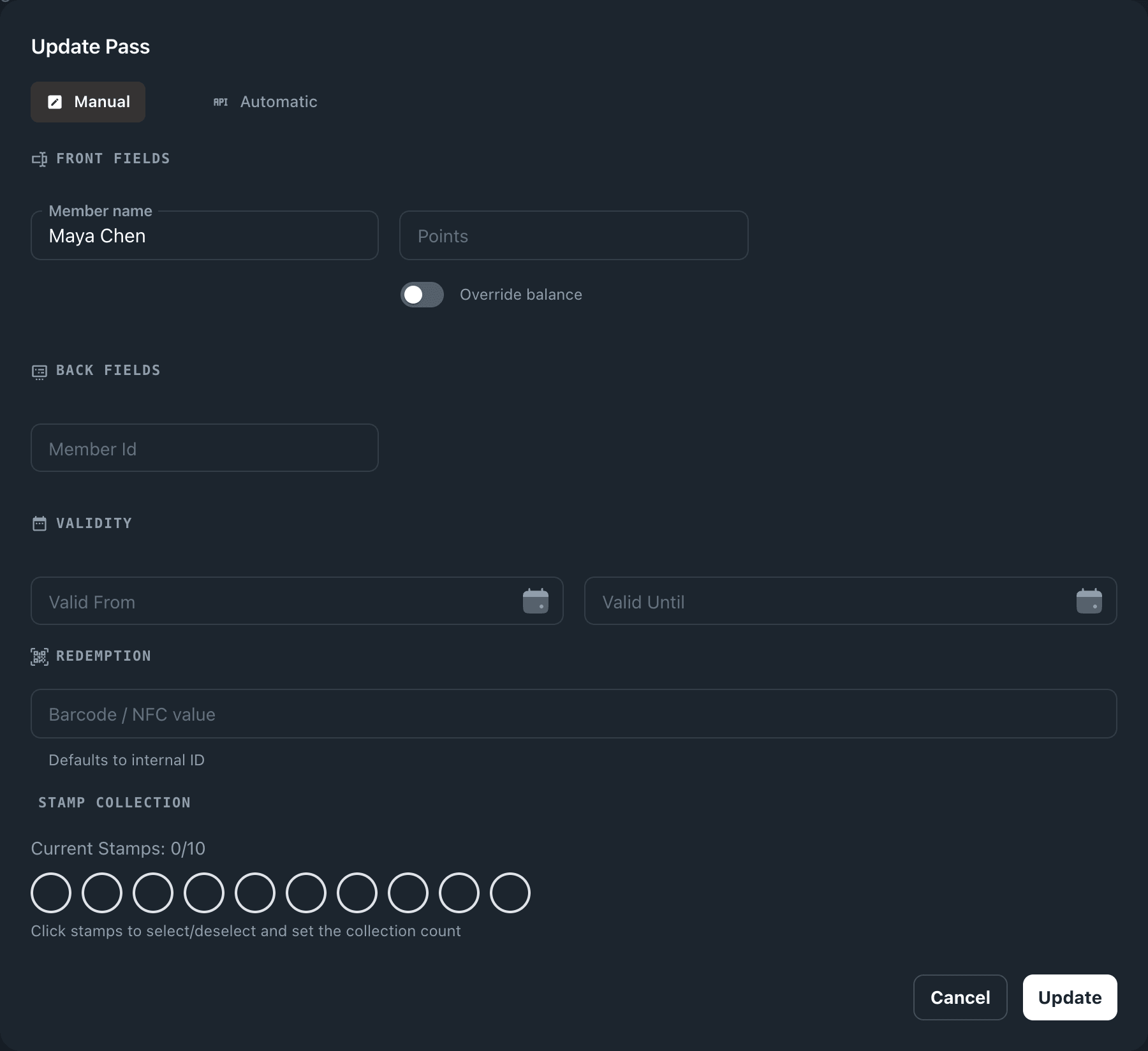
Valid Until here is the wallet's own expiry. When the date passes, Apple and Google Wallet move the pass to the holder's expired passes. That is right for a ticket or a coupon. A membership that is renewed shows its end date in a field of its own instead, so it stays in the wallet — see Renewals and freezes.
To add or redeem stamps and points at the counter, use the apps. See Stamp and redeem.
Switch a pass off or on#
To take a pass out of use — a lost phone, a cancelled membership, a refund — invalidate it. Invalidating keeps the pass and its history, so you can activate it again later.
- Invalidate the pass
In the member's passes table, click ⋮ on the pass and choose Invalidate.
- Confirm
In the Invalidate pass dialog, click Invalidate. The pass's status changes to Invalid.
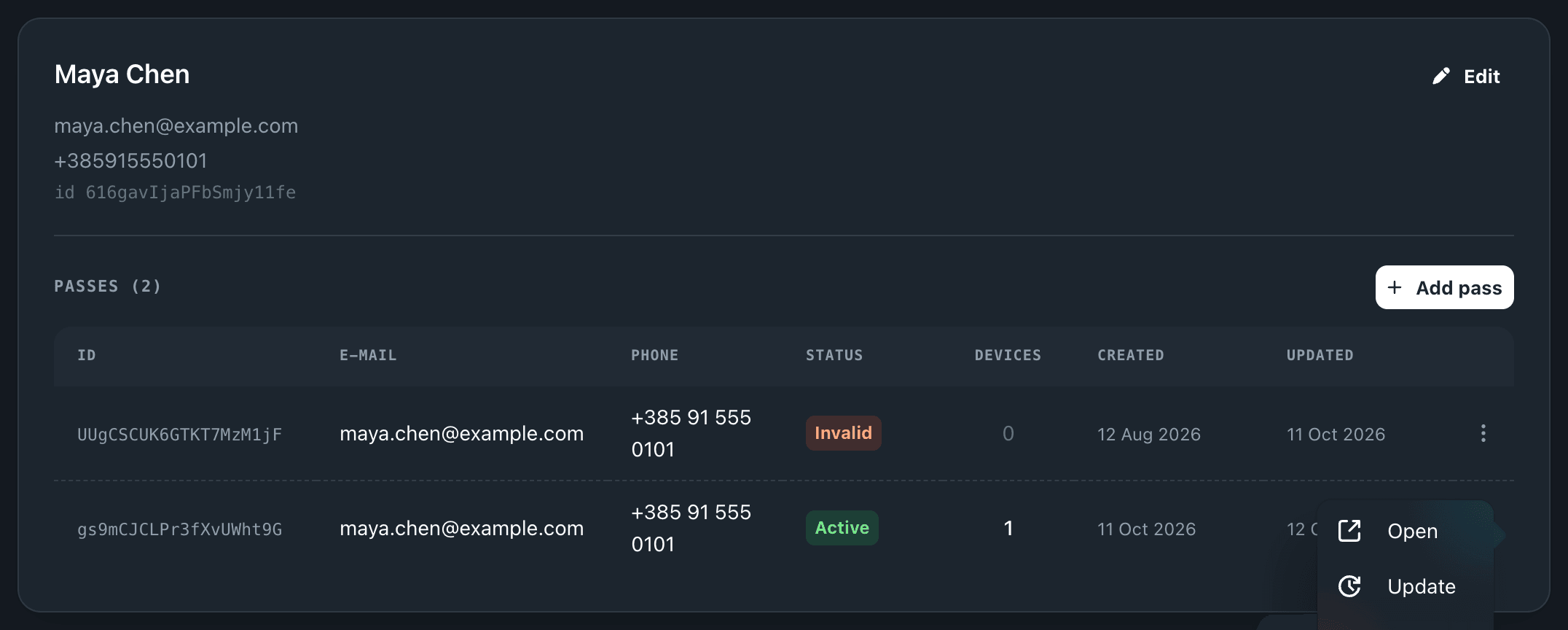
To switch it back on, choose Activate from the same menu and confirm.
In the desktop and mobile apps, the same actions are Invalidate and Validate on the pass, in the member's details.
Remove a member#
Members are removed in the desktop and mobile apps: open the member, choose Delete (on a phone, the bin icon at the top), and confirm. This cannot be undone.
Deleting a member removes the member record — their name, contact details and sign-up answers. Their passes stay in their wallets and keep working. If the person should lose access, invalidate their passes first, then delete the member.
What the holder sees#
| You | In their wallet | At the counter or door |
|---|---|---|
| Correct their name in the dashboard | The name on the card updates | No change |
| Edit a pass field | The card updates, sometimes with a notification | No change |
| Invalidate a pass | The pass is marked as no longer valid | Refused: "Pass has been invalidated" |
| Activate a pass | The pass is valid again | Accepted |
| Let Valid Until pass | The pass moves to their expired passes | Refused |
| Delete the member | No change | No change |
Renewing, freezing and unfreezing a membership are covered in Renewals and freezes.
If something goes wrong#
"Another member already uses this e-mail" or "Another member already uses this phone number" — another member on this template has that contact. Find them with search; if they are the same person, keep one member and invalidate the other's passes.
The name in the list changed but the card did not. Wallets usually pick up a change within a few minutes. A phone that is offline gets it when it reconnects.
An invalidated pass still looks normal in someone's wallet. Scans read the pass's status from Walletap, not from the phone, so it is refused at the counter whatever the wallet shows.