How a pass reaches the holder
Email and text-message delivery, the pass page and its Add to Wallet buttons, printable passes, and sending a pass again.
Issuing a pass creates it; delivery puts it in someone's wallet. Every pass has its own web page, and every delivery route — email, text message, a QR code on a screen — is a way of getting the holder to that page.
When a pass is sent#
A pass is sent the moment it is issued, to the contact details it was issued with. Which channels are used depends on where it was issued.
| Issued from | What decides whether it is sent |
|---|---|
| New member in the dashboard | Your automatic delivery setting. The dialog's last line says what will happen. |
| Add pass in the dashboard | The Send to Email and Send to Phone switches in the dialog. |
| Import | The Send to Email and Send to Phone switches in the import dialog, for the whole file. |
| The sign-up page | The person is taken straight to their pass page. If the form asked for a phone number, the link is also texted, following your automatic delivery setting. |
| The apps | See Add members in the apps. |
| The API | The request's sendToEmail and sendToPhone; when a request leaves them out, your automatic delivery setting. |
Your automatic delivery setting is under SettingsIntegrationsDelivery: Send new passes automatically, with an Email and a Text message switch. Both are on until you change them; the Delivery panel comes with text messaging on your plan.
Nothing is sent to an address or number the pass does not have. A pass with no contact details is never sent — share its link yourself (see Sending a pass again).
The email#
Every planThe email comes from your template's name — "Coffee Card via Walletap" — and replies go to your account's email address. In English, its subject is "Your Coffee Card pass is ready!".
It shows your logo, an Add to Wallet button and the link written out underneath. Its colours come from the template's Add to Wallet page design, so the email and the page match. It is written in the message language chosen when the pass was issued.
Every pass email has an unsubscribe link. Once someone uses it, Walletap stops sending pass emails from your account to that address.
The text message#
Paid plansThe text is short: "Your Coffee Card pass is ready!", a line asking the holder to open the link, and the link. Where the holder's country requires an opt-out line, it is added.
Enter phone numbers in international format, such as +385 91 555 0101. A
number that cannot be dialled is not texted; the pass is still issued.
The Text message switch covers every mobile channel you have turned on — which ones, in what order, and whether to try the next one when a message is not delivered are set in the same Delivery panel. See Messaging.
The pass page#
Every pass has a page at https://pass.walletap.com/ followed by the pass ID —
or at your own domain, if you have set one up. It is the link in the email and
the text message, and what Open shows on the Members tab.
The page looks at the device it is opened on and shows the one button that will work there.
| Opened on | The page shows |
|---|---|
| An iPhone | Add to Apple Wallet |
| An Android phone, in Chrome | Add to Google Wallet |
| An Android phone, in another browser | "Google Chrome Required", with an Open in Chrome button |
| A Huawei phone | Add to Huawei Wallet, when Huawei Wallet is on for the template |
| An app's built-in browser | Steps for opening the page in Safari or Chrome |
| A computer | A QR code to scan with the phone's camera |
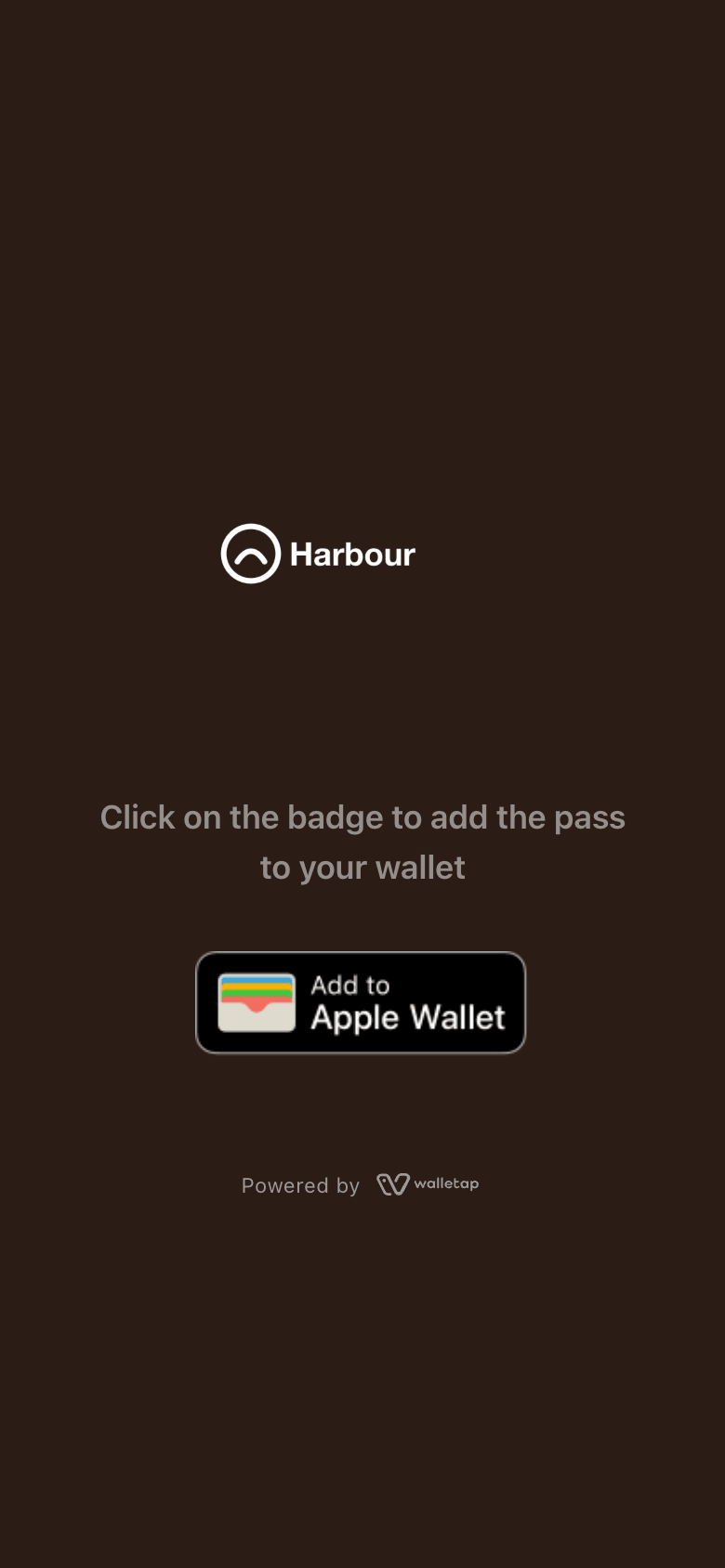
Once the pass is in a wallet, the page changes to "Pass added to wallet". On a phone it offers a button to open the wallet app, and Add to wallet again for adding the pass to another wallet or retrying a cancelled add.
The page follows the language of the holder's browser. To open it in a set
language instead, add ?locale= and a two-letter language code to the link:
https://pass.walletap.com/ followed by the pass ID and ?locale=hr shows the
page and its wallet buttons in Croatian. This is useful when you share a link
yourself.
Passes for one person#
When a template's pass sharing is One user, many devices, the page adds two notes once the pass is in a wallet — "This pass is configured for single-device use and has already been added to a wallet." and "Removing this pass from your wallet will invalidate it" — and stops offering Add to wallet again. If the holder removes the pass from every device, the pass becomes Invalid.
Change how the page looks#
Go to TemplatesCoffee CardDesignAdd to Wallet to set its colours, font and the instruction above the buttons (Custom instruction; empty uses "Click on the badge to add the pass to your wallet", translated). The same colours style the delivery email.
The page carries a small "Powered by Walletap" mark. See White-label to remove it.
Printable pass#
For holders without a wallet app, switch on Printable pass under TemplatesCoffee CardDesignAdd to Wallet. The pass page then shows a Print pass button on every active pass.
The printout is a single card: your logo, the pass's headline and front fields, and a QR code holding the same value as the wallet pass, so it scans at the counter like the pass itself.
The QR code a computer shows on the pass page is a link to the page, for adding the pass to a phone. It does not scan at the counter, so a printout of the page without Printable pass is no use as a pass. And paper can be copied: on a template meant for one person, a printout gets round that limit.
Sending a pass again#
Issue a new pass only if the person needs a second one. To get an existing pass to them again:
- From the apps, open the member, open the pass's menu and choose Resend. The link goes to the member's phone by text message. See the apps.
- From the dashboard, open the pass's ⋮ menu on the Members tab and choose Open. Copy the page's address and send it however you like, or, at the counter, let the person scan the QR code on your screen with their phone.
- The holder can open the original link again at any time.
If a one-person pass was removed from every device, it is now Invalid: Activate it first (see Manage members), then send the link.
Your own domain#
Paid plansWith a verified custom domain, pass links in emails, texts and the API response
use it — https://passes.harbour.example/ followed by the pass ID — instead of
the Walletap address. See Custom domains.
If a pass does not arrive#
Nothing was sent. Check the line at the bottom of the New member dialog, or the switches in the dialog you used. "No contact on this form" means the template's sign-up form collects no email or phone, or neither was filled in.
The email is missing. Ask the person to check their spam folder. If they unsubscribed from pass emails earlier, they are not emailed again — send them the link another way.
The text message is missing. Check the number is in international format, and that your plan includes text messaging.
The page says "Pass Not Found". The link is incomplete or mistyped. Copy it again from the Members tab with Open.
The page says "Pass Unavailable". The pass could not be loaded at that moment. Try Again reloads it.