Apple Wallet and Google Wallet
How a pass gets into Apple Wallet and Google Wallet, how each wallet lays out the same template, and how updates and notifications reach them.
Every template you design works in both Apple Wallet and Google Wallet. You design it once; Walletap builds a version for each wallet, and the customer's phone decides which one they get. Knowing where the two wallets differ helps you design a pass that looks complete on both.
How a pass gets into a wallet#
Every pass has its own pass page. The sign-up page, the emails and messages Walletap sends, and the Open link on a member's pass all lead there. The page sees what kind of device opened it:
| Opened on | The pass page shows |
|---|---|
| iPhone | Add to Apple Wallet. Works in any browser. |
| Android phone | Add to Google Wallet. Google Wallet passes can only be added from Chrome, so in another browser the page offers to reopen itself in Chrome. |
| A computer | A QR code: "Use your phone camera to scan this QR code and add the pass to your wallet". |
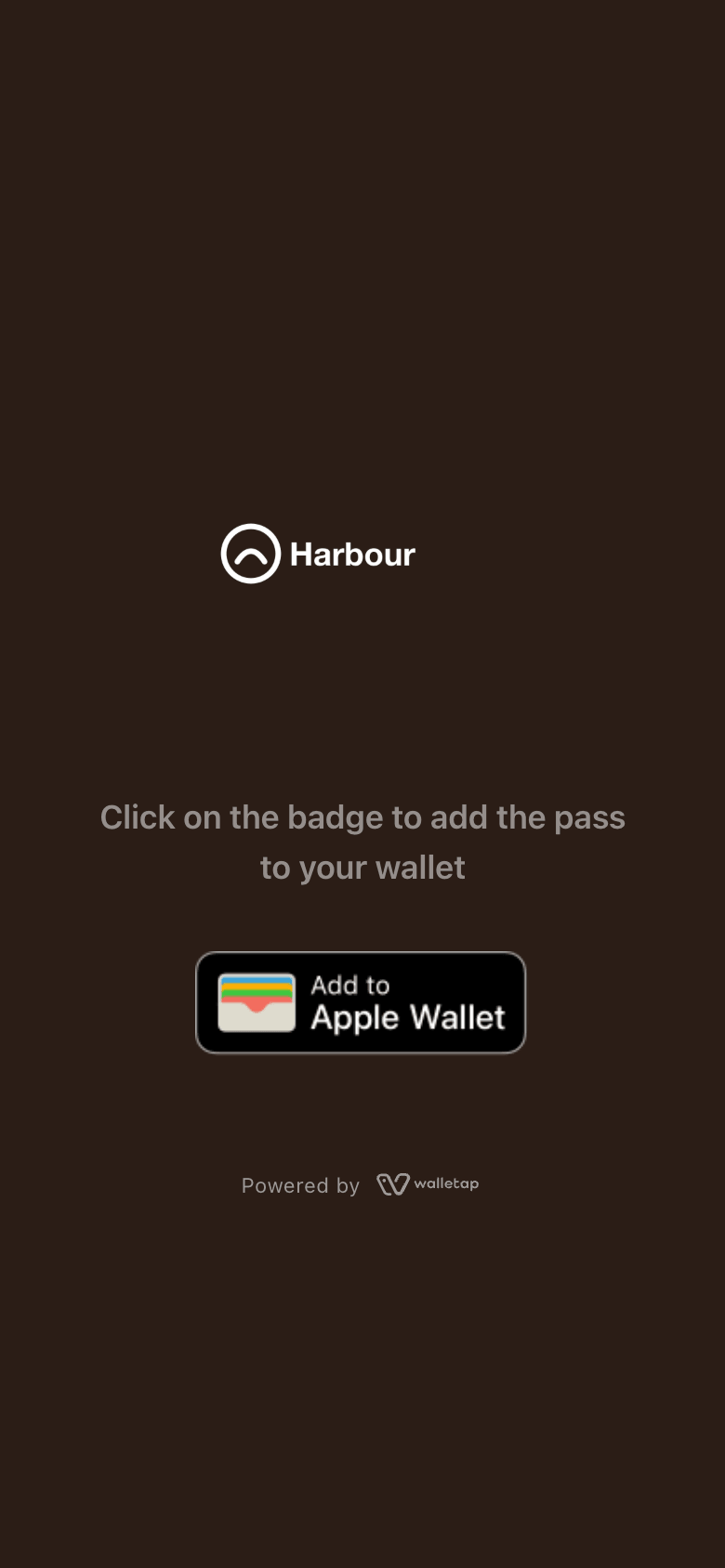
The holder confirms in the wallet, and the wallet tells Walletap the pass was saved. On the template's Members tab, the Devices count on that pass goes up by one for each wallet that holds it, and down again when a holder removes it.
A link opened inside Instagram, Facebook, LinkedIn or WhatsApp opens in that app's own browser. The pass page notices and tells the holder to open it in Safari or Chrome before adding the pass.
One design, two layouts#
Both wallets get the same fields, colours, images and barcode. Each draws them in its own layout, so the designer arranges the front of the card in parts that both wallets understand:
Logo — Your logo, and the logo text beside it.
Top row — Beside the logo. Up to three values; one reads best.
Header — The headline value, largest on the card.
Row — Supporting values. Apple shows four at most across the front.
Barcode — What staff scan. The text under it is optional.
Back — Any number of fields, links and phone numbers.
| In the designer | Apple Wallet | Google Wallet |
|---|---|---|
| Headline | The large value on the front | The card's header |
| Top row | Beside the logo, visible even when the pass is stacked under others | The first row on the card |
| Row | One line of up to four values | The rows below the header |
| Back | The back of the pass | The details below the card |
Apple's limits are the tighter ones. A front that fits Apple Wallet shows everything on Google Wallet too, so design for Apple first. The template's pass type sets which style each wallet uses.
Where the wallets differ#
| Apple Wallet | Google Wallet | |
|---|---|---|
| Adding the pass | From any browser on an iPhone | From Chrome on an Android phone |
| App link | Listed in the pass details | A button on the front of the card |
| Require unlock | The holder unlocks the phone to tap the pass on a reader | The holder unlocks the phone to see the pass at all, and the pass cannot be opened from the web link |
| Barcode formats | QR code, Code 128, PDF417 and Aztec on every iPhone. Code 39, Codabar, EAN-13 and ITF from iOS 27; older iPhones show the same value as Code 128 | Every format the designer offers |
| Poster design | On iOS 27 and later, as described below | The standard layout |
| An invalidated pass | Marked as void | Marked as inactive |
If you choose one of the newer barcode formats, make sure the scanner at your counter also reads Code 128, so it can read the cards on older iPhones.
The poster design on iPhone#
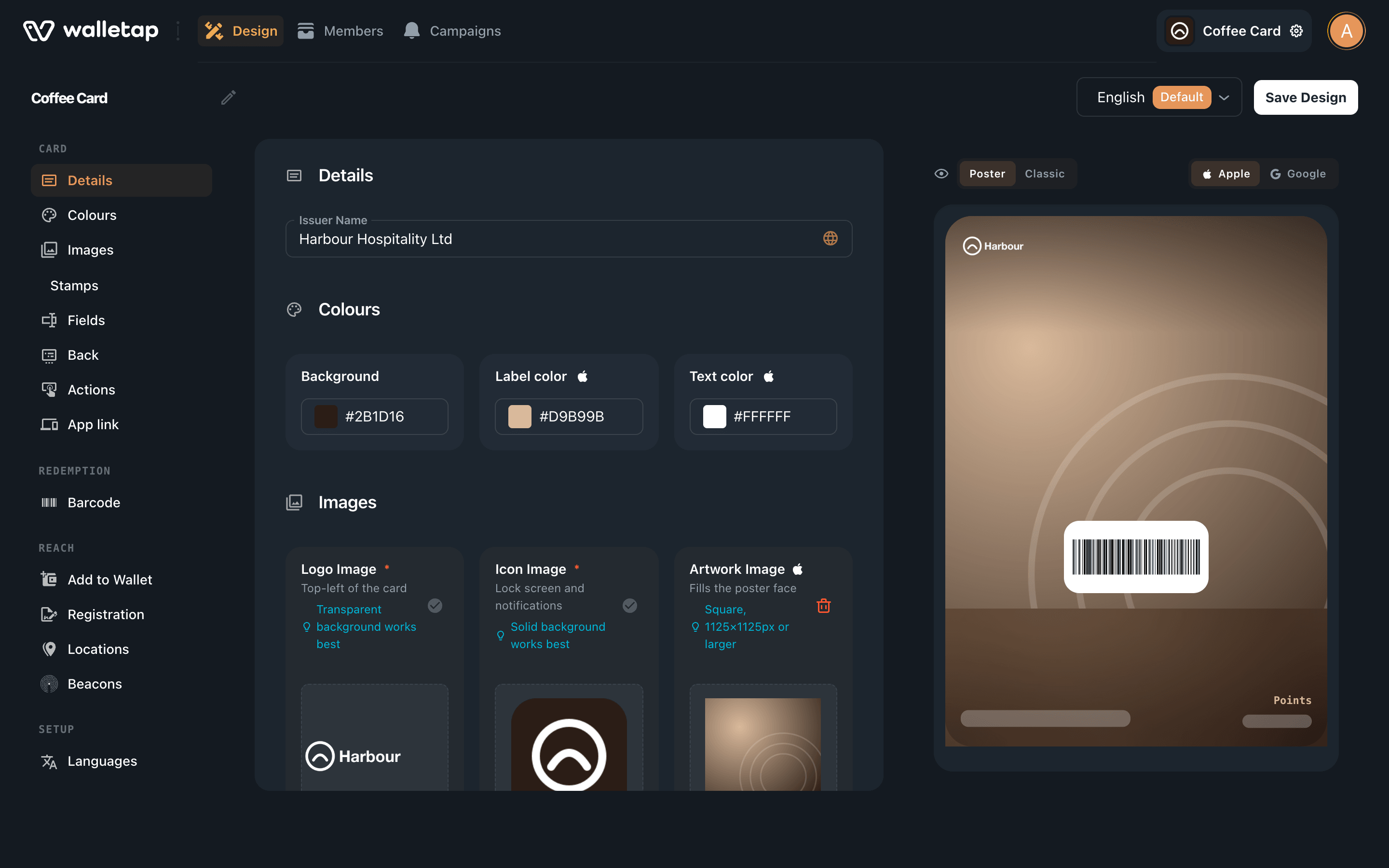
On iOS 27 and later, Apple Wallet can show a pass as a poster: a full-bleed background image with your logo over it. Generic, Loyalty, Gift and Coupon / Offer templates can use it.


- It is on whenever the template has an Artwork image, which becomes the background.
- You can switch it between Poster and Classic in the designer's preview. Choosing Classic keeps the classic design even when the template has artwork.
- Nothing is designed twice. The pass also carries its classic design, so older iPhones show exactly what they showed before, and Google Wallet keeps its standard layout.
- Action buttons. On iOS 27 and later, Apple Wallet also shows up to two buttons beneath the pass, such as Call or Directions. Set them in the designer's Actions section.
See Artwork to add or change the image.
Updates#
When a pass changes, such as a stamp, a points balance or a field you edit, Walletap sends the new version to the wallet, usually within seconds:
- Apple Wallet. Walletap tells every iPhone that holds the pass that it has changed, and the iPhone downloads the new version. A pass that was never added to a wallet has no iPhone to tell; the holder gets the latest version whenever they add it.
- Google Wallet. Walletap updates the pass at Google, and Google Wallet shows the new version on the phone.
Notifications#
A campaign message reaches both wallets as a notification on the phone. On an iPhone the message also appears at the top of the back of the pass; on Android it appears among the pass's messages. It stays on the pass for the display time set on the campaign. See Push notifications.