Pass types
Every kind of template you can create, what each one is for, what it shows and which features work with it.
Every template has a type, chosen when you create it. The type decides how Apple Wallet and Google Wallet draw the pass and which features the template offers, such as stamps, a balance or membership renewals.
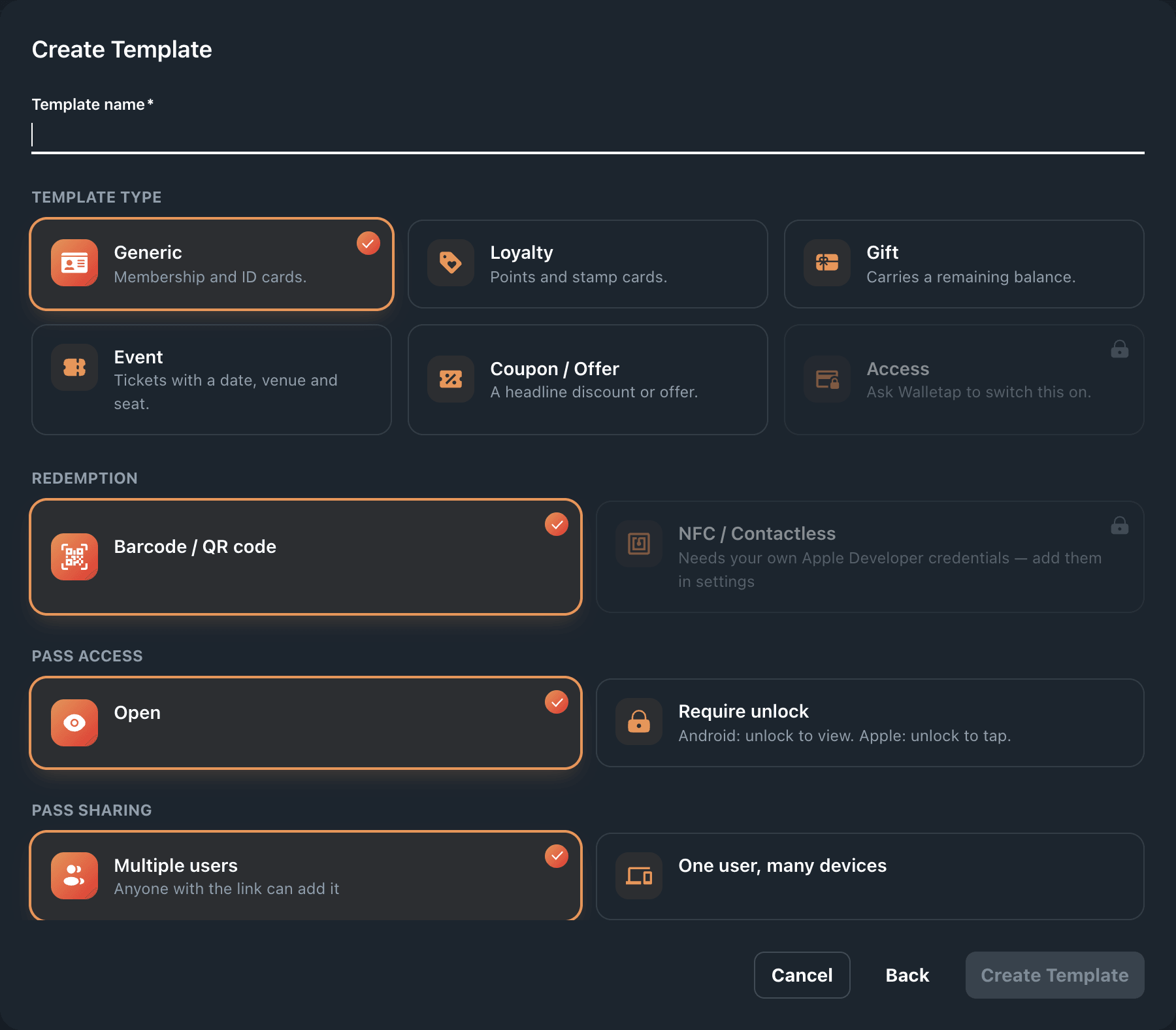
The types at a glance#
| Type in the picker | Use it for | Apple Wallet style | Google Wallet type |
|---|---|---|---|
| Generic | Memberships and ID cards | Generic | Generic pass |
| Loyalty | Stamp cards and points cards | Store card | Loyalty card |
| Gift | Gift cards with a remaining balance | Store card | Gift card |
| Event | Tickets with a date, venue and seat | Event ticket | Event ticket |
| Coupon / Offer | A discount or a one-off offer | Coupon | Offer |
| Access | Staff and visitor badges that open doors | Access badge | Access badge |
The mobile app's template designer creates loyalty cards. Every type can be created in the dashboard; see Create a template.
Generic#
For memberships, member cards and ID cards. Northside Fitness's membership is a generic pass.
- On the card by default: the member's name as the headline, a member ID and a Valid until date.
- Works with: membership plans, online sales in the webshop, renewals and freezes and door access. These are run day to day from the desktop app at the front desk.
- In the mobile app: the bottom bar shows Analytics, Members, Entrances, Doors and Settings.
Loyalty#
For stamp cards and points cards. Harbour Coffee's Coffee Card (10 stamps for a free coffee) and Harbour Points are loyalty passes.
- How it collects: choose Points (a balance that goes up) or Stamps when you create it. The mobile app's designer also offers Both. A stamp card draws its stamps as the card's artwork.
- On the card: the member's name with their stamps or points, and optionally a member ID and a rewards tier.
- Works with: stamps and points at the counter, rewards and reward milestones. See Loyalty.
- In the mobile app: the bottom bar shows Analytics, Members, a scan button, History and Settings.
Gift#
For gift cards that carry money. The Harbour Gift Card is a gift pass.
- On the card by default: the remaining balance as the headline and the card number beside it. The back shows when the balance last changed.
- Works with: updating the balance as it is spent. See Manage members.
- In the mobile app: the bottom bar shows Analytics, Members, Entrances and Settings, plus a scan button when the pass has a barcode.
Event#
For tickets to a dated event, such as Summer Jazz Night.
- On the ticket: fields for the event name, its start and end, when doors open, the venue's name and address, and the gate, section, row and seat.
- Works with: scanning at the entrance from the mobile app. Event tickets never count as active customers. Where your plan charges per ticket, each ticket issued uses one ticket credit, from your free tickets first and then from credits you have bought; your balance is in SettingsBilling.
- In the mobile app: the bottom bar shows Analytics, Members, Entrances and Settings, plus a scan button when the ticket has a barcode.
Coupon / Offer#
For a single discount or promotion, such as Harbour Coffee's Spring Offer of 20% off.
- On the card by default: the offer itself as the headline, with its Valid until date. The back carries the provider and the fine print.
- Works with: scanning at the counter, and an expiry date that moves the coupon to the wallet's expired passes when the offer ends.
- In the mobile app: the bottom bar shows Analytics, Members, Entrances and Settings, plus a scan button when the coupon has a barcode.
Access#
EnterpriseFor staff and visitor badges that open doors and turnstiles. An access badge is a different kind of credential from the other types: it has no barcode, and the door reader authenticates the badge itself. Walletap switches the type on for your account, and the picker shows it as Access.
- Tabs: an access template has Configure and Users instead of Design, Members and Campaigns.
- Works with: door readers. Badges never count as active customers. See Access badges.
Choices the other types share#
Every type except Access also sets:
- Barcode. The code staff scan, and its format. See Barcodes.
- Pass access. Open shows the pass straight away. Require unlock asks the holder to unlock the phone first. Choose it when you create the template: it cannot be changed afterwards.
- Pass sharing. Multiple users lets anyone with the link add the same pass. One user, many devices locks the pass to a single customer. This is also fixed when the template is created.
- Sign-up page, locations and languages. See Templates.
Valid until: two kinds of date#
A pass can carry its end date in two ways, and the choice decides what the wallet does when the date passes.
| Native Valid until | A custom "valid until" field | |
|---|---|---|
| When the date passes | The wallet moves the pass to its expired passes | Nothing: the date is only shown |
| Right for | Event tickets, coupons and other one-off passes | Renewable memberships |
Northside Membership uses a custom "Valid until" field, so a member who renews never has to find an archived pass. The Spring Offer uses the native date, so the wallet archives the coupon when the offer ends. See Fields for how to set either.