Barcodes and NFC
The barcode types a pass can carry, what the code encodes, and how NFC redemption works on a pass.
Staff identify a pass in one of two ways: by scanning the barcode on it, or by reading it over NFC when the holder taps their phone on a reader. Both carry the same value, so a pass that works at the counter works at the door.
You set the barcode in the template's Barcode section: TemplatesCoffee CardDesignBarcode.
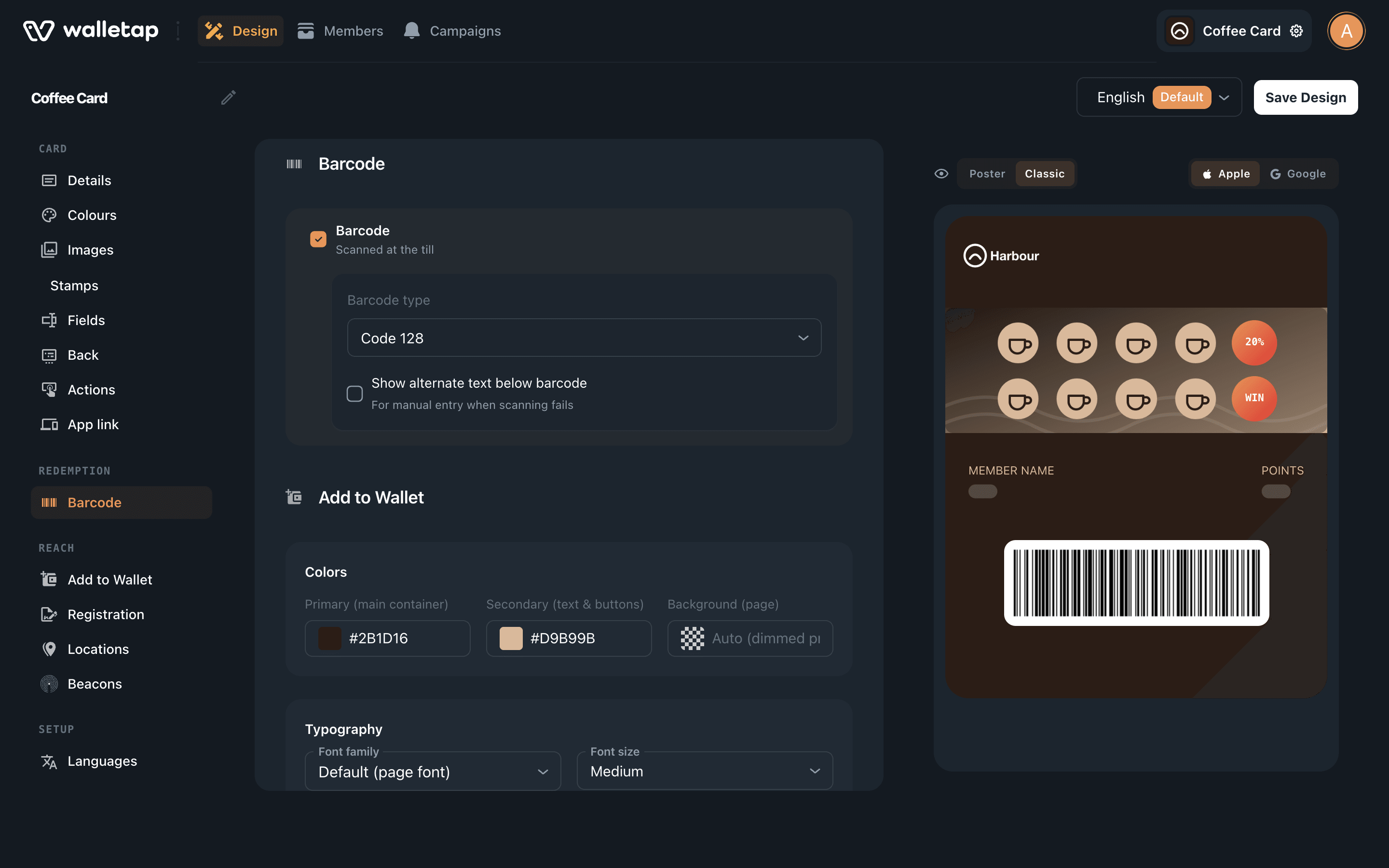
Barcode types#
| Type | Use it when |
|---|---|
| QR code | You have no other constraint. It scans from any angle with a phone camera. New Event and Coupon templates start with it. |
| Code 128 | Your scanner or till only reads one-line barcodes. New Generic, Loyalty and Gift templates start with it. |
| PDF417 | Your ticketing or ID scanner expects this stacked format. |
| Aztec code | Your scanner expects Aztec, a square code common on transport tickets. |
| Code 39, Codabar, EAN-13, ITF (Interleaved 2 of 5) | An existing system already prints or reads this format. |
Apple Wallet shows Code 39, Codabar, EAN-13 and ITF from iOS 27. An older iPhone shows the same value as a Code 128 barcode instead, so every holder still gets a code that scans.
Code 39, Codabar, EAN-13 and ITF can only hold the characters their format allows — EAN-13 and ITF hold digits only. The default value of a pass mixes letters and digits, so use these formats only when you set every pass's value yourself to suit them.
The mobile app's template designer offers QR code and Code 128. Choose any other type in the dashboard afterwards.
Change the barcode#
- Open the Barcode section
Go to TemplatesCoffee CardDesign and choose Barcode in the section list.
- Choose the type
Keep Barcode ticked and pick a Barcode type. The preview updates.
- Save
Click Save Design. Passes already in Apple Wallet update to the new barcode, and a Google Wallet pass picks it up the next time that pass is updated.
Untick Barcode to issue passes with no code at all — for example, passes redeemed only by NFC.
What the barcode encodes#
The barcode carries the pass's value, and a scan finds the pass by it. Unless you set one, the value is the pass's own ID, which is unique to that pass.
To use a number your members already have — an existing membership number, a card number from your till — enter it as Barcode / NFC value when you add the member (Add members), or send it with the pass through the API. Give every member a different value: a scan opens the pass that carries it.
Text under the barcode#
Tick Show alternate text below barcode to print the value under the code, so staff can type it in when a scanner cannot read the screen. It is off by default, because the default value is an ID that means nothing to a customer.
Printed passes#
The Add to Wallet section's Printable pass option adds a Print pass button to the pass link. The printout carries the pass's value as a QR code. See Delivery.
NFC on a pass#
Add-onWith NFC, a holder taps their phone on a reader instead of showing a barcode — the speed of a contactless payment, with nothing to aim. The reader reads the same value the barcode carries.
NFC is chosen when you create the template: tick NFC / Contactless under Redemption. It needs your own Apple Developer credentials; until they are added, the option shows Needs your own Apple Developer credentials — add them in settings.
Once the template's Apple certificate supports NFC, the designer shows a Tap section under Redemption with the template's NFC status — Apple NFC is active when it is ready. If the template chose Require unlock for Pass access, Apple Wallet asks the holder to unlock the phone before each tap.
Setting up NFC end to end — credentials, readers and testing — is covered in NFC passes.