NFC passes
How tap-to-redeem works for Apple Wallet and Google Wallet passes, what a reader needs to read them, and what it takes to make a template tappable.
An NFC pass is a normal wallet pass that can also be read by holding the phone against a reader, the way a contactless card is. Nobody has to aim a camera or find the barcode, which is what makes it the right choice for a door or a busy till.
Add-onWhat happens in a tap#
The reader identifies itself to the phone as a reader for your passes. The wallet answers with the pass's value, encrypted, using Apple's Value Added Services (VAS) or Google's Smart Tap. Only a reader holding your account's private key can decrypt it. The decrypted value is the same one the pass's barcode carries, so a tap and a scan reach the same member and the same decision.
Decryption happens on the reader, or in the Walletap app the reader is plugged into. Walletap's servers only ever receive the decrypted value.
A reader that accepts Apple Pay or Google Pay is not a wallet-pass reader for that reason alone. Passes need a reader certified for VAS and Smart Tap, configured with your keys.
What a reader needs#
Your account has one NFC key pair. The public half goes into your Apple Wallet passes and is registered with Google Wallet for your account; the private half goes into the readers.
| Wallet | The reader needs |
|---|---|
| Apple Wallet | Your private key, and the merchant ID of each template it should read |
| Google Wallet | Your private key, your collector ID and the key version |
Apple identifies passes per template, which is why a reader is told which templates to listen for — up to six on a VTAP reader, two at a time on a WalletMate. Google identifies your whole account, so one collector ID covers every template.
How the keys reach the reader depends on the reader:
- A WalletMate desk reader gets them from the Walletap app when it connects.
- A door reader is set up by Walletap when the door is installed.
- A VTAP reader over USB gets them from the configuration files in SettingsNFC readersAutomatic.
- Any other certified terminal is given them by hand, from SettingsNFC readersManual.
See connect an NFC reader for each.
What makes a template tappable#
Google Wallet passes become tappable as soon as the template has NFC on: Smart Tap is switched on for the template automatically. Apple Wallet is stricter — Apple signs NFC passes only for developer accounts it has approved for NFC.
Turning NFC on therefore takes these steps, in order:
- An Apple Developer account with NFC approval. Enrol in the Apple Developer Program and request the NFC pass entitlement from Apple. Apple reviews each request.
- Your Apple credentials in Walletap. In SettingsIntegrationsApple Wallet, enter the Issuer ID and Key ID from App Store Connect, upload the API key (.p8 file), and click Save. The row then reads Issuer credentials saved.
- A template created with NFC. In the create dialog, under Redemption, select NFC / Contactless. Keep Barcode / QR code selected too if staff should still be able to scan with a camera. The NFC choice is made when the template is created. See barcodes and NFC.
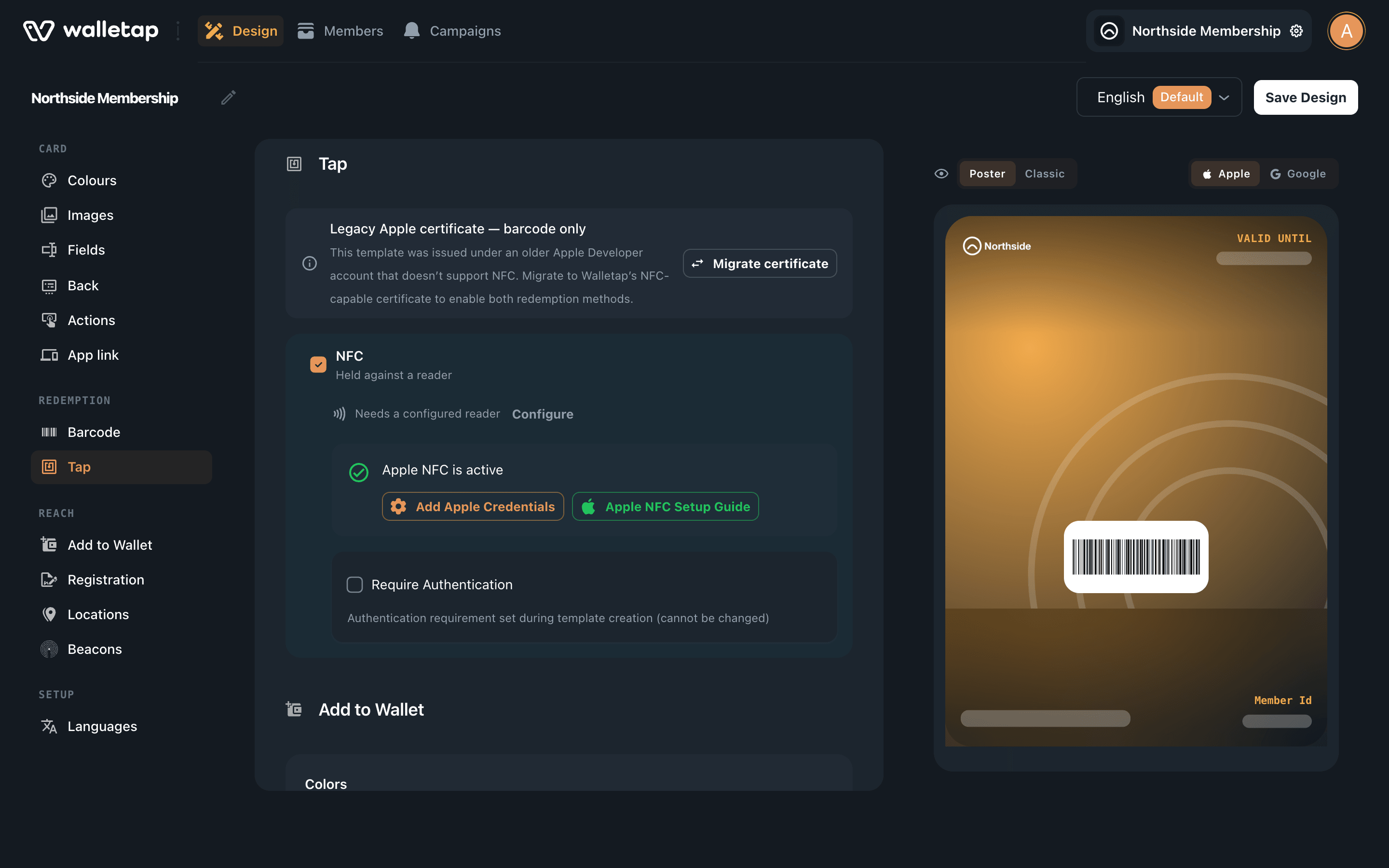
- Check the result. Once Apple has issued the template's NFC certificate, the designer shows a Tap section reading Apple NFC is active.
- Configure the readers with your keys.
Pass access#
When you create the template you also choose Pass access. Open lets the pass work as it is. Require unlock asks the holder to unlock their phone — on Android to see the pass at all, on iPhone to tap it. It cannot be changed after the template is created.
Physical cards#
A plastic NFC card needs none of this. The reader reads the card's chip number, and that number is stored as the member's credential when the card is issued. Cards work on any template and with any of the readers above. See add members in the app.