Add members from the app
Enrol a customer at the counter, or put up a sign-up QR code so customers join on their own phones.
There are two ways to get a pass onto a customer's phone from the app: type their details in yourself, or show them a QR code that opens your sign-up form. Both issue a digital wallet pass and send it to them.
Before you start#
- The template you are enrolling into is active on the phone. See choose the templates this phone works with.
- Your role lets you add members.
- For a membership, the plans you sell exist. See membership plans.
Add a member at the counter#
- Open Add Member
Go to Members and tap +.
- Pick the template
If several templates are active, tap the one the pass is for. Each template brings its own form, plans and pass language; what you already typed stays.
- Fill in the member's details
The form asks for exactly the fields of the template's sign-up form, in the same order. Fields marked
*are required. Labels appear in the app's language, even when the form was written in another.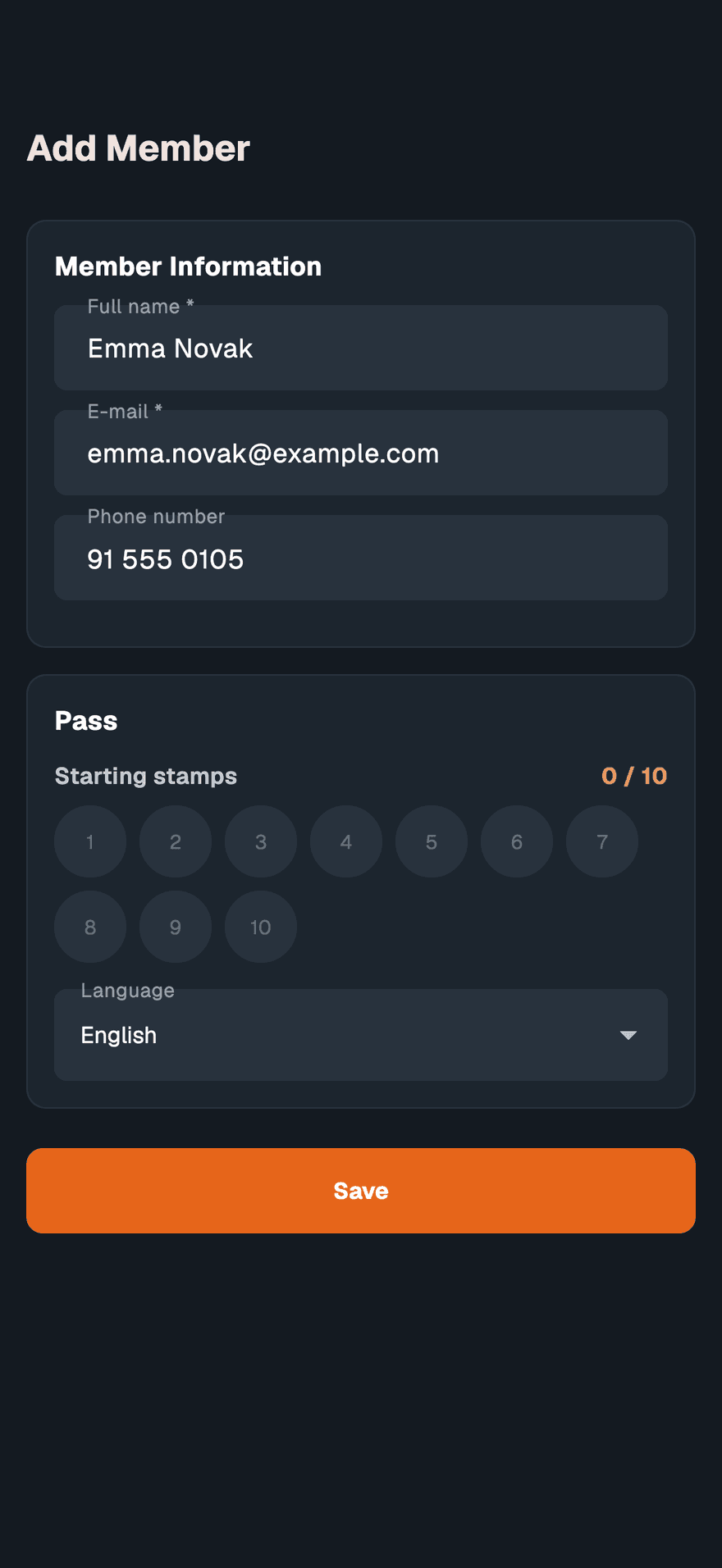
- Set up the pass
Under Pass:
- Loyalty card — tap a stamp to set Starting stamps, or type Starting points. Leave them empty to start at zero.
- Membership — pick a Membership Plan. The line below it shows when the pass expires.
Then choose the pass Language: Hrvatski, English or Slovenščina. It starts on the template's own language.
- Save
Tap Save. The app shows Member enrolled with pass, and the member receives a link to add the pass to their wallet.
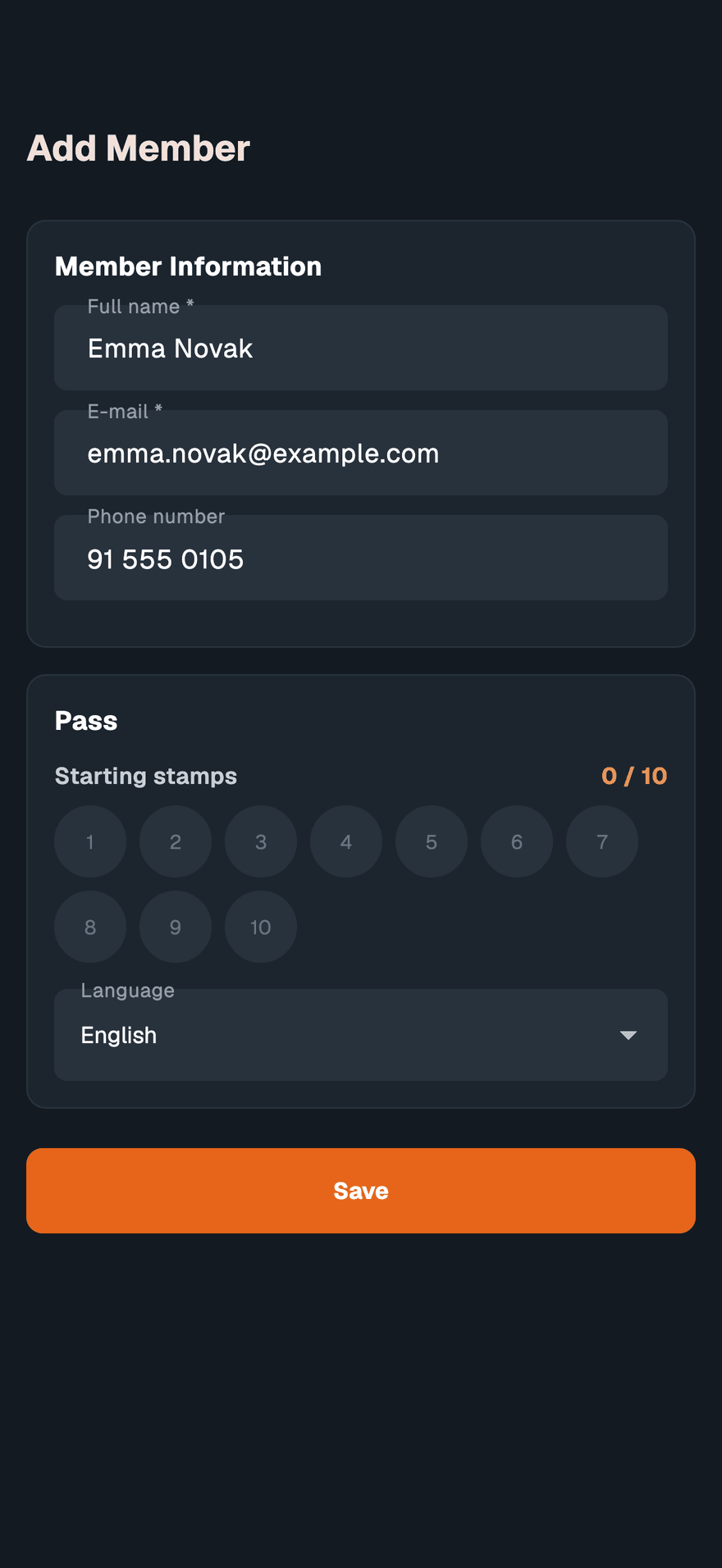
The pass goes to the email address and phone number you entered, through the channels set in SettingsMembersMessaging. See pass delivery.
To hand the pass over in person instead, open the member and tap the QR code button beside the pass. The customer scans Scan To Add To Wallet with their own camera.
Give an existing member another pass#
- Open the member
Go to Members and tap the member, for example Maya Chen.
- Open New pass
Tap + beside Passes. The New pass sheet opens.
- Set up the pass
Set the starting stamps or points on a loyalty card, or pick a Membership Plan, as for a new member. Then choose the pass Language.
- Create
Tap Create. The app shows Pass created, and the pass appears under Passes.
The new pass is for the member's template, and goes to the email address and phone number on their page.
Share the sign-up QR code#
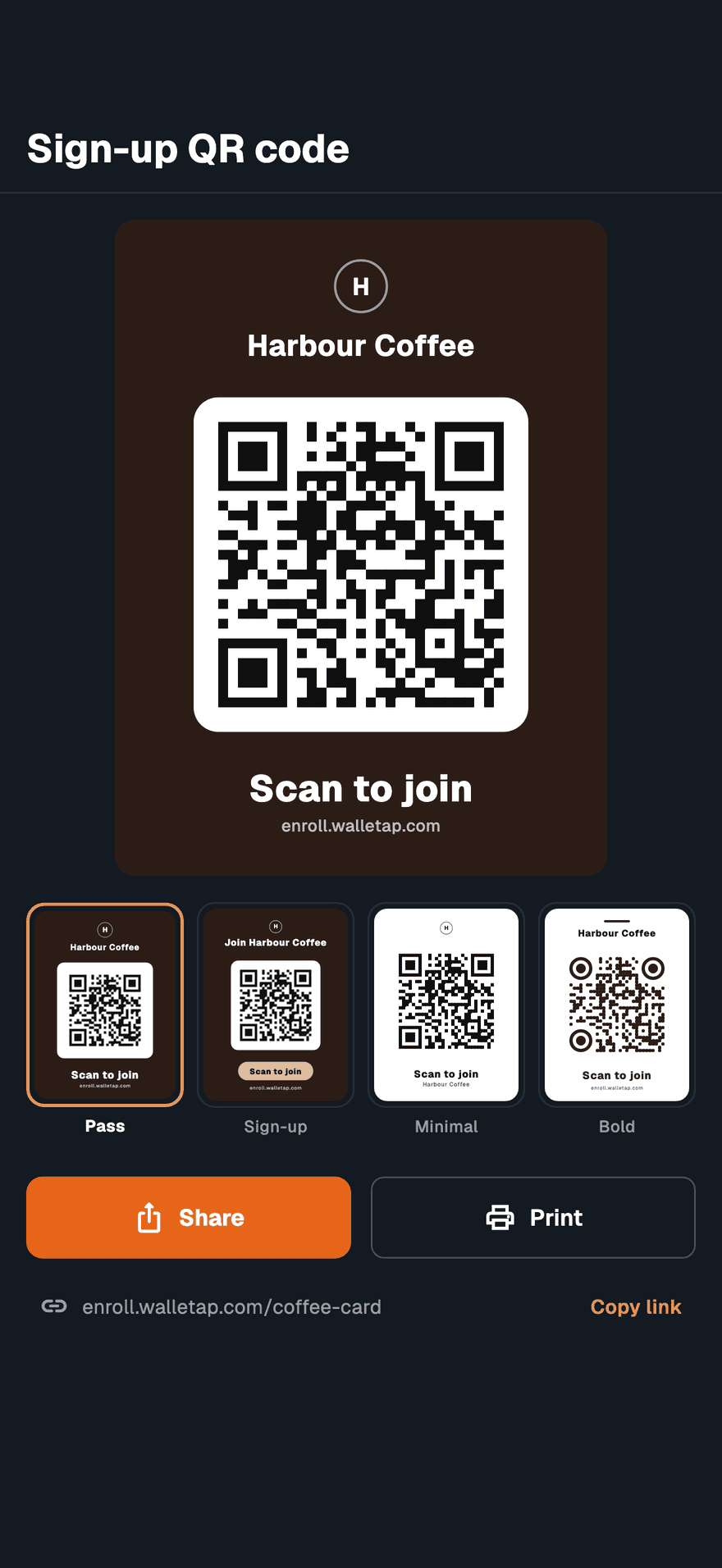
The sign-up QR code opens your template's sign-up page. Customers fill in the form on their own phone and get the pass straight away — useful at a till, on a table or in a window.
- Open Member sign-up
Go to SettingsMembersMember sign-up. The QR code tab is open.
- Choose a design
Pick one of four looks:
Design Looks like Pass Your pass: its colour, logo and name Sign-up The sign-up page it leads to Minimal Black on white, for cheap printing Bold Rounded dots in your brand colour The phone remembers the design for this template, so a reprint matches what is on the wall.
- Choose the location
With more than one location, pick where the poster will hang under Location. Members who join through it are filed under that location. Any location files them under none.
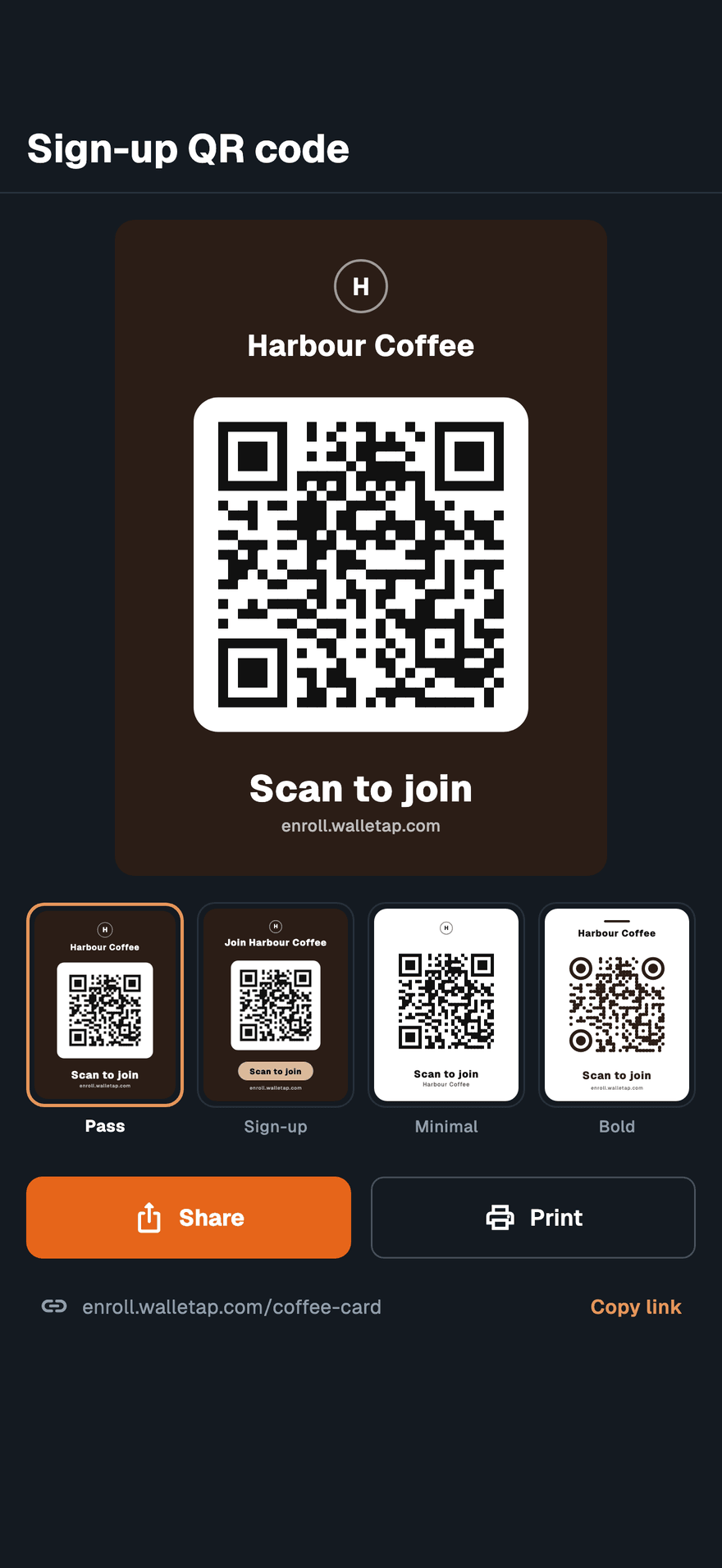
- Share or print
- Share sends the poster as an image, with the link, through any app on the phone.
- Print places it on an A4 page. The print dialog also saves a PDF.
- Copy link copies the sign-up link for a website or a social post.
Change the sign-up form#
The Form tab beside QR code edits the form the code opens: its fields and its look. Tap Save, and the QR poster updates at once. Someone whose role does not allow editing sees "You can view this form, but not change it." For every option, see the sign-up page.
Add a member at the front desk#
The desktop app adds members from MembersAdd Member. Its Pass options are:
- Digital — a wallet pass. Share via sends it by Message, or by NFC at the reader when the connected reader can hand a pass to a phone. Message Language sets the language of the pass and its message.
- Physical — a plastic card or tag. Tap it on the reader to link it before saving.
- No Pass — the member only, with a pass to issue later from their page.
If something goes wrong#
"Member enrolled, but pass creation failed: …" The member was saved but the pass was not. Open the member and add the pass from their page.
"Could not update stamps. Check your connection and try again." The pass was issued without its starting stamps. Open the member and update the stamps.
"New cards are paused". "This account had more active customers than its plan includes in each of the last two months. Existing cards keep working." See active passes and plans and billing.
A paywall opens when you tap Save. The account has issued every pass its plan includes. The account owner can choose a plan there. See plans and billing.