Plans and billing in the app
See your plan and usage on the phone, start the free trial, buy a plan or message credit through your phone's store, and manage it there.
The mobile app shows the account's plan, what it includes and how much of it is used. For loyalty accounts, the owner can also start the free trial, buy a plan and top up message credit through the phone's own store.
Before you start#
- Buying in the app takes the account owner. Team members see the plan without the buttons to buy.
- The phone works with a loyalty template. Membership and ticketing accounts see their plan in the app and manage billing in the dashboard. See billing.
- For prices, see the price list. The paywall shows the price in your store's currency.
See your plan#
Go to SettingsBillingPlan & billing. The row already says the plan in a line: the trial and its days left, or the free plan and the passes it has used.
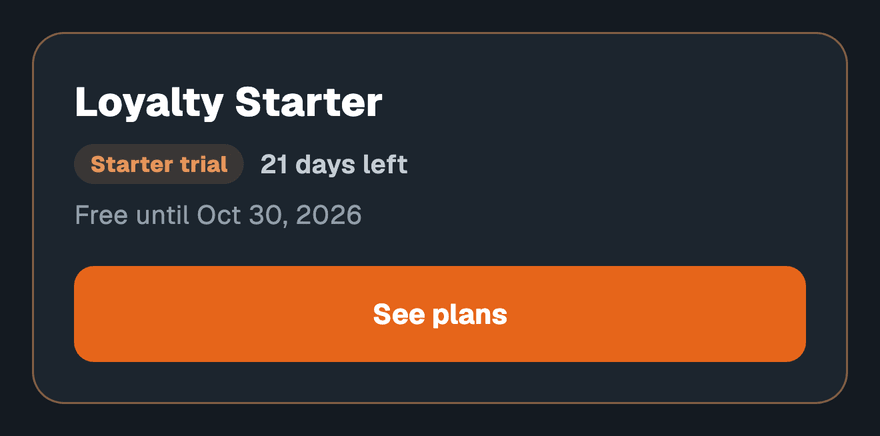
The screen has three parts:
| Part | What it shows |
|---|---|
| The plan card | The plan's name; during the trial, the days left and Free until a date; for a plan bought on this phone, the price and Renews on or Ends on; and who bills it — Billed through a store, or Billed directly by Walletap for a plan paid on the web. |
| Usage | Wallet cards, Card designs, Locations and Team members against the plan, and on paid plans Active customers this month. |
| Message credit | The credit left for text, Viber and WhatsApp messages, the monthly credit the plan includes, and credit from packs, which never expires. |
Below them: Manage subscription opens the store's own page for a plan bought on this phone, and Restore purchases re-reads purchases made with this store account. On the free plan, Test messages lets you verify a phone and send passes to it by text, Viber or WhatsApp.
Start the free trial#
An account that has never had a paid plan can try one once, free and without a card. The offer appears just before you create your first card design, and on the plans screen while the trial is unused.
- Open the plans
On SettingsBillingPlan & billing, tap See plans.
- Start it
Tap the button that starts the free trial; it names the trial's length. No payment is taken, and the app confirms that the trial has started.
When the trial ends, the account moves to the free plan unless you choose a plan. The plan card shows the end date throughout, in amber for the last three days, and the app offers the plans once in those days and once after the trial ends.
Buy a plan#
- Open the plans
Tap See plans on Plan & billing, or tap a feature marked as paid. The paywall opens on the plan that includes it.
- Choose the plan and period
Pick a plan, then Monthly or Yearly.
- Pay through the store
Tap Continue and confirm in your store's payment sheet. The app shows "You’re on" the new plan as soon as the store confirms.
The plan applies to the whole account: every phone and the dashboard see it. It renews automatically until you cancel it in the store.
To move up a tier later, tap the upgrade button on the plan card.
Add message credit#
Message packs are one-off purchases that top up the credit used to send passes and campaigns by text, Viber or WhatsApp. Pack credit never expires, and you can buy it on the free plan too.
- Open the packs
On Plan & billing, under Message credit, tap Add messages.
- Buy a pack
Add message credit lists the packs and the credit left. Tap one and confirm in the store.
Manage or cancel#
A plan bought in the app is managed in the store that sold it:
| Bought through | Manage or cancel |
|---|---|
| App Store | Manage subscription in the app, or iPhone Settings › your name › Subscriptions |
| Google Play | Manage subscription in the app, or Google Play › Payments & subscriptions |
| AppGallery | On the Huawei phone: Settings › HUAWEI ID › Subscriptions |
The dashboard shows a store plan under SettingsBilling, with a link to the store, and changes it only there. A plan paid on the web is changed on the web; the app shows it as Billed directly by Walletap and offers no purchases.
A plan bought in one store is managed in that store. An iPhone and an Android phone on the same account both show the plan, and only the store that sold it can change it.
Deleting your Walletap account leaves a store subscription running. Cancel it in the store first. See delete your account.
If something goes wrong#
"Plans can’t be loaded right now." The store did not answer. Check the connection, and that you are signed in to the store on this phone.
"The purchase didn’t go through." The store did not complete it. Try again, or check the payment method in the store.
"Waiting for the payment to be approved." The store is still processing the payment. The plan arrives when the store approves it.
"No purchases to restore." This store account has no Walletap purchase. Sign in to the store account that paid.
"The last payment didn’t go through." The store could not charge the renewal. Update the payment method in the store.
"Only the account owner can start the free trial.", "This account has already had its free trial." or "The free trial is for accounts that haven’t had a plan." The trial is once per account, for the owner of an account that has never paid.
"New cards are paused". The account had more active customers than its plan includes in each of the last two months. Existing cards keep working; choose a plan with more to issue new ones. See active passes.