Manage staff devices
How phones, tablets and front desks count against your account, what happens when one is refused, and how to sign a device out.
Every phone, tablet and computer running Walletap for your account is a device. Your plan includes a number of them, and each one is tied to the person who signed in on it, so one login cannot be shared across every till.
Every planBefore you start#
- Seeing every device and signing others out takes the account owner, or a team member whose role lets them manage the team. Everyone else sees and manages only their own.
- Devices are managed in the mobile app.
How devices are counted#
A device registers itself when someone signs in on it. From then on:
| Rule | What it means |
|---|---|
| The account's allowance | Your plan includes a number of active devices. A device counts while it has been used in the last 30 days, so a phone that left the business frees its place on its own. |
| The owner's login | Active on up to two phones or tablets — a phone and a tablet, say. A third is refused until one of the two is signed out. |
| A team member's login | Active on one phone or tablet. Signing in on a new phone signs the old one out. |
| A front desk | The desktop app is a shared desk. It counts toward the account's allowance, but not toward the person signed in on it, so it never signs anyone's phone out. |
| A location | A phone is tied to the location it was set to scan at when it registered, or to the account's only location. |
The limits are per login, so give every person their own. A team member invited with their own email gets their own device; staff sharing the owner's login share the owner's two.
To see your plan's allowance, open SettingsBusinessDevices, or compare plans on the price list.
See the account's devices#
- Open Devices
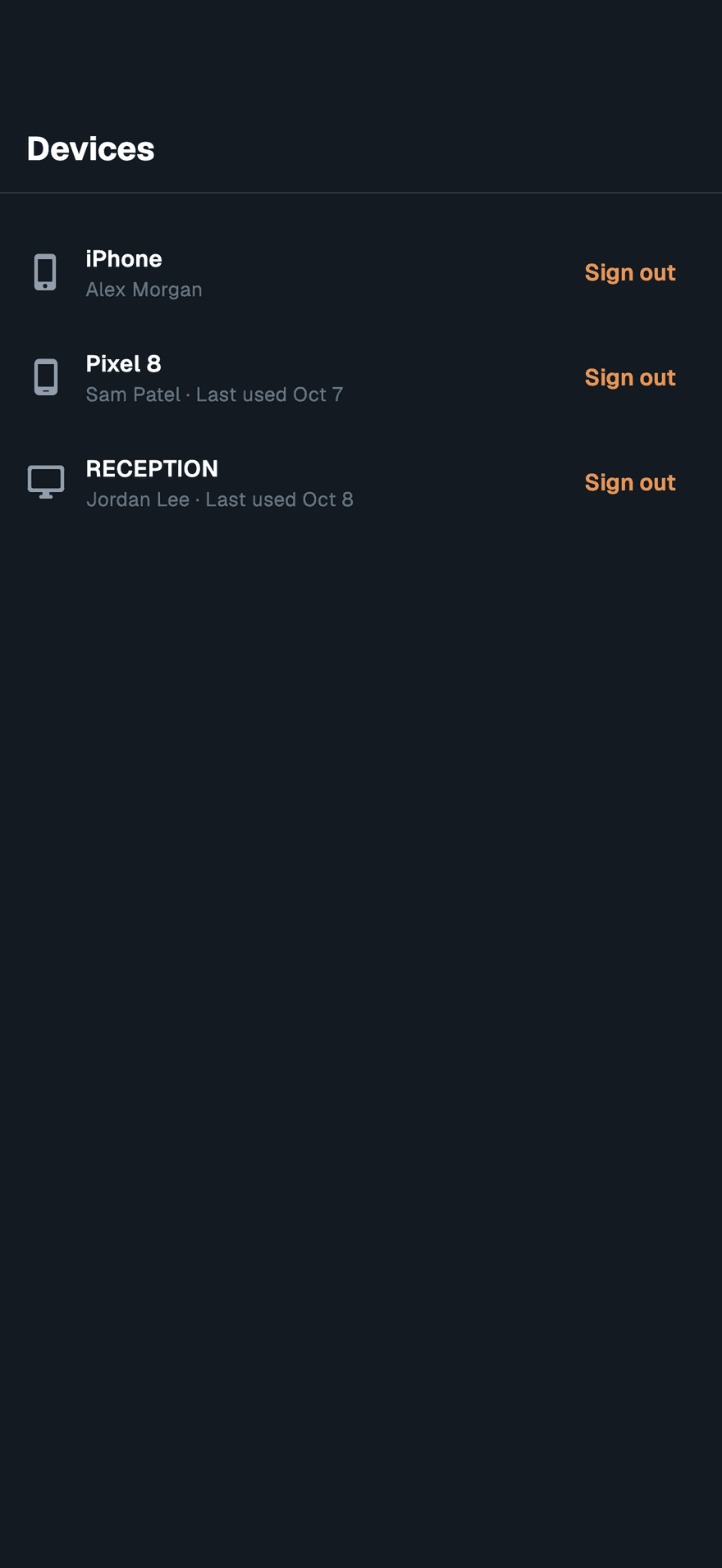
In the mobile app, go to SettingsBusinessDevices. The top of the list shows how many devices are in use against the allowance.
- Read the list
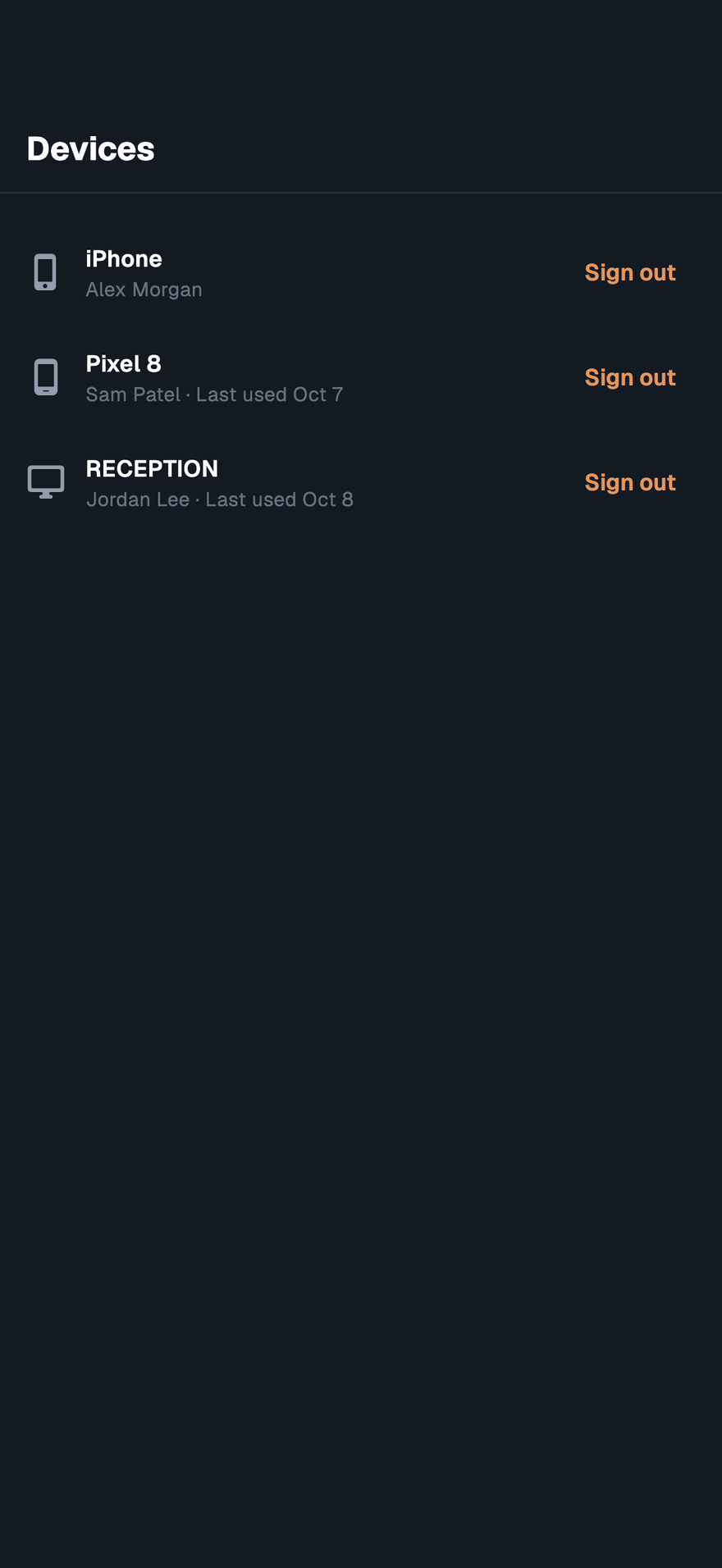
Each device shows its name, the person signed in on it, and when it was last used. The phone you are holding says This device.
Sign a device out#
Sign a device out when a phone is lost, replaced, or leaves with a person who no longer works for you.
- Find the device
Go to SettingsBusinessDevices.
- Tap Sign out
Tap Sign out beside it. The device stops working for the account at once, and its place is free.
The signed-out phone shows This device was signed out. Signing in on it again registers it as a new device, if there is room.
The first three sign-outs in any 30 days free a place at once. After that, a signed-out device keeps its place for seven more days, so a pool of phones cannot rotate through the allowance.
When a phone is refused#
A phone the account cannot take shows a screen instead of the app:
| Screen | Why | What to do |
|---|---|---|
| This device isn’t activated, with the devices in use | Every place in the account's allowance is taken. | The owner signs out a device on this same screen, or taps More devices to change the plan. Anyone else sees "Ask the account owner to free a device." |
| This device isn’t activated, with "This login is already on 2 devices. Sign one out to use this one." | The owner's login is already on two phones or tablets. | Sign one of them out from the list on this screen. |
| This device was signed out | Someone signed this device out. | Ask the owner, then tap Retry. |
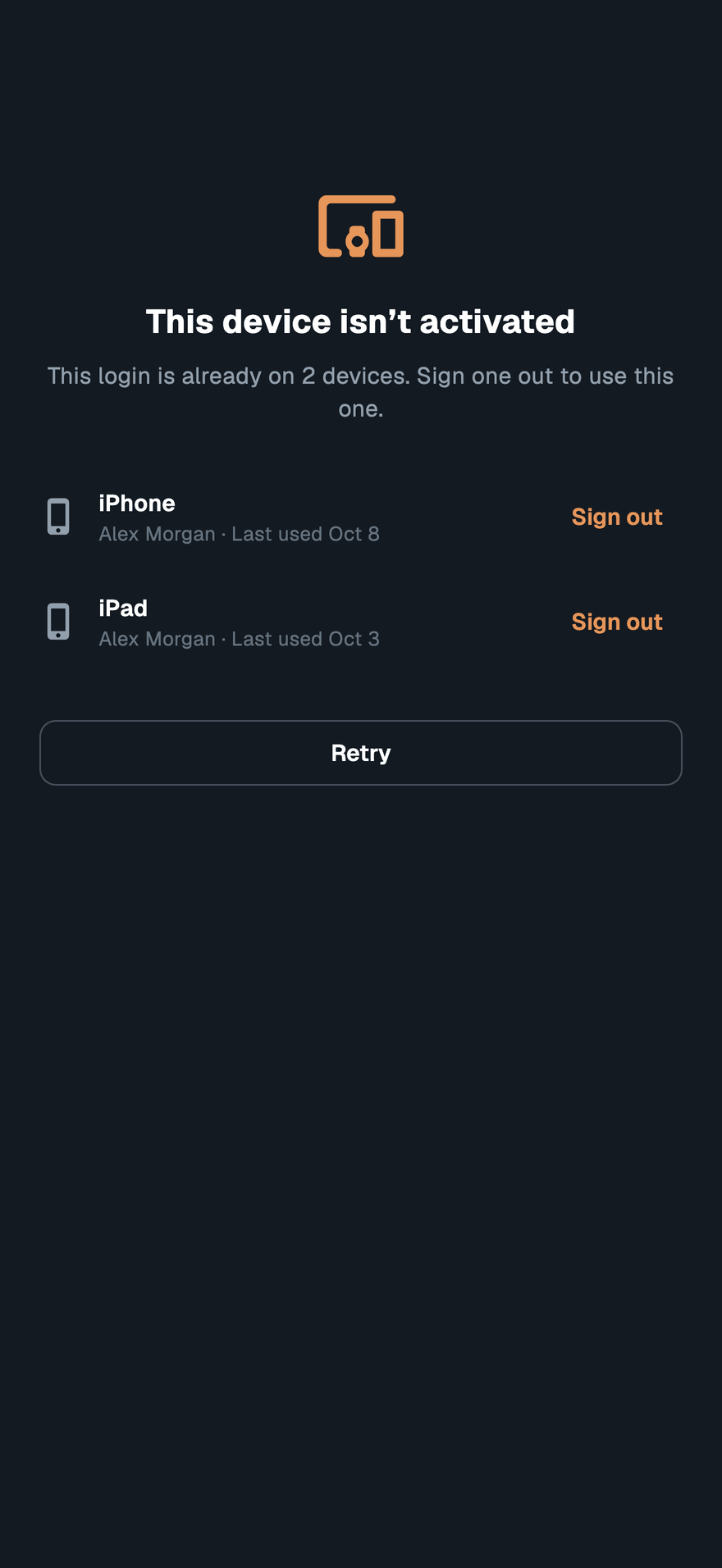
After freeing a place, tap Retry on the refused phone.
A front desk is never stopped by these screens. When the account refuses it, or it is signed out, the desktop app shows the same message as a notice above the page.
If something goes wrong#
"Couldn’t sign the device out". The phone could not reach Walletap. Check the connection and try again.
A staff member's old phone stopped working. They signed in on a new one, which signed the old one out. That is expected: a team member's login holds one phone.