Profile and sign-in
Change your name, phone and language, set a profile photo, choose how you sign in, and switch between the accounts you belong to.
Your profile is the person behind the login: the name your team sees, your language, and the ways you can sign in. It belongs to you, not to the business, so it follows you into every account you are invited to.
Before you start#
- Sign in to the dashboard at app.walletap.com.
Edit your profile#
- Open your profile
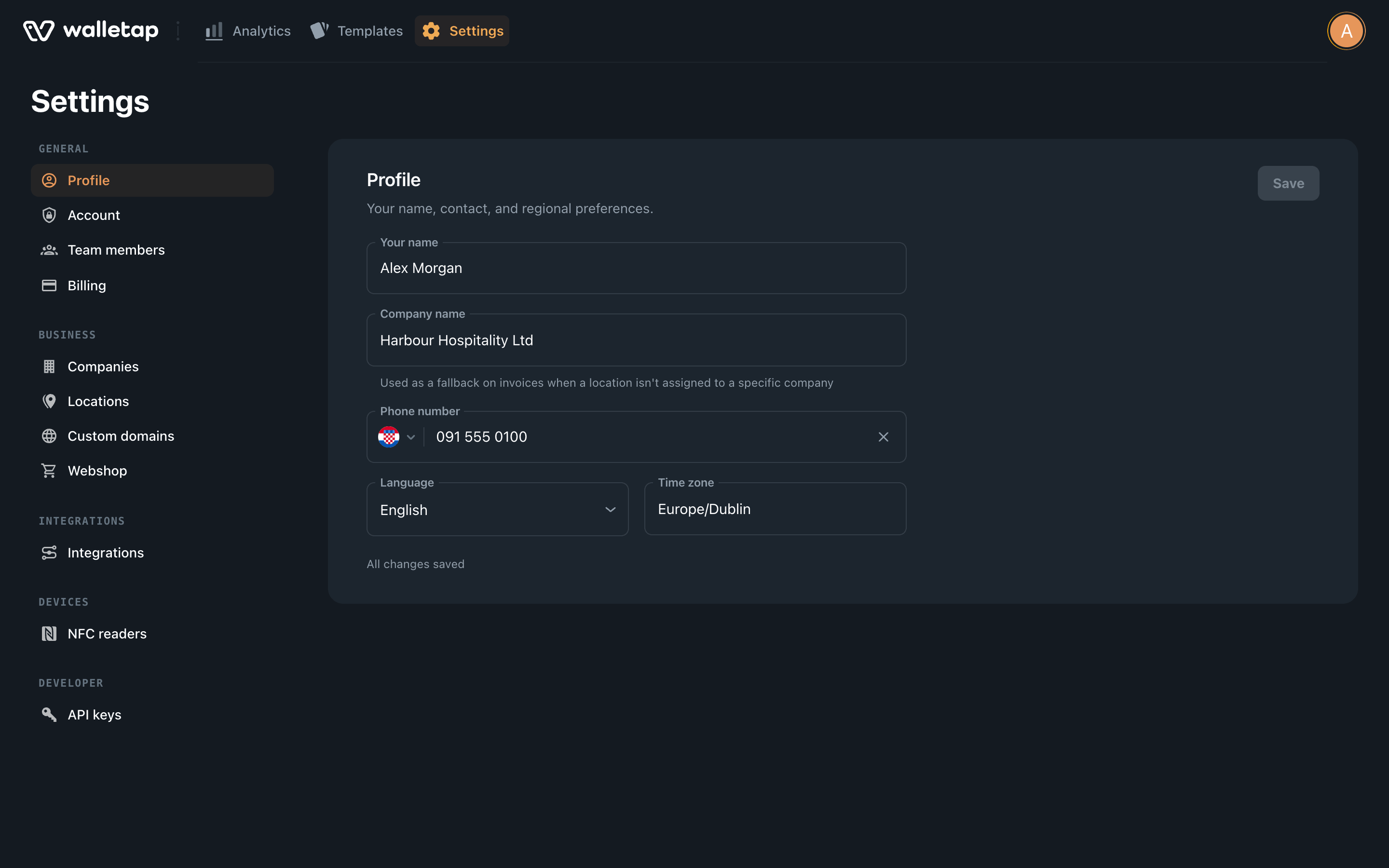
Go to SettingsProfile. You can also open it from the pencil icon next to your name in the account menu, top right.
- Change the fields you need
Field What it is for Your name How you appear to your team and in the account menu. Company name Used on invoices to your customers when a location has no company assigned. Phone number Pick the country first, so the number is saved with its dialling code. Language English, Hrvatski or Deutsch. Time zone An IANA name such as Europe/Dublin. Filled from your browser the first time. - Save
Click Save in the top-right corner of the section. The button stays greyed out until something has changed, and the form shows All changes saved once it has.
Set a profile photo#
Your photo is set from the mobile app, and the dashboard and both apps show it.
- Open your account in the app
In the Walletap mobile app, open Settings and tap your name at the top.
- Change the photo
Tap the round photo or Change photo, then pick an image. It can be up to 10 MB; Walletap crops it to a square. The app confirms with Profile photo updated.
The same screen has Edit name, which changes the name shown across Walletap.
Ways to sign in#
There is one sign-in screen, Log in or sign up, for new and existing users. The first time an address signs in, Walletap creates its account.
| Method | On the sign-in screen | How it works |
|---|---|---|
| Email link | Continue with email | Walletap emails a one-time sign-in link. Open it on the same device you asked from. Works for every account, including ones created with a password. |
| Password | Use password instead | Email and password. Forgot password? sends a reset link. |
| Continue with Google | Signs in with the Google account that uses the same address. | |
| Apple | Continue with Apple | Signs in with your Apple ID. |
The desktop and mobile apps offer these methods too, with Continue with Apple on iPhone and iPad.
Each email address has one Walletap login. If you signed up with a password and later try Google or Apple with the same address, the screen says This email already signs in another way. Send yourself a sign-in link below. The email link always works, whichever way the account was created.
Your first sign-in on the web#
The first time a new account signs in to the dashboard, a short One last thing screen comes first. It asks for Your name, Company name, Phone number (optional) and Country. If you signed in with Google, or with Apple and shared your name, the name is already filled in.
The company name becomes your account's first company. Click Continue to open the dashboard. If you signed up on the way to another page, such as a plan you picked, you go back to it instead. You can change your name and phone later under SettingsProfile, and the company under SettingsCompanies.
The screen appears once per account. It is skipped if you already gave your business details in the Walletap app, or if you joined another business's account through a team invitation.
Account security#
SettingsAccount holds the settings that protect your login.
- Sign-in email — the address you sign in with. To change it, contact support.
- Password — Reset password emails you a link to set a new password. The section confirms with Check followed by your address.
- Privacy — Cookie preferences reopens the cookie choices for analytics and marketing cookies.
- Danger zone — Delete account. See Delete your account.

Switch between accounts#
When another business invites you to its team, its account joins yours in the account menu. You keep one login and move between them.
- Open the account menu
Click your avatar in the top-right corner of the dashboard. Your own account is listed first, then each account you joined, by company name. A tick marks the one you are in.
- Choose an account
Click the account. The dashboard reloads on its Templates page. This browser remembers the choice and opens the same account next time.
While you work in someone else's account, Settings shows only Profile, Account and Locations. Billing, companies, integrations and the rest belong to that account's owner. See Team members.
If something goes wrong#
- The sign-in link does not arrive. Check spam, then request a new one. The screen says If an account exists for your address because it never reveals whether an address is registered.
- Your browser blocked the sign-in window. Allow pop-ups for app.walletap.com and try Google again, or use the email link.
- Wrong email or password. The message is the same for an unknown address and a wrong password. Use Forgot password? or the email link.
- Too many attempts. Try again later. Wait a few minutes before the next password attempt.