Email and text messages
How a pass reaches a customer by email, Viber, SMS or WhatsApp — automatic sending, channel order, fallback, message credit and test messages.
Email and text messages carry the link that adds a pass to a customer's wallet. You decide which of them go out automatically for new passes, which phone channels Walletap may use, and the order it tries them in.
These messages deliver the pass. Notifications to a pass already in a wallet are push notifications, and they never go out by email or text.
Before you start#
- To change these settings you need to be the account owner.
- For text messages, the account pays for messaging, or you send test messages to your own verified number.
The channels#
| Channel | Reaches | Sent as | Plan |
|---|---|---|---|
| An email address | Coffee Card via Walletap — the template's name. Replies go to your account's email address. | Every plan | |
| Viber | A phone with Viber | The Walletap business account | Paid plans |
| SMS | Any mobile phone | Walletap in countries where that sender name is registered, a Walletap phone number elsewhere | Paid plans |
| A phone with WhatsApp | Walletap's WhatsApp number | Paid plans |
Every message names the template and links to the page that adds the pass, in the language the pass was issued in. A text message reads like Your Coffee Card pass is ready! Click the link to add it to your mobile Wallet, followed by the link. Accented letters are sent as plain ones so the SMS stays short. Each email carries an unsubscribe link: someone who uses it gets no more pass emails from your account at that address.
Choose what goes out automatically#
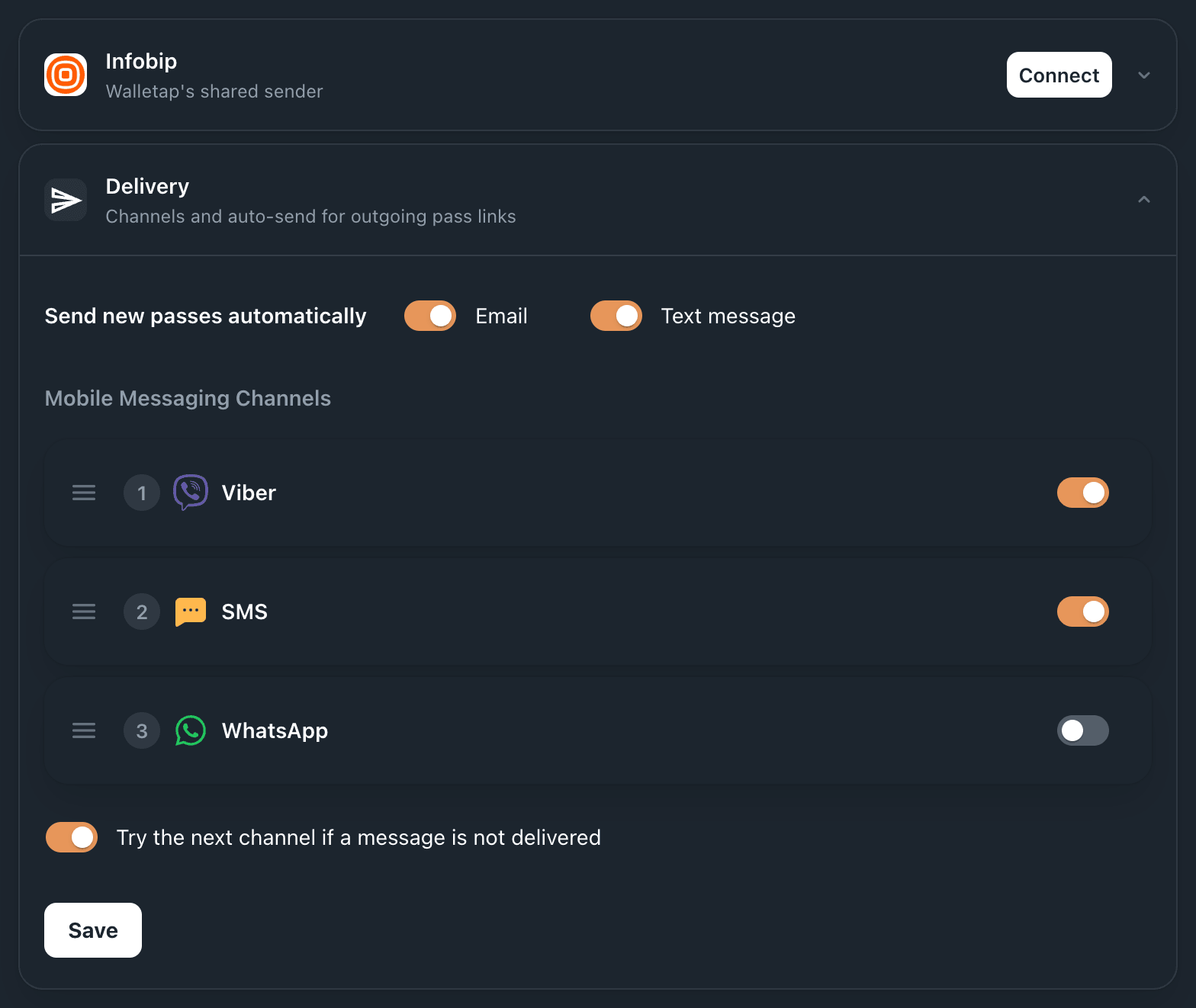
Send new passes automatically has two switches, both on by default:
- Email — send the pass link to the email address on the pass.
- Text message — send it to the phone number, over the phone channels below.
They are the defaults for every new pass. Wherever a pass is issued with its own
choice — the send options in the mobile app, or sendToEmail and sendToPhone
in an API request — that choice wins for that pass.
Set the channel order#
- Open the delivery settings
Go to SettingsIntegrations. In the Messaging group, click Delivery to expand it.
- Pick what goes out on its own
Under Send new passes automatically, switch Email and Text message on or off.
- Order the phone channels
Under Mobile Messaging Channels, switch each channel on or off and drag the rows into the order you want. The number beside a channel is its place: 1 is tried first.
- Choose whether to fall back
Leave Try the next channel if a message is not delivered on to fall back to the next channel. Off, only the first channel is tried.
- Save
Click Save.
The next pass you issue goes out with the new settings.
In the mobile app#
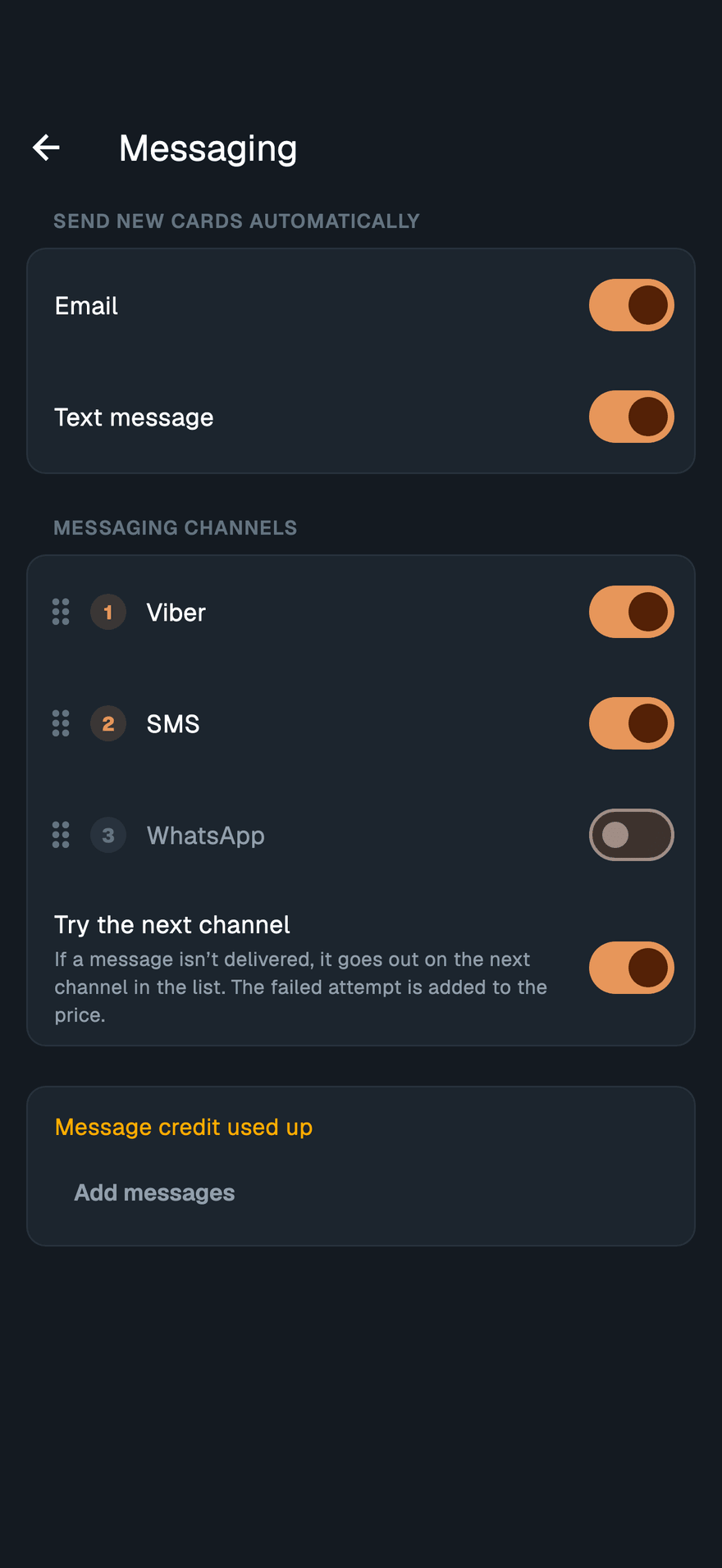
The same settings are under SettingsMessaging: Send new cards automatically, Messaging Channels with drag handles, and Try the next channel. Each channel shows what one delivered message costs for your country. Changes save as soon as you make them. A team member sees the settings with "Only the account owner can change these."
How fallback works#
Out of the box the order is Viber, then SMS, then WhatsApp. Walletap sends on the first channel that is switched on, and moves to the next only if the message is not delivered.
- Viber waits up to 30 seconds. A number that has no Viber fails at once, so most customers without it get their SMS within seconds.
- WhatsApp waits up to 60 seconds.
- SMS, and whichever channel is last in the list, keeps trying for up to 48 hours, so a phone that is switched off still gets the link when it comes back on.
When a message falls back, the failed attempt is added to its price.
Paying for messages#
How messages are paid for depends on how the account's plan was bought. The mobile app's Messaging screen says which applies to you.
| You see | What it means |
|---|---|
| "Messages are billed on your monthly invoice." | Each delivered message is charged on the monthly invoice. SettingsBilling lists this period's messages per channel. |
| "… message credit left" | Messages are paid from message credit — the monthly credit of a plan bought in the app, plus any packs you added — as they are delivered. Add messages buys a pack. |
| "Message credit used up" | Passes are still issued and emailed, but no text message goes out until you add messages or next month's credit arrives. |
| "On the free plan, messages go only to numbers you verify." | Text messages go only to your own verified numbers, as test messages. Email is sent as normal. |
SMS prices vary by country. The app shows the rate for your country beside each channel, and the price list is on the pricing page.
Send test messages to your own phone#
Before the account pays for messaging, you can still watch a pass arrive by text on a number you have verified. The account has a small allowance of test messages, and the app shows how many are left.
- Open test messages
In the mobile app, go to SettingsMessaging and tap Test messages.
- Verify your number
Tap Verify a phone, enter your number with its country code — for example
+385 91 555 0123— and tap Send code. - Enter the code
Type the code from the text message and tap Verify. The number appears with a check mark.
- Issue a pass to yourself
Issue a pass with that phone number, from the app or the dashboard. It arrives over your channel order and uses one test message.
If something goes wrong#
A customer got no text message. Check, in order: that Text message is on under Send new passes automatically; that at least one phone channel is on; that the account has message credit or pays for messaging; and, on the free plan, that the number is one you verified.
The number was entered without a country code. Walletap reads it as a number
in your account's country. Enter customers from other countries with + and
their country code.
The phone channels are greyed out, with "Subscribe to enable mobile messaging". The account does not pay for messaging yet. Email still goes out.
Verifying a phone fails.
- "Enter the number in international format, for example +385981234567." — add
the
+and the country code. - "That code has expired. Request a new one." or "Too many wrong codes. Request a new one." — tap Send code again.
- "Too many codes requested. Try again later." — wait, then retry.
A customer stopped getting emails. They used the unsubscribe link in an earlier pass email. Send them the pass link another way, or by text message.