Templates
Find, open, duplicate and delete pass templates, and see what each part of the designer controls.
A template is the design and the rules that every pass of one kind shares. Harbour Coffee's Coffee Card is one template; each customer's card is a pass issued from it. When you change a template, every pass issued from it follows.
Every planBefore you start#
- You need a Walletap account. If you are a team member, duplicating a template also needs permission to create templates — the account owner sets this in Team members.
The Templates page#
Go to Templates. Every template in the account is a card in the grid, fifteen to a page.
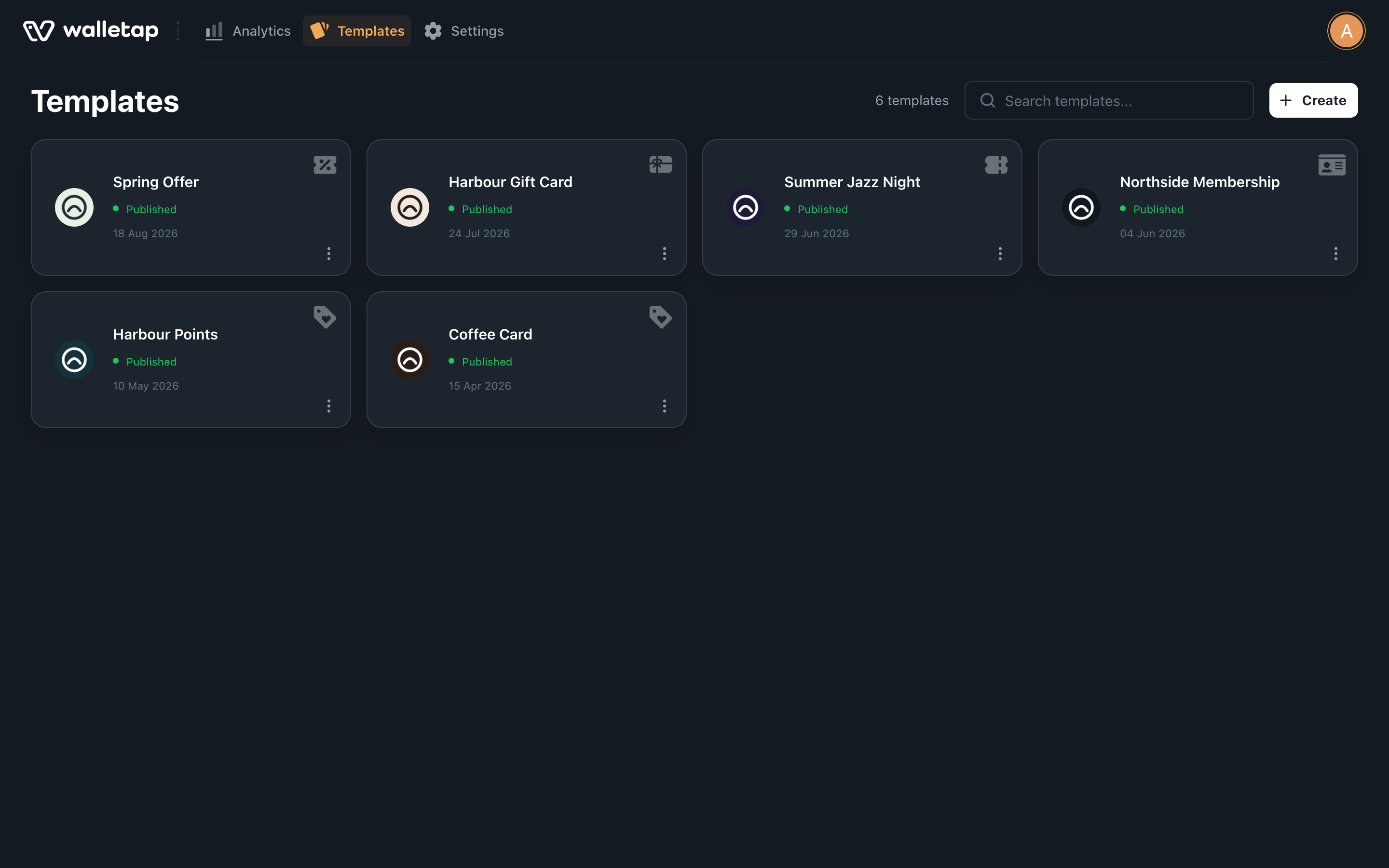
Each card shows the template's icon (or its logo), its name, its status and the date it was created. The faint symbol in the top-right corner is the template type — hover over it to see the name. A template is live from the moment it is created; there is no separate publish step.
Type in Search templates... to find a template by name. The count beside the search box is the number of templates in the account.
Template types#
The type decides which wallet layout the pass uses and which built-in fields it offers. You choose it when you create the template.
| Type | Use it for | Apple Wallet draws it as |
|---|---|---|
| Generic | Membership and ID cards | Generic pass |
| Loyalty | Points and stamp cards | Store card |
| Gift | A card that carries a remaining balance | Store card |
| Event | Tickets with a date, venue and seat | Event ticket |
| Coupon / Offer | A headline discount or offer | Coupon |
Pass types explains how to pick one.
Open a template#
Click a template card. It opens on the Design tab, and the main navigation switches to the template's three tabs:
- Design — the pass, its sign-up form, where it shows up and how it is redeemed.
- Members — everyone holding a pass from this template. See Members.
- Campaigns — notifications and automated messages to those holders. See Campaigns.
The template's name and icon sit in the header with a cog beside them. Click them to open Template settings. To get back to the account, use the account menu at the top right.
The designer#
The Design tab has three columns: a list of sections on the left, the section you are editing in the middle, and a live preview of the pass on the right. The sections scroll as one page, so clicking a section in the list jumps to it.
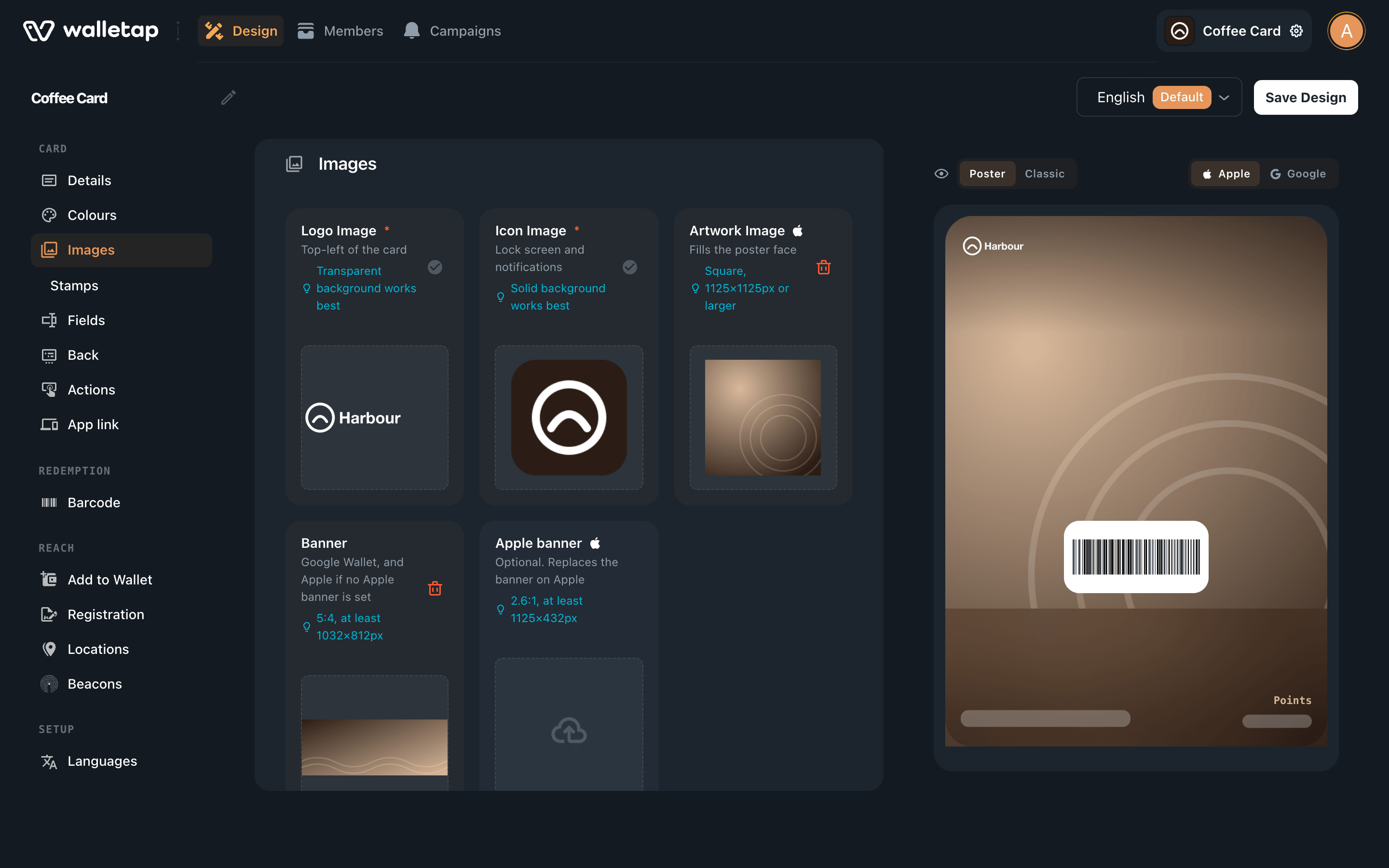
| Group | Section | What it controls |
|---|---|---|
| Card | Details | The issuer name, and on event tickets the dates, venue and fine print. Not on Generic templates |
| Colours | Background, label and text colours — see Artwork and colours | |
| Images | Logo, icon, banners and poster artwork — see Artwork and colours | |
| Stamps | Loyalty templates only: the stamp card and its rewards — see Rewards | |
| Fields | The headline, top row and row on the front — see Fields | |
| Back | Fields, links and contact details on the back — see Fields | |
| Actions | Up to two buttons Apple Wallet shows beneath the pass | |
| App link | Your website or app, as a button on Google Wallet | |
| Redemption | Barcode | The code staff scan — see Barcodes and NFC |
| Tap | NFC redemption, shown only on templates with NFC | |
| Reach | Add to Wallet | The page and email a holder opens to add the pass — see Delivery |
| Registration | The sign-up form — see Sign-up form and QR code | |
| Locations | Places where the pass appears on the lock screen — see Locations and lock-screen relevance | |
| Beacons | Bluetooth beacons that do the same in Apple Wallet | |
| Setup | Languages | The languages the pass is shown in |
Above the preview, switch between Apple and Google to see each wallet's version. On Generic, Loyalty, Gift and Coupon templates you can also switch the preview between Poster and Classic — that choice is part of the design and is saved with it. Fields explains the poster.
Nothing reaches a holder until you click Save Design. The button stays disabled while there is nothing to save. When you save, passes already in Apple Wallet refresh with the new design. Passes in Google Wallet pick up some changes straight away; others, such as the background colour and the barcode, reach each pass the next time that pass is updated.
Template name and pass title#
These are two different things:
- The template name — Coffee Card — is how the template is listed in the dashboard and the apps. Holders see it too: it names the pass in the email and text messages that deliver it.
- The pass title is the large heading at the top of the Design tab. It starts as the template name, and it is what the pass shows beside a square logo. Click it, or the pencil beside it, to rename it.
Template settings#
Click the template's name in the header to open Template settings:
- Template ID — the identifier the API uses for this template.
- API Key — the account's API key, on plans that include API access.
- Duplicate template — see below.
- Delete template — see below.
Duplicate a template#
A copy is the quickest way to start a second card that should look like the first — a Summer Jazz Night ticket for next season, or a membership for a second gym.
- Choose Duplicate
On Templates, click the ⋮ button at the bottom right of the card and choose Duplicate. Or open the template and choose Duplicate template in Template settings.
- Name the copy
The name starts as the original's with (copy) added. Give it the name you want it listed under — for example Summer Jazz Night 2027.
- Create the copy
Click Duplicate. The copy opens on its own Design tab.
The copy starts with the original's pass design and artwork, sign-up form, Add to Wallet page, languages, beacons and lock-screen locations — the locations up to what your plan allows. Members, campaigns and membership plans stay with the original, and a custom domain is not carried over. A copy is a new template, so it counts towards your template allowance.
Delete a template#
- Open Template settings
Open the template and click its name in the header.
- Delete it
Click Delete template, then Delete to confirm. You return to the dashboard.
Every pass reads its design from its template each time it is opened or updated. So Walletap deletes a template only while no passes have been issued from it. If passes exist, the delete is refused with a message that says how many there are.
Deleting a template that has issued passes breaks those passes for the people who installed them: they can no longer be updated or reissued. If you must remove one anyway, the templates API can force the deletion.
If something goes wrong#
"This template has N issued passes…" — the template still has passes, so it was not deleted. See Delete a template.
Duplicate shows a lock, or the copy is refused with Upgrade — the account already holds every template its plan includes. Upgrade, or delete a template you no longer use.
"The template was duplicated but could not be opened." — the copy was made. Find it on Templates rather than duplicating again.
"You need to enter issuer name!" when saving — fill in Issuer Name under Details.
"You need to enter card name!" when saving — the pass title at the top of the Design tab is empty.