Custom domains
Serve a template's pass pages from your own subdomain, such as pass.harbour.example, by adding two DNS records and verifying them.
Every pass has a page where its holder adds it to their wallet. By default its
link starts with pass.walletap.com. With a custom domain, the links for a
template's passes use a subdomain of your own website instead, so the address a
customer sees in their email or text message is yours.
Before you start#
- You are the account owner.
- You can add DNS records for your domain, at your registrar or DNS provider.
- Choose a subdomain that starts with
pass., such aspass.harbour.example. Pass pages are served on a subdomain namedpass, and the domain must have at least three parts — the root domain on its own cannot be used.
A custom domain is set on one template at a time. To use your domain for several templates, repeat the steps for each.
Set up a custom domain#
- Choose the template
Go to SettingsCustom domains and pick the template under Template.
- Enter the subdomain
Under Subdomain Configuration, type the subdomain into Subdomain and click Configure. The two DNS records appear, each marked Pending.
- Add the DNS records
At your DNS provider, create both records from DNS Records Configuration. The copy icons copy each name and value exactly.
- Verify
Back in Walletap, click Verify Domain. When both records are found, each is marked Verified and the page says Custom Domain Active!
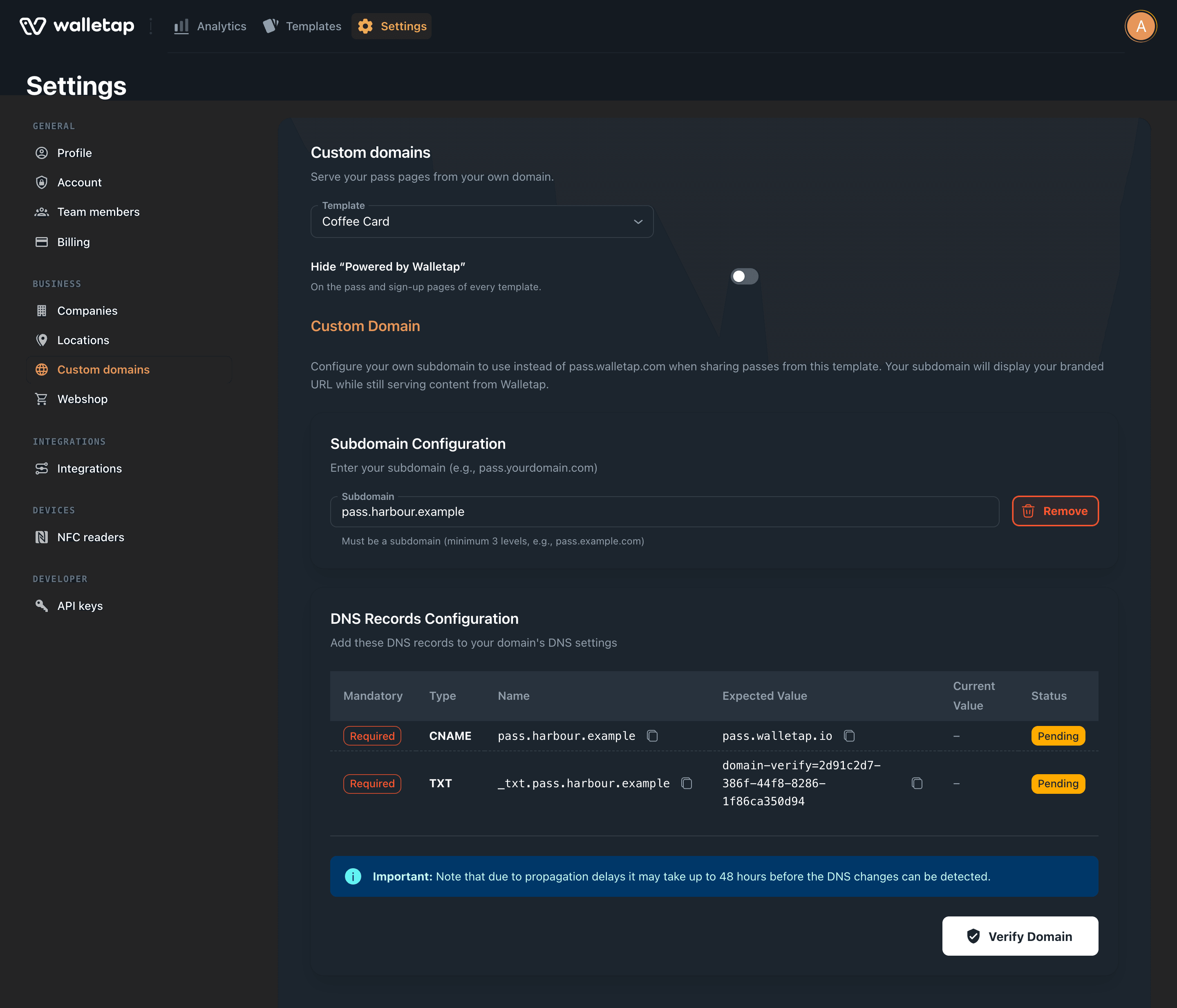
The DNS records#
| Type | Name | Value |
|---|---|---|
| CNAME | your subdomain, e.g. pass.harbour.example | pass.walletap.io |
| TXT | _txt. followed by your subdomain, e.g. _txt.pass.harbour.example | the domain-verify=… token shown on the page |
Both are required. The token is unique to this template and this subdomain: copy it from the page rather than reusing one from another template.
Some DNS providers add your domain to the name automatically. If yours does,
enter only pass for the CNAME and _txt.pass for the TXT record.
DNS changes can take up to 48 hours to be visible. If verification fails straight after you add the records, wait and click Verify Domain again.
Record statuses#
Each DNS record has its own status, so you can see which of the two is missing.
| Status | Meaning |
|---|---|
| Pending | Not checked yet. Add the record, then click Verify Domain. |
| Failed | The last check did not find the expected value. Current Value shows what was found. |
| Verified | The record is correct. |
The domain goes live when both records are Verified.
What changes when it is verified#
Links to passes issued from the template — in the delivery email and text message — open the add-to-wallet page on your subdomain. Links sent before that keep working.
To hide the "Powered by Walletap" mark on those pages as well, see White-label.
Remove a custom domain#
Click Remove next to the subdomain and confirm. Pass links for the template go
back to pass.walletap.com. Remove the DNS records at your provider afterwards if
nothing else uses them.
If something goes wrong#
- Please enter a valid subdomain (e.g., pass.yourdomain.com). Enter a
subdomain with at least three parts, without
https://or a path. - Custom domain verification failed - please check DNS records. Compare Current Value with the expected value for each record. A dash means nothing was found yet.
- The CNAME stays Failed although you added it. If your DNS provider
proxies records, switch this one to DNS only, so it points straight at
pass.walletap.io. - Your own domain is available on a paid plan. The records may be correct; the plan is what stops verification. Click Upgrade.