Authentication
Create API keys, choose what each one may do, send them with your requests, and rotate or turn them off when you need to.
Every API request carries an API key, and the key decides two things: which account the request acts on, and what it is allowed to do there. Give each integration its own key with only the scopes it needs, so you can rotate or turn one off without touching anything else.
Paid plansBefore you start#
- You are the account owner. People you invite to your account do not see the API keys section.
- Your account is on a plan that includes API access.
Create a key#
- Open the API keys section
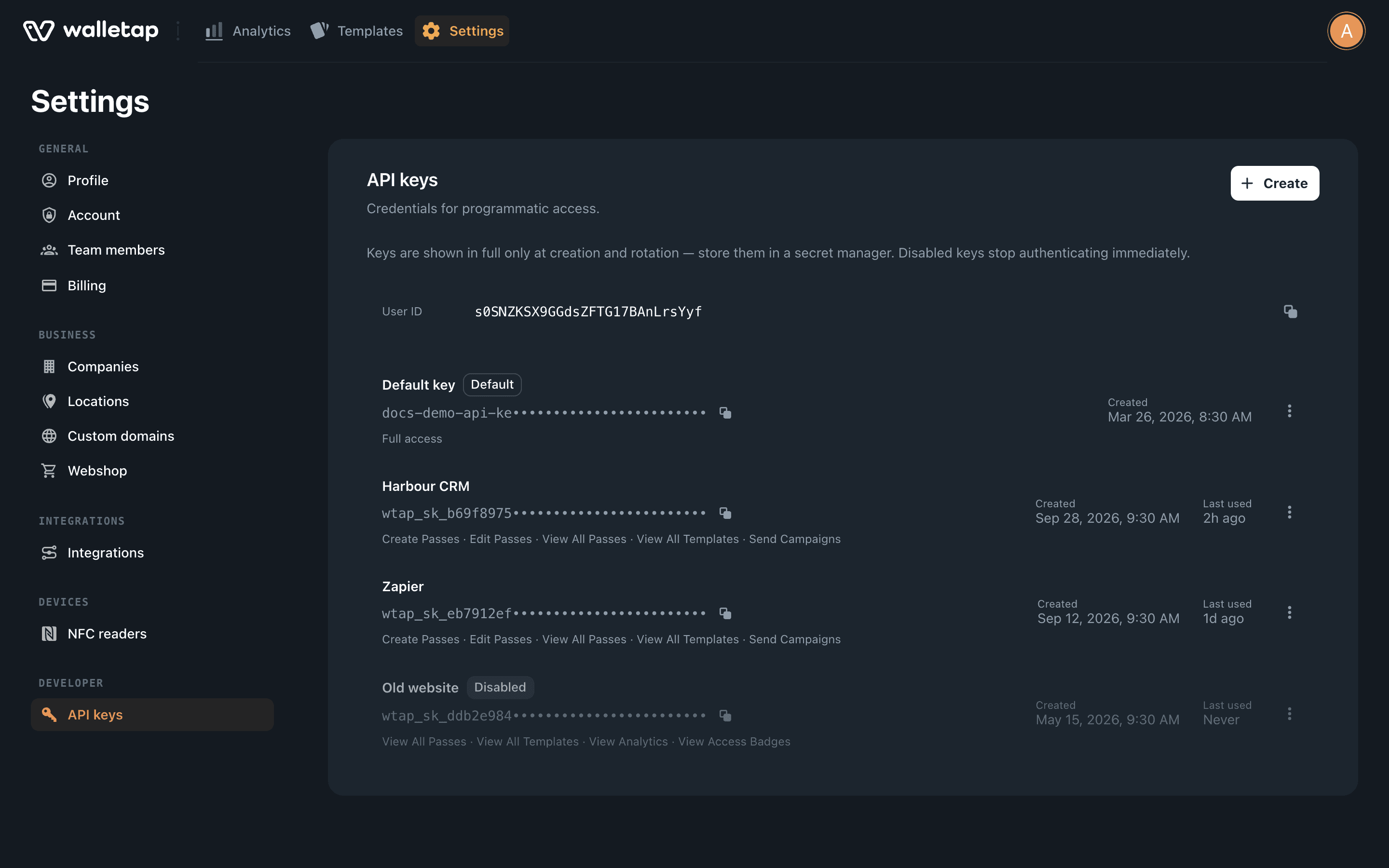
Go to SettingsAPI keys, or open app.walletap.com/settings?section=api.
- Start a new key
Click Create at the top of the section. The New API key dialog opens.
- Choose what the key can do
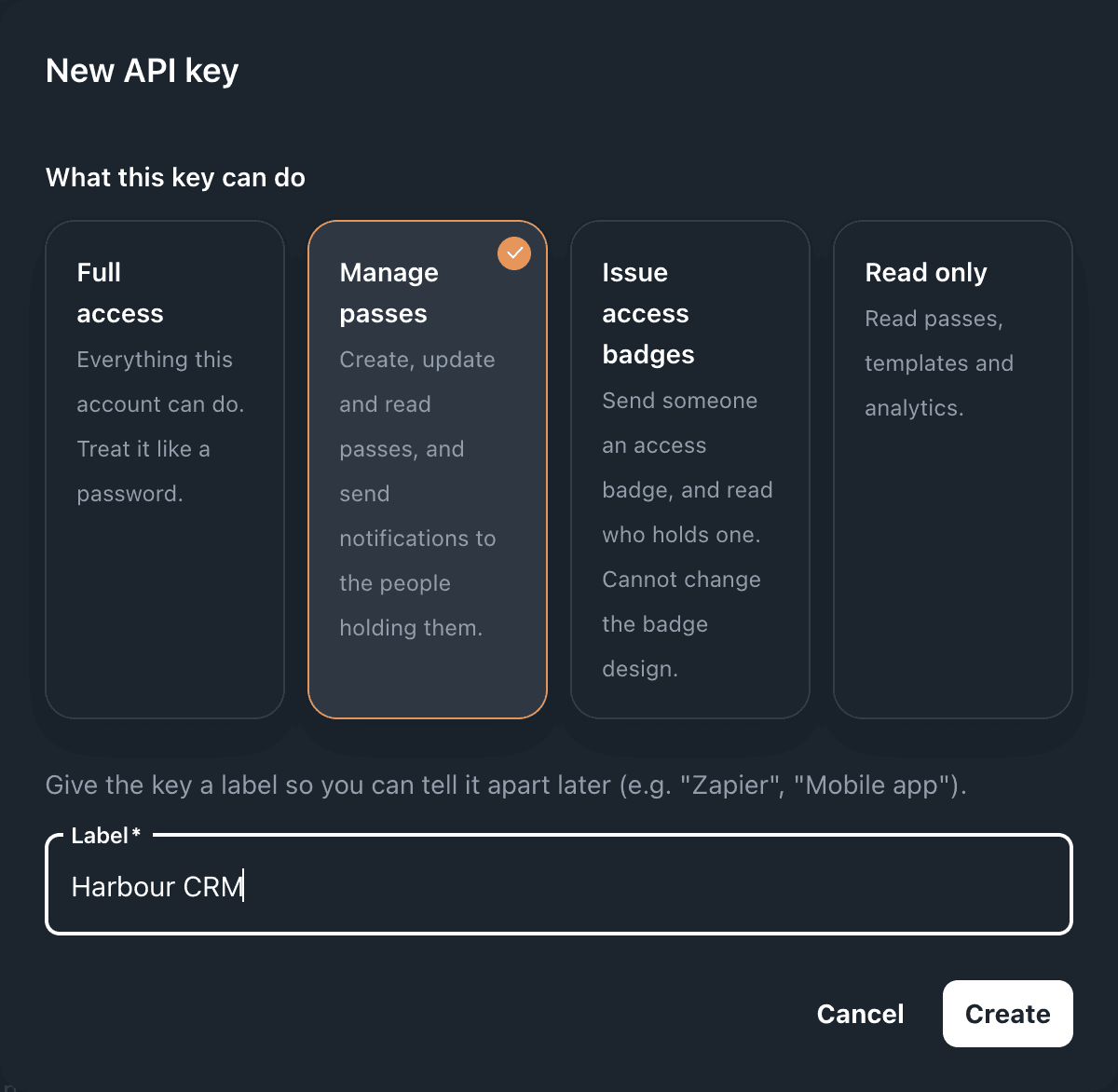
Under What this key can do, pick one of the presets. Manage passes is selected by default and is the right choice for most integrations. The presets are described in Scopes below.
- Label it
Type a Label that says where the key will live, such as
Harbour CRMorWebsite sign-up. You will use it later to tell keys apart. Click Create. - Copy the key
The Key created dialog shows the full key, which starts with
wtap_sk_. Click Copy key and store it in your secret manager or your server's environment, then click Done.
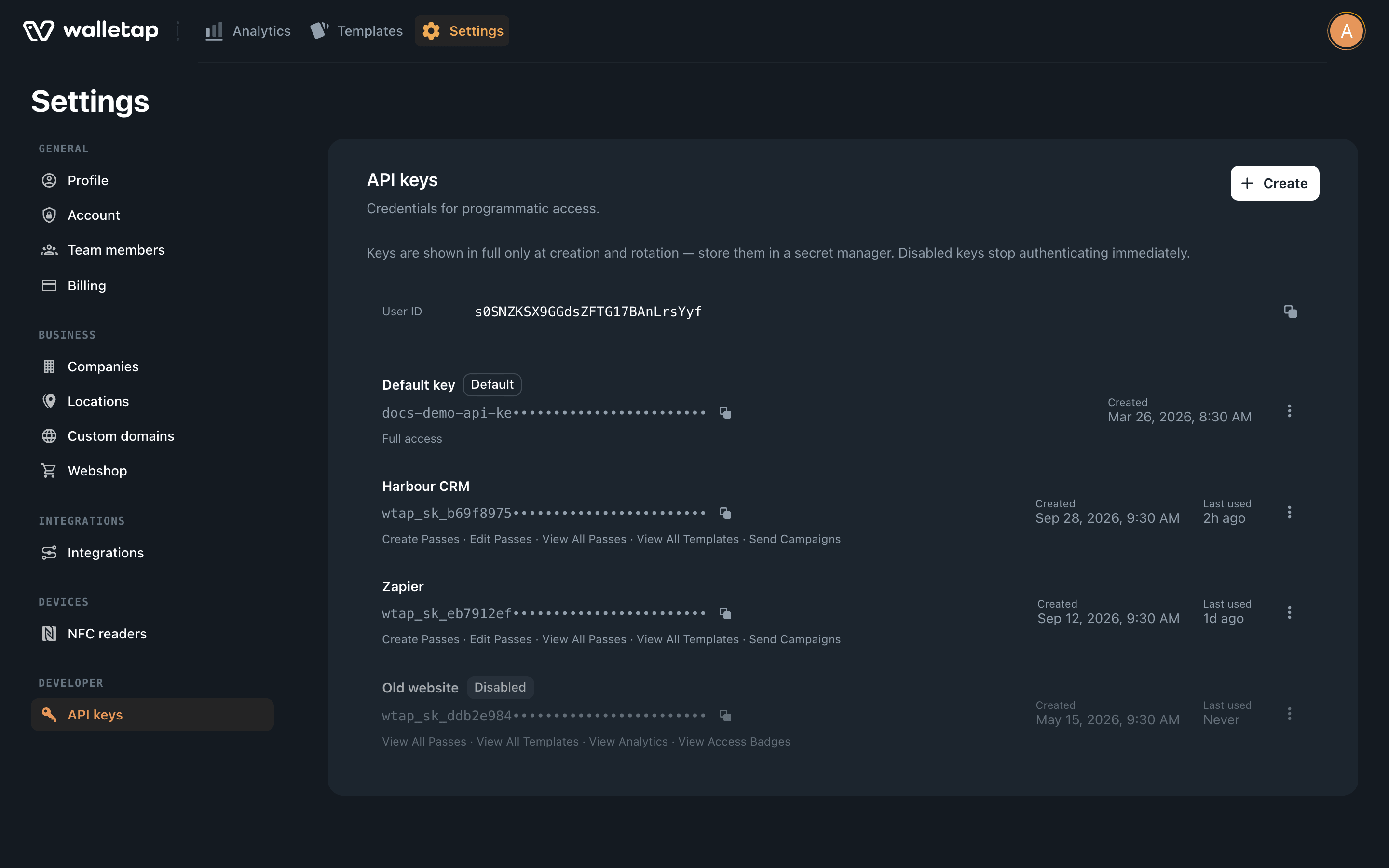
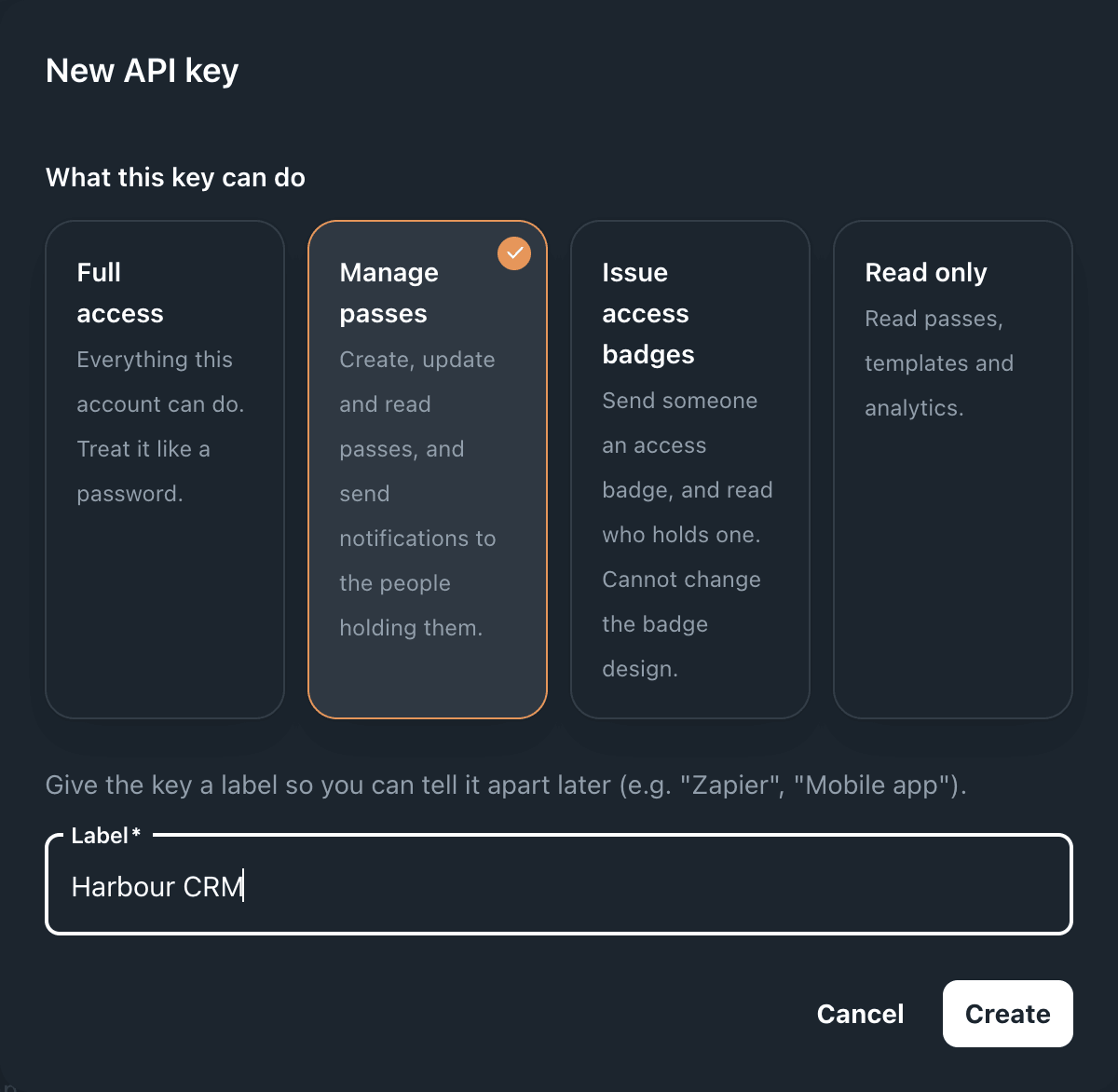
The full key is shown once. Walletap stores only a fingerprint of it, so it can never be displayed again. If you lose it, rotate the key to get a new value.
Send the key#
Put the key in the X-API-Key header of every request:
curl https://api.walletap.com/templates \
  -H "X-API-Key: $WALLETAP_API_KEY"
X-API-Key works on every endpoint. Some endpoints also read
Authorization: Bearer <key>, but POST /pass, GET /pass and the notify and
resend endpoints read only X-API-Key, so standardise on that header.
To check that a key works and see which account it belongs to, call
POST /auth. It answers with the account's name and email, whatever the key's
scopes:
curl -X POST https://api.walletap.com/auth \
-H "X-API-Key: $WALLETAP_API_KEY"{ "displayName": "Alex Morgan", "email": "alex@harbour.example" }Scopes#
A key's scopes cap what it may do. A request that needs a scope the key lacks
answers 403 and names the missing scope in error, for example
Missing permission: passes.create. On /pass and the notify, resend and template
notification endpoints, the body also carries "code": "insufficient_scope".
Presets#
| Preset | Scopes | Use it for |
|---|---|---|
| Full access | everything | Your own back office. Treat it like a password |
| Manage passes | passes.create, passes.edit, passes.viewAll, templates.viewAll, campaigns.send | Issuing, reading and updating passes, and notifying holders |
| Issue access badges | badges.issue, badges.viewAll | An HR system that sends staff their door badge |
| Read only | passes.viewAll, templates.viewAll, analytics.view, badges.viewAll | Reporting and lookups |
What each scope allows over the API#
| Scope | Allows |
|---|---|
passes.create | POST /pass |
passes.viewAll | GET /pass, GET /passes, GET /passes/search |
passes.edit | PATCH /pass field changes, voiding and reactivating, stating a stamp count or balance directly |
scanning.stamp | PATCH /pass with a stampOperation |
scanning.redeem | PATCH /pass with a balanceOperation |
campaigns.send | POST /pass/{passId}/notify, POST /pass/{passId}/resend, POST /template/{templateId}/notification |
members.export | GET /passes/export |
templates.viewAll | GET /templates, GET /templates/{id}, reading files |
templates.create | POST /templates, uploading files; with templates.duplicate, POST /templates/{id}/duplicate |
templates.edit | PATCH /templates/{id}, uploading files |
templates.delete | DELETE /templates/{id}, deleting files |
files.read, files.write, files.delete | Reading, uploading and deleting files on their own |
badges.viewAll | Reading access badges, invites, holders and their badges |
badges.issue | Inviting someone to a badge and cancelling an invite |
badges.edit | Renaming a badge holder, refreshing a badge's design in the wallet |
badges.revoke | Suspending, resuming and revoking badges, removing a holder |
scanning.stamp, scanning.redeem, members.export and badges.revoke are in
no preset other than Full access. To get a key that holds them without full
access, create it with custom scopes, as below.
Create a key with custom scopes#
POST /api-keys creates a key with exactly the scopes you list. Call it with a
Full access key:
curl -X POST https://api.walletap.com/api-keys \
  -H "X-API-Key: $WALLETAP_FULL_ACCESS_KEY" \
  -H "Content-Type: application/json" \
  -d '{
    "label": "Harbour POS",
    "scopes": ["passes.viewAll", "scanning.stamp", "scanning.redeem"]
  }'
The response holds the new key's details and, in plaintext, the key itself —
the only time it is returned:
{
  "key": {
    "id": "key_123",
    "label": "Harbour POS",
    "prefix": "wtap_sk_3f9a1c07",
    "scopes": ["passes.viewAll", "scanning.stamp", "scanning.redeem"],
    "createdAt": 1760180400000,
    "lastUsedAt": null,
    "disabledAt": null,
    "rotatedAt": null
  },
  "plaintext": "wtap_sk_3f9a1c07…"
}
The key appears in SettingsAPI keys like any other. Owner-only permissions — companies, billing, custom domains, API keys themselves — cannot be given to a scoped key; only a Full access key can manage keys.
The default key#
Every account has a Default key with full access. The dashboard and the Walletap apps use it too, which is why it can be copied in full and rotated, but not renamed or turned off. Create a separate key for each integration rather than using the default one, so that rotating or turning off one integration's key never touches anything else.
Rotate a key#
Rotate a key when it may have been exposed, or on a schedule.
- Open the key's menu
In SettingsAPI keys, click the menu at the end of the key's row and choose Rotate….
- Confirm
Click Rotate in the Rotate key? dialog. The old value stops working immediately, so any integration using it fails until you give it the new one.
- Copy the new value
The Key rotated dialog shows the new value once. Copy it and update the integration. The label and scopes stay the same.
Rotating a disabled key also turns it back on.
Rename a key#
To change a key's label, choose Rename from its menu, type the new Label in the Rename key dialog and click Save. The key's value and scopes stay the same, so integrations using it keep working.
Turn a key off#
To revoke a key, choose Disable from its menu. It stops authenticating immediately and stays in the list marked Disabled, with its label and scopes, so you can see what it was. Enable turns it back on with the same value.
Keys are never deleted, so the list is also your record of every key the account has had. Last used shows when each key last made a request, which tells you whether a key is still in use before you turn it off.
Manage keys over the API#
A Full access key can manage keys itself, for example to rotate them on a schedule:
| Request | Does |
|---|---|
GET /api-keys | Lists the default key, including its full value, and every other key without its value |
POST /api-keys | Creates a key, as above |
PATCH /api-keys/{id} | Renames a key with label, or turns it off and on with disabled: true or false |
POST /api-keys/{id}/rotate | Rotates a key and returns the new value in plaintext |
A scoped key calling these answers 403 with
This API key is scoped and cannot perform owner actions.
Keep keys secret#
- Server side only. Never put a key in a website's JavaScript, a mobile app or anything else that runs on a customer's device. Anyone who can read the key can act as your account within its scopes.
- One key per integration. A leak then costs you one integration, and Last used tells you which one is talking.
- Least privilege. Use Manage passes or Read only wherever full access is not needed.
- Rotate after people leave. Rotate any key a departing developer or agency has seen.
If something goes wrong#
401 "Invalid API key" or "You are not authorized for this action" — the
key is mistyped, has been rotated, or is disabled. Check that the whole value
was copied, including wtap_sk_.
401 on a request that sends Authorization: Bearer — that endpoint reads
only X-API-Key. Send the key in X-API-Key instead.
403 "Missing permission: …" — the key's scopes do not cover this request.
Create a key with the scope named in the message.
402 "API keys is available on a paid plan." — creating keys needs a plan
with API access. See plans.