
A digital ticket in Apple Wallet and Google Wallet: what it is and how to add it
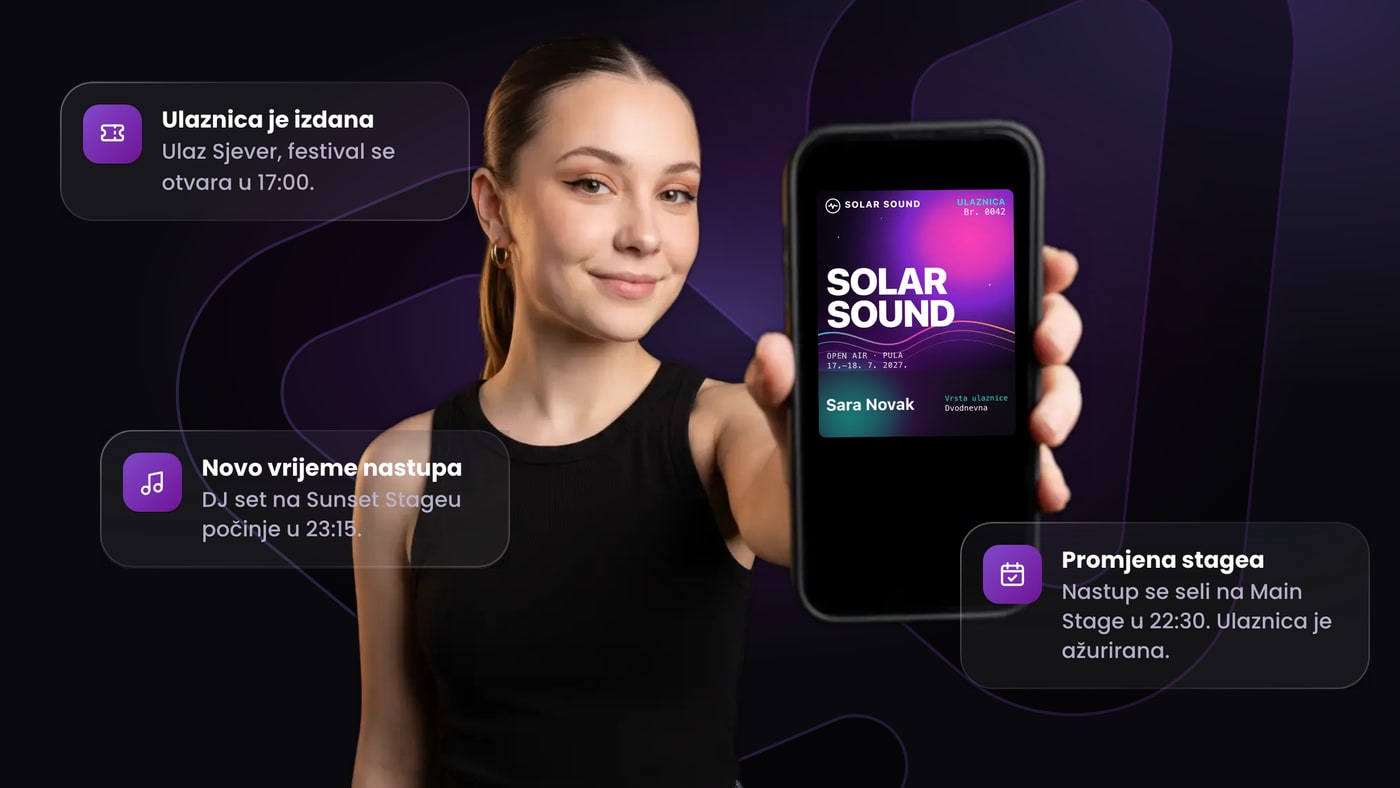
Walletap issues a digital ticket to Apple Wallet and Google Wallet once the organiser has sold it: the visitor gets a link, taps "Add to Wallet" and the ticket is on their phone, with no app and no PDF. At the entrance they show the QR code on the ticket or hold the phone to an NFC reader. If the time, venue or entrance changes, the change lands on the ticket already in the wallet.
This guide explains what a digital ticket in the wallet is, how a visitor adds it on iPhone and Android, what it does on the day of the event and what to do when something doesn't work. A short section for organisers is at the end.
What a digital ticket in the wallet is
A digital ticket in the wallet is a ticket for a concert, festival, conference, match or show that sits in Apple Wallet or Google Wallet on the phone, next to payment cards, loyalty cards and transit passes. It carries the event's name, date and time, the place, the entrance or seat if the organiser fills them in, and the QR code that is checked at the entrance. The ticket is in the organiser's design, across the whole card, with their logo and colours.
It differs from a PDF in an email in three ways:
- It opens with one tap. On iPhone the ticket appears on the lock screen on the day of the event, and in Google Wallet it sits with the other cards. You don't search for the email or open an attachment.
- It updates itself. When the organiser changes the time, venue or entrance, the new value is written onto the ticket already in the wallet, with a notification on the lock screen.
- Every ticket has its own code. Each ticket is a separate card in the wallet, and the organiser sees every scan of it with its time. A refunded ticket is revoked remotely, so it is no longer valid at the entrance.
The organiser issues the ticket to the wallet, through Walletap. You can't turn a paper ticket or a PDF into a wallet ticket yourself.
What you need
- An iPhone with Apple Wallet. The app is already on the phone.
- An Android phone with Google Wallet and the Chrome browser.
- A link from the organiser. It arrives by email, SMS or message, or you see it right on the page after the purchase. The organiser's system or Walletap sends it, depending on how they are connected.
How to add the ticket on an iPhone
- Open the link the organiser sent you.
- On the ticket page, tap the Apple Wallet button.
- Confirm. The ticket is in the Wallet app.
On an iPhone this works in any browser: Safari, Chrome or any other.
How to add the ticket on an Android phone
- Open the link in the Chrome browser.
- On the ticket page, tap the Google Wallet button.
- Confirm. The ticket is in the Google Wallet app.
A ticket like this can only be added to Google Wallet from Chrome. If you opened the link in another browser, the ticket page offers to open it in Chrome.
How the ticket works on the day of the event
- At the entrance, open the wallet and the ticket. Staff scan its QR code with the Walletap app on their own phone. If the entrance has an NFC reader, you just hold the phone to it, as when paying.
- With no signal. The ticket is stored in the wallet and shows even without an internet connection, so you can always show the QR code. The device that scans needs a connection to record the entry.
- After the event the ticket stays in the wallet. You may see the same organiser's next event announced on it.
What happens when the time, venue or entrance changes
The organiser enters the change once and it reaches every issued ticket. On the ticket in the wallet you see the new time, venue or entrance, and you get a notification on the lock screen. You don't download anything and you don't look for a new email.
If you returned the ticket and the organiser refunded you, they revoke the ticket remotely. It may stay in the wallet, but it is no longer valid at the entrance.
If something doesn't work
| What happened | What to do |
|---|---|
| The link opened inside Instagram, Facebook or WhatsApp | The page will tell you to open it in a browser. Tap the menu (⋯ or ⋮) and open it in Safari or Chrome. |
| There is no Google Wallet button on Android | Open the link in Chrome. The ticket page has an "Open in Chrome" button for that. |
| You opened the link on a computer | The page shows a QR code. Scan it with your phone and continue there. |
| New phone, or you deleted the ticket | Open the link from the message again and tap the Wallet button. If there is no button and the page says the ticket has already been issued, contact the organiser. |
| You no longer have the link | Ask the organiser to send it again. |
| You have neither Apple Wallet nor Google Wallet | If the organiser allows it, the ticket page has a button to print the ticket with the same QR code. |
How a wallet pass works and how Apple Wallet and Google Wallet differ is explained in What is a wallet pass?. How staff scan a QR code and how NFC works is in QR code or NFC?.
For organisers
Walletap does not sell tickets. The sale stays in your ticketing system, on your website or at the box office, and Walletap takes over the ticket from the moment it is paid: it issues it to the wallet, updates it, checks it at the entrance and revokes it. Your system reports the sale through the REST API or the Walletap MCP server, and for smaller events you issue tickets by hand from the Walletap dashboard.
You pay per ticket, with no subscription: the first 50 tickets are free, and after that you buy credit packs that never expire, from 100 tickets for €12 to 100,000 tickets for €2,000 excluding VAT, which is €0.12 down to €0.02 per ticket. Everything about digital tickets for organisers is on the Walletap Ticketing page (in Croatian), and the current price list on the Pricing page.
Frequently asked questions
What is a digital ticket in the wallet?
A digital ticket in the wallet is an event ticket that sits in Apple Wallet or Google Wallet on the phone, next to payment and other cards, instead of a PDF in an email. The organiser issues it through Walletap after the sale, updates it when something changes and revokes it if it is refunded. At the entrance it is checked by QR code or NFC.
How do I add a ticket to Apple Wallet?
Open the link the organiser sent you, tap the Apple Wallet button on the ticket page and confirm. On an iPhone this works in any browser. The ticket is in the Wallet app.
How do I add a ticket to Google Wallet?
Open the link in the Chrome browser, tap the Google Wallet button on the ticket page and confirm. A ticket like this can only be added to Google Wallet from Chrome; in another browser the page offers to open it in Chrome.
Do I need an app for a digital ticket?
No. The ticket is saved to Apple Wallet or Google Wallet, which are already on the phone. You don’t download the organiser’s app and you don’t create an account.
Does a digital ticket work without internet?
The ticket is stored in the wallet and shows even without a signal, so you can always show the QR code at the entrance. The device that scans needs an internet connection to record the entry.
What if the time or venue changes?
The organiser enters the change once and it reaches every issued ticket in the wallet, with a notification on the lock screen. You don’t download anything and you don’t look for a new email.
What if I change my phone or delete the ticket?
On the new phone, open the link from the organiser’s message again and tap the Wallet button. If there is no button and the page says the ticket has already been issued, contact the organiser so they can let you add it again.