
QR or NFC? How to choose the right technology for your wallet pass
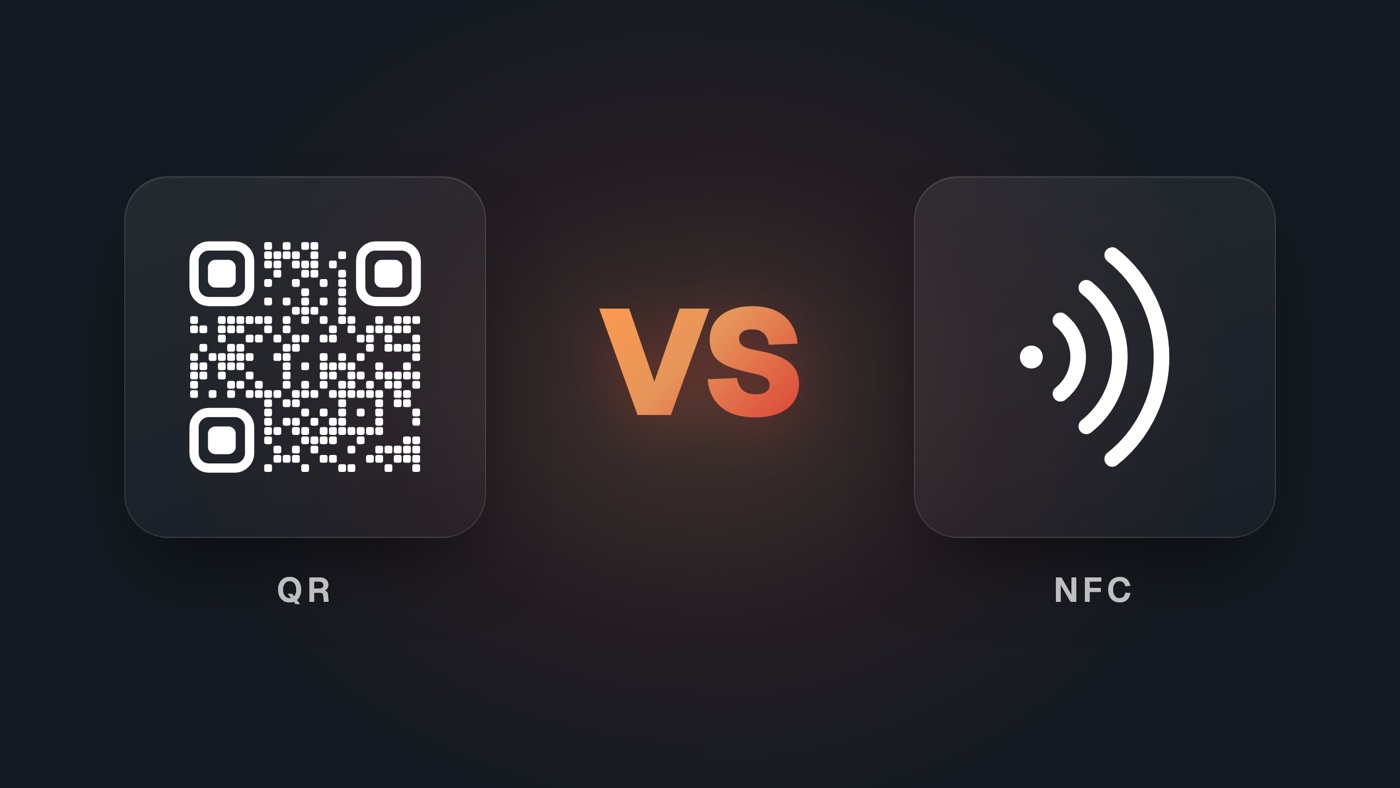
Two technologies, one decision
For most loyalty programs, a QR code is all you need. NFC pays off when speed, protection against copying or a "just tap your phone" experience matters.
A wallet pass can be read in two ways: by scanning a code on the screen, or by holding the phone to a reader, just like paying by card. Both work with Apple Wallet and Google Wallet, but they need different equipment, preparation and budgets. This guide helps you pick the right one.
How a QR code on a wallet pass works
A QR code is the simplest and most widespread option. The pass carries a code that uniquely identifies the customer, and staff scan it with a phone, a tablet or a scanner at the checkout.
Its biggest advantage is that it needs no new equipment. Any smartphone with a camera can scan it. Many existing POS systems and terminals already have a code reader you can put to use.
The weakness of a QR code is that it's just an image. A customer can take a screenshot and send it to a friend, and staff at the checkout will have a hard time spotting it. For a coffee stamp card, that's usually not a problem. For a concert ticket or gym entry, it can be.
How NFC works: Apple VAS and Google Smart Tap
An NFC pass works like contactless payment. The customer holds their phone to the reader, and the pass is read without opening an app or scanning a code.
Apple and Google each have their own protocol for this. You don't need to know the technical details, but it helps to know what they do and what they require.
Apple VAS (Value Added Services) is Apple's way of transmitting loyalty cards, coupons and tickets over NFC. The reader sends a request, and the iPhone hands it the data from your pass, encrypted. Depending on the terminal, the loyalty card and an Apple Pay payment can be handled in one tap. According to an Apple engineer's answer on the Apple Developer Forums, a pass with NFC data must be signed with a special Apple VAS certificate, which you request from Apple.
Google Smart Tap does the same for Android and Google Wallet. According to Google's documentation, the terminal presents its identifier (the Collector ID) to the phone. Google Wallet then finds the matching pass and sends it to the terminal. The terminal and the app handle the data encryption.
What the two have in common: your pass "knows" which reader it's allowed to hand its data to, and the data travels encrypted. That's why a screenshot of an NFC pass won't work.
QR and NFC side by side
QR wins on simplicity and price, NFC on speed and security.
| QR code | NFC (Apple VAS / Google Smart Tap) | |
|---|---|---|
| How the customer uses the pass | Opens the pass and shows the code | Holds the phone to the reader |
| Equipment | Any phone or code scanner | A reader or terminal that supports VAS and Smart Tap |
| Copy protection | Weak: a screenshot often gets through | Strong: data is sent encrypted, a screenshot won't work |
| Approvals | Not required | An Apple NFC certificate; the platform turns on Smart Tap |
| Time to launch | Right away | Weeks, depending on approval and equipment |
| Combining with payment | A separate step | Possible in one tap, depending on the terminal |
| Fallback | — | The pass can also carry a QR code for non-NFC readers |
The last row matters. A pass doesn't have to be an "either-or" choice. An NFC pass can carry a QR code too, so it also works where there's no NFC reader yet.
When QR is enough, and when NFC pays off
QR is the right choice when:
- Each scan is worth little. A coffee stamp or about ten points aren't worth the trouble of cheating, so a screenshot isn't a real risk.
- You want to start right away. Cafés, bakeries, hair salons and smaller shops can launch a program the same day, with a phone on the counter.
- Traffic isn't too heavy. If there are no long lines at the checkout, a few seconds of scanning won't hurt.
- You already have a code reader. Many POS terminals can read the code on the pass without any extra development.
NFC pays off when:
- The pass opens doors. Gyms, coworking spaces and offices don't want entry shared through a screenshot. NFC solves that.
- The pass is worth money. Concert tickets, season passes and gift vouchers are targets for copying.
- Speed is critical. At a festival entrance or in a fast-food chain, every second per customer adds up.
- You want a payment-like experience. If your terminal supports it (e.g. Apple VAS with Apple Pay), the customer can pay and collect points in one tap.
How to choose in three questions
If you need neither copy protection nor maximum speed, a QR code is the fastest and cheapest way to start. NFC only makes sense once your reader supports it, and even then, keep a QR code on the pass as a fallback.
What you need for an NFC pass
NFC takes more preparation than QR, but most of the work is done by the platform that issues the passes.
- Check your equipment. Does your POS terminal or reader support Apple VAS and Google Smart Tap? Ask your terminal supplier. Without a compatible reader, an NFC pass works only as a QR pass.
- Get an Apple NFC certificate. You apply to Apple, which has to approve the request. Without that certificate, the NFC part of the pass won't work.
- Turn on Smart Tap for Google Wallet. No separate approval from Google is needed: the platform that issues the passes sets up Smart Tap, and a terminal that supports Smart Tap is configured with the identifier (the Collector ID) that links it to your passes.
- Test on real devices. Before launch, check several iPhone models and Android phones on every reader.
- Prepare your staff. Explain what a successful tap looks like and what to do when one fails. That's why it's a good idea for the pass to also carry a QR code as a fallback.
The bottom line
You don't have to decide once and for all. Most merchants get started fastest with a QR code on their existing equipment, and bring in NFC where it adds real value: at the entrance, for higher-priced items or at the busiest checkouts.
Walletap helps you launch wallet passes with a QR code right away, with no new equipment. For entrances and access control, we also help with NFC solutions as a certified HID Origo integrator.
Not sure what you need? Get in touch and together we'll assess your equipment and pick the best way to start.