Integrations
Where every connection lives, which ones belong to a company rather than the whole account, and how to read a row's state at a glance.
Integrations connect Walletap to the services that take payments, file receipts, send messages and run automations for you. They all live on one screen in the dashboard, and each one is a single row you open, connect and check.
Where to find them#
Go to SettingsIntegrations. Only the account owner sees this screen. Team members working in your account see their own profile, sign-in details and locations, but not integrations, because connecting one decides where money lands and who can act on the account.
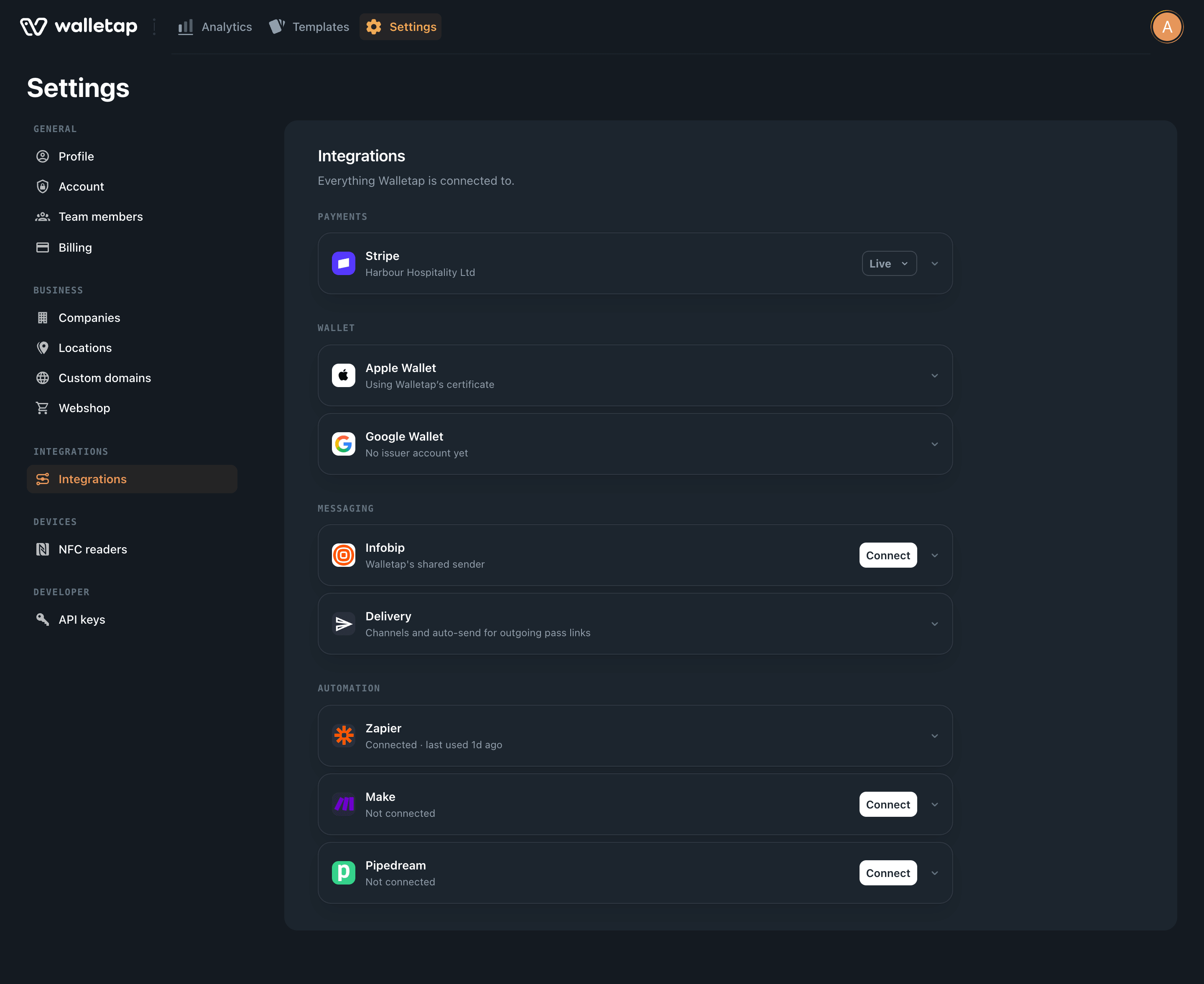
The screen is grouped by job:
| Group | What it is for |
|---|---|
| Payments | Taking membership and webshop payments, paid out to a company's bank |
| Tax | Fiscalising online sales for unattended gyms |
| Wallet | The identities your passes are issued under in each wallet |
| Messaging | Connecting your own messaging account, and choosing how pass links are sent |
| Automation | API keys for automation platforms that connect in to Walletap |
A group appears only when it has something to show. The Tax group, for example, appears for companies registered in a country where Walletap fiscalises sales.
Account or company#
Some integrations belong to the whole account. Others belong to one company — one legal entity with its own bank account and tax registration — and are connected once per company.
- Your accountWallet, Delivery, Automation
- CompanyPayments, Tax, Messaging
- LocationUses its company’s integrations
- Account-wide: the wallet identities, delivery channels and automation keys. They apply to every template and pass on the account.
- Per company: payments, fiscalisation and your own messaging account. When the account has more than one company, each company gets its own row, and the row's caption starts with the company name.
There is no company picker on a company row. The company is fixed because it is where the bank account and tax number are. A location uses the integrations of the company it is assigned to, so a payment taken at Harbour Coffee — Marina reaches Harbour Hospitality Ltd's payment account.
Reading a row#
Every row shows a name, one line of status underneath, and at most one action. Everything else — account IDs, credentials, upload forms, the disconnect button — is behind the chevron. Click the row to open it.
The status line tells you the state:
| Status line | Meaning |
|---|---|
| Not connected | Nothing is connected yet. Use the row's Connect button. |
| A business name or account ID | Connected, and this is the account in use. |
| Live · charges not enabled yet | The payment account is connected but its provider has not finished verifying it, so it cannot take payments yet. |
| Valid until date | A certificate is uploaded and expires on that date. |
| Connected · last used 3d ago | An automation key exists and was last used then. |
| Connected · not used yet | An automation key exists and nothing has called with it yet. |
A crown beside a row's name, on its Connect button or on its upload form marks an integration that comes with a higher plan. An account that already has payments, fiscalisation or its own messaging account connected keeps it, with no crown, whatever plan it moves to. See the price list for which plan includes what.