Infobip
Issue, update and notify Apple and Google Wallet passes from an Infobip Journeys flow, with your own channel step delivering the link.
Walletap publishes three elements for the Infobip Journeys flow builder. Drop one into a journey to issue a wallet pass, update it, or send its holder a notification. Each element hands its result back as flow variables, so the next step — usually your own SMS, WhatsApp, Viber or Email element — can use it.
Paid plansWalletap creates and hosts the pass, and your journey's own channel step sends the link. Consent, quiet hours and opt-out apply to it exactly as they do to any other message in your Infobip account, and it is billed there as normal traffic.
Before you start#
- A Walletap account, and you are its owner.
- A company under SettingsCompanies. The Infobip account is connected per company.
- At least one template — the loyalty card, membership or ticket each issued pass is built from.
- An Infobip account with Journeys, and access to Infobip Exchange to install the Walletap app.
How it fits together#
passId ties the elements together. Issue wallet pass returns it, and
Update wallet pass and Notify pass holder take it under the same name, so
chaining them needs no renaming.
Set it up#
- Create an API key
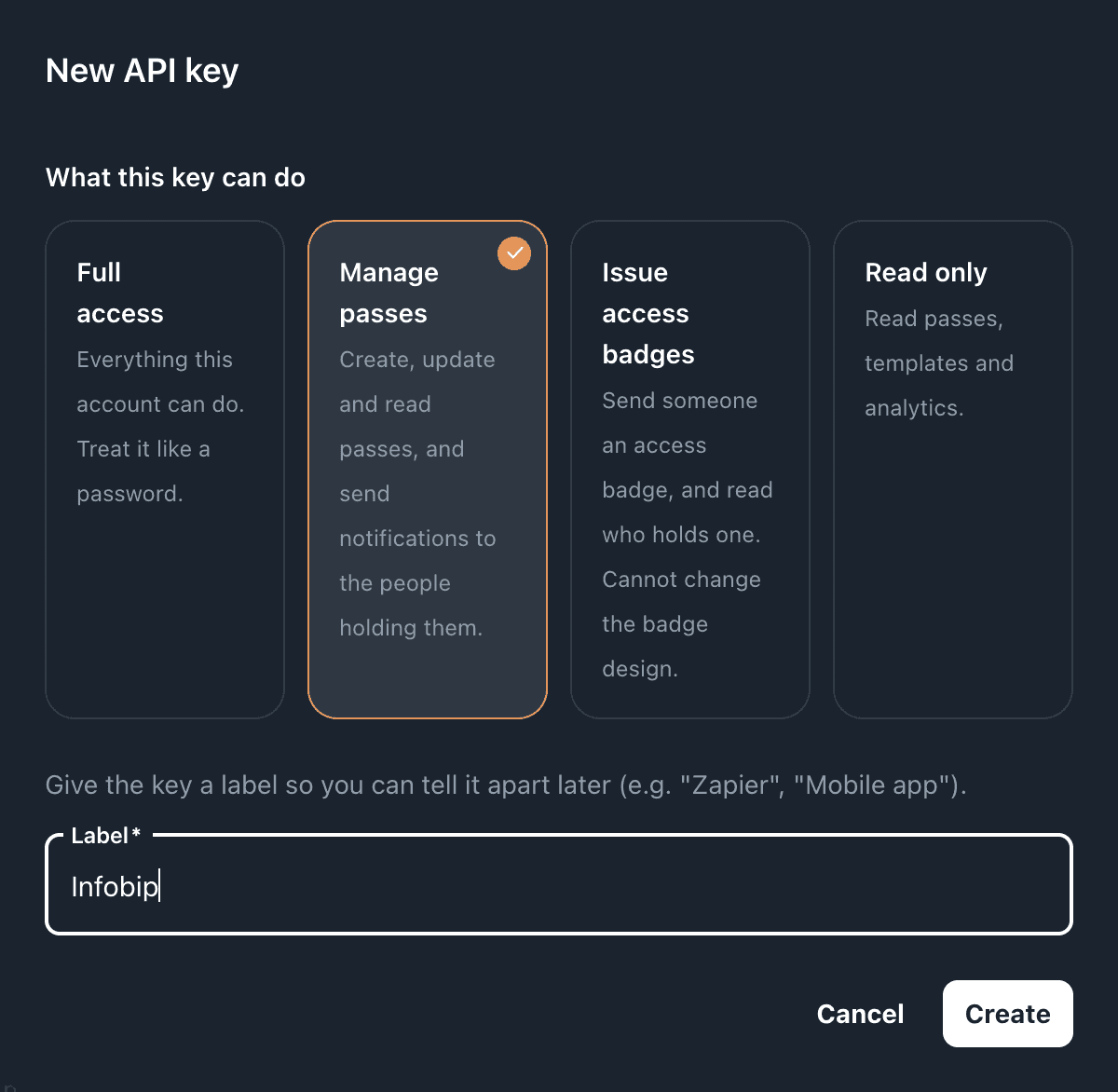
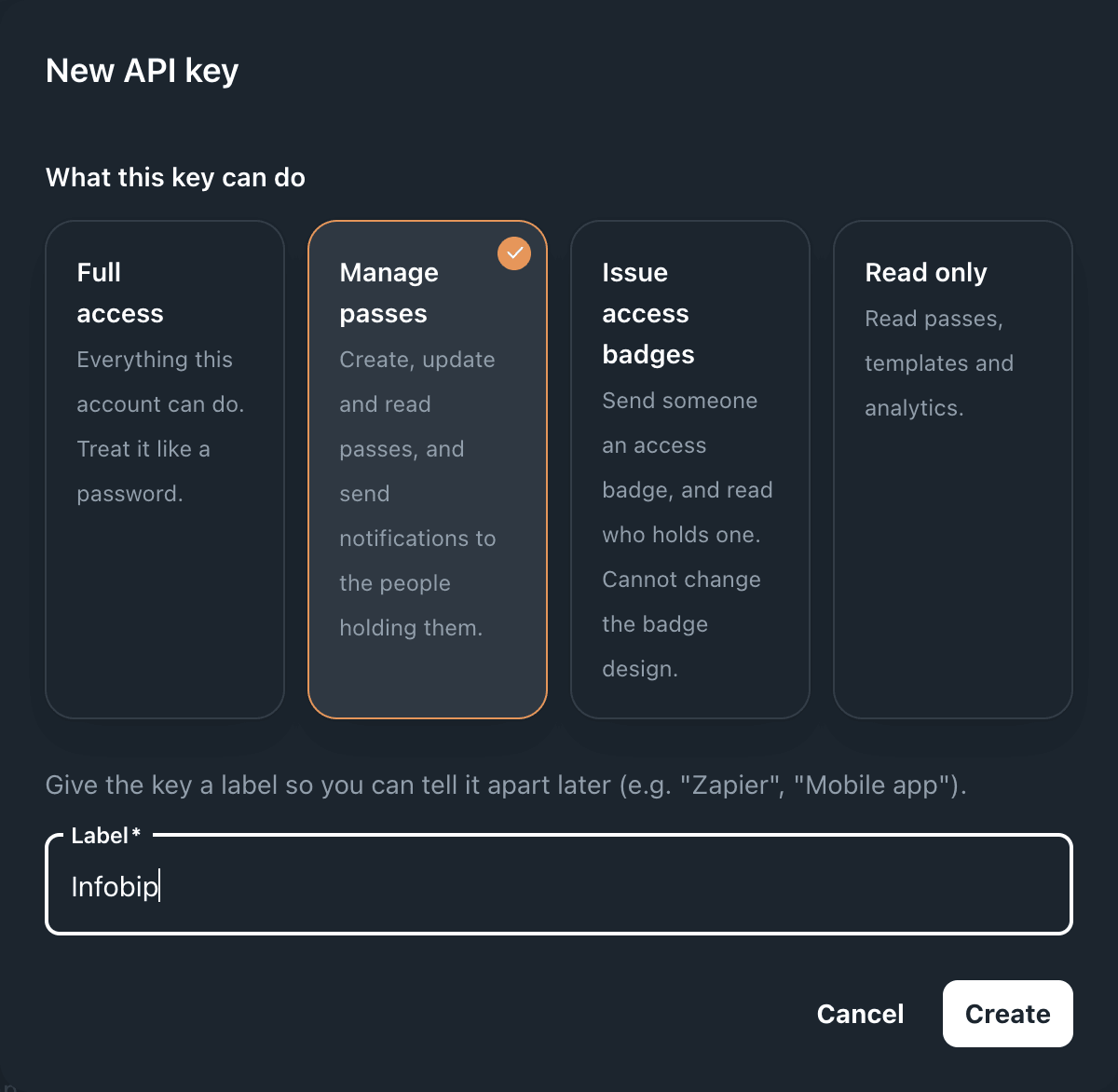
In Walletap, go to SettingsAPI keys and click Create. Under What this key can do, choose Manage passes, give the key a label such as Infobip, and click Create.
Copy the key — it starts with
wtap_sk_and is shown in full only now. Manage passes covers exactly what the elements need: create, update and read passes, read templates, and notify pass holders. It cannot reach billing, team members or account settings. - Install the Walletap app in Infobip
In Infobip, open Exchange, find Walletap and install it. There is nothing to configure at this step.
- Connect your Infobip account to Walletap
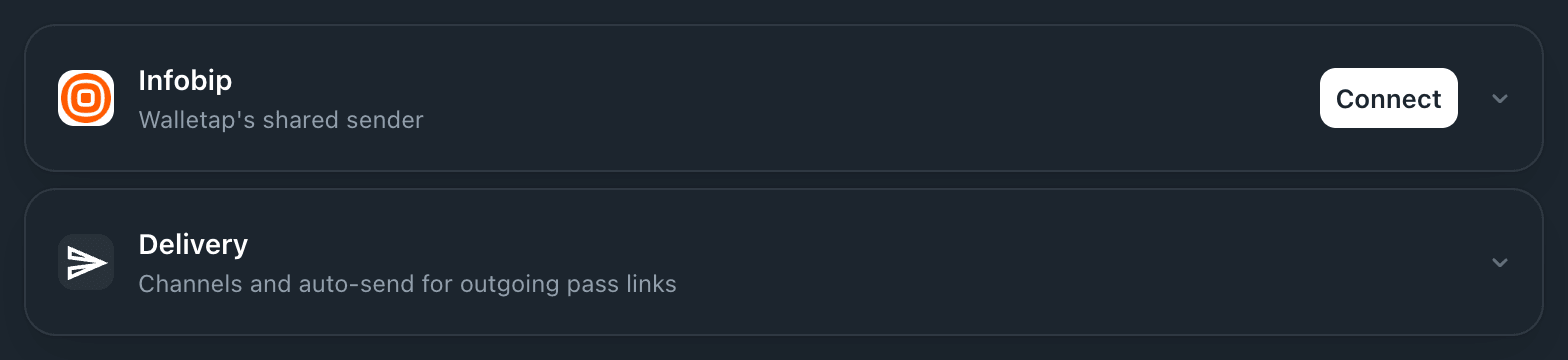
Back in Walletap, go to SettingsIntegrations. Under Messaging, the Infobip row for the company reads Walletap's shared sender. Click Connect, then approve the connection in Infobip.
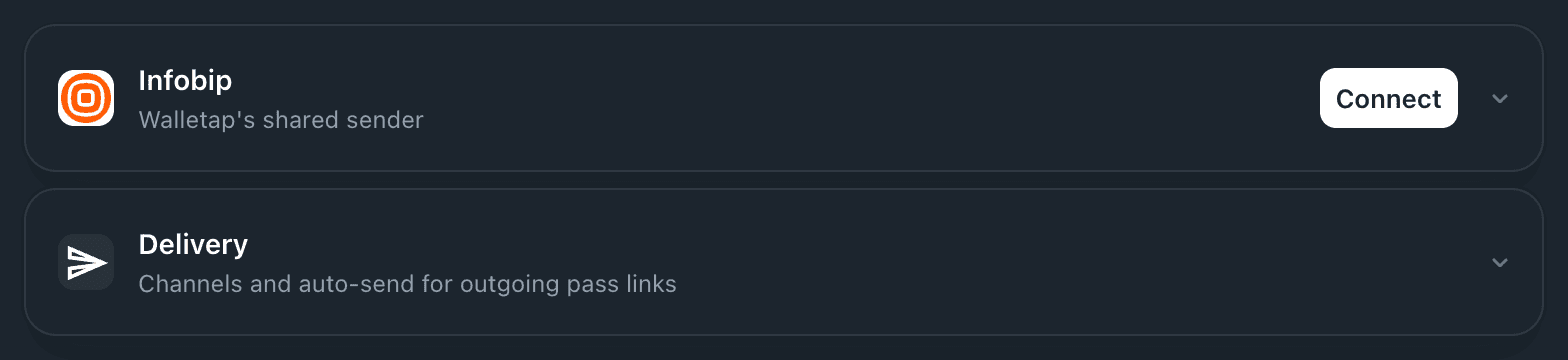
You return to Integrations with Your Infobip account is connected., and the row reads Your own Infobip account. Journeys checks the template you picked when you activate a campaign, and this connection is what lets Walletap answer that check.
- Add an element to a journey
Open a Journeys flow. Issue wallet pass, Update wallet pass and Notify pass holder are listed under the Walletap app. Drag one onto the canvas.
- Paste the key and pick the template
Paste the key into the element's Walletap API key field. On Issue wallet pass and Update wallet pass, the Pass template field then lists your templates by name. Bind the other fields to contact attributes as you would on any element.
Every element has its own Walletap API key field, so paste the same key into each one. The key is an ordinary Walletap key: it is listed under SettingsAPI keys, and disabling it there stops the elements straight away without affecting anything else.
The three elements#
Each element runs once for every contact that reaches it, and answers before the journey moves on. Every element returns a true-or-false result to branch on, and a failure message when something goes wrong.
Issue wallet pass#
Creates a pass from one of your templates and returns the link where the recipient adds it to their wallet.
| Field | Needed | What it does |
|---|---|---|
| Walletap API key | Yes | The key from step 1 |
| Pass template | Yes | The template the pass is built from, picked by name |
| Recipient email | Stored on the pass so you can find the person later. Walletap sends nothing to it. | |
| Recipient phone | Stored on the pass, the same way. Walletap sends nothing to it. | |
| Name shown on the pass | Written into the template's name field | |
| Your own reference (optional) | Your ID for this person — a CRM ID or member number. A later journey can find the pass by it. |
| Output | Variable | Type |
|---|---|---|
| Pass was issued | issued | Boolean |
| Pass ID | passId | String |
| Pass link — send this to the customer | link | String |
| Failure message | error | String |
| Failure reason | reason | String |
| HTTP status | statusCode | Number |
reason is set when your Walletap plan stops a new pass, so a journey can tell a
plan limit from a broken key. See If something goes wrong.
Update wallet pass#
Changes a pass someone already holds. The change reaches the wallet the pass is in.
| Field | Needed | What it does |
|---|---|---|
| Walletap API key | Yes | The same key |
| Pass ID (from Issue wallet pass) | This or your reference | The passId an earlier Issue wallet pass returned. Simplest when both are in one journey. |
| Your own reference (alternative to Pass ID) | This or Pass ID | Finds the pass by your reference. Use it with Pass template when the pass was issued in another journey or system. |
| Pass template (needed with Your own reference) | With your reference | The template the pass was issued from. A reference is unique only within a template. |
| Name shown on the pass | Written into the template's name field |
| Output | Variable | Type |
|---|---|---|
| Pass was updated | updated | Boolean |
| Pass ID | passId | String |
| Your own reference | externalId | String |
| Failure message | error | String |
| HTTP status | statusCode | Number |
Notify pass holder#
Sends a notification to the holder of one pass, on Apple Wallet or Google Wallet. You do not need to know which wallet the person uses.
| Field | Needed | What it does |
|---|---|---|
| Walletap API key | Yes | The same key |
| Pass ID (from Issue wallet pass) | Yes | The pass to notify. This element reaches one pass at a time, so a journey running once per contact sends one message per contact. |
| Notification title | Yes | The headline |
| Notification message | Yes | The body. Links in it become tappable. |
| Show notification from (optional, ISO 8601) | When it starts showing on Google Wallet. Defaults to now. Apple Wallet holders are alerted when the step runs. | |
| Show notification until (optional, ISO 8601) | When it stops showing. Defaults to 24 hours later. |
| Output | Variable | Type |
|---|---|---|
| Notification was sent | sent | Boolean |
| Pass ID | passId | String |
| Failure message | error | String |
| Why it was not sent | code | String |
| HTTP status | statusCode | Number |
sent: true means the wallet accepted the notification for that pass — a
confirmation of delivery to the wallet, not of someone reading it. When sent is false, code says why:
no_registered_devices— the pass is on no device right now, so there was nobody to alert. The message is kept on the pass and shows if it is added again.unchanged_message— that exact title and message are already on the pass, so nothing changed and no alert was raised. Change the wording to notify again.
Branch on sent so the journey carries on for these contacts instead of treating
them as failures.
Blank fields#
A field left blank, or bound to a contact attribute that is empty, is skipped, so it
never wipes a value already on the pass. Zero and false are real values and are
written.
Example: a loyalty card from opt-in to first message#
Harbour Coffee runs the Coffee Card, ten stamps for a free coffee. They already
use Infobip for SMS, and a journey starts when a customer opts in at the till. The
customer's profile carries firstName, phoneNumber and the CRM's memberNumber.
- Issue the pass
Add Issue wallet pass. Pick Coffee Card in Pass template, bind Recipient phone to
{{person.phoneNumber}}, Name shown on the pass to{{person.firstName}}, and Your own reference to{{person.memberNumber}}. - Branch on issued
When
issuedis true, carry on. When it is false, route to an internal alert that includeserrorandreason, so a plan limit reaches a person instead of failing quietly. - Save the link to a flow variable
A later step can use an element's output only once it is bound to a flow variable. In the element's outputs, choose
linkand create a variable — for examplepassLink, type String, with the default value left empty. Check that the output row then readslink → passLink. Do the same forpassIdif a later step will update or notify this pass. - Send the link
Add an ordinary SMS element on Harbour Coffee's own sender, and insert the
passLinkvariable into the text — for example, Your Coffee Card is ready. Add it to your phone: followed by the link.
Later, when a member updates their name in the CRM, a second journey runs Update
wallet pass with Your own reference set to {{person.memberNumber}} and Coffee
Card as the template. It finds the same pass without anyone having stored its ID.
Leave a flow variable's default value empty. The element writes the real value for each contact; a default would hand every contact the same link.
If something goes wrong#
Every element returns error with its status, so the message in the journey's
execution log is the first thing to read.
"This campaign has no action elements. Add at least one action … before activating." Journeys counts the Walletap elements as data steps, not actions. Add the channel step that sends the link — every real journey needs one anyway. On a bare test flow, an Update person element that sets any attribute is enough.
"Exchange integration element has an invalid selected option: templateId" when you activate. Walletap could not confirm the template for your Infobip account. Connect your Infobip account under SettingsIntegrationsMessaging (step 3 above) for any company on the account, then reopen the step, pick the template again and save.
401 — "That Walletap API key is not valid." The key is mistyped, disabled, or does not exist. Create a new one with the Manage passes preset and paste it again, checking for a stray space at either end. Paste it into every element.
403 — "This API key cannot issue passes / update passes / send notifications." The key is valid but was created with a narrower preset, such as Read only. Use a Manage passes key.
402, with reason set. Your Walletap plan stopped a new pass:
reason | Meaning |
|---|---|
free_cap | The free plan's passes are all used |
trial_cap | The trial's passes are all used |
trial_expired | The trial has ended |
subscription_inactive | The subscription is not active, for example after a failed payment |
active_customers_paused | The account went over its monthly active-customer allowance, and new cards are paused |
Resolve it under SettingsBilling. Because reason is
machine-readable, a branch on it can alert someone the moment it happens.
The Pass template list is empty. The list is loaded with the key in the field above it. Fill in Walletap API key first, then reopen Pass template. If it is still empty, check that the account has a template and that the key uses the Manage passes preset.
A template you just created or renamed is missing from the list. Infobip's step editor loads the list once, when it opens. Close the step editor and open it again.
Update wallet pass returns 400 — "Identify the pass to update". Neither way of finding the pass arrived. Usually Pass ID is bound to a variable that is empty at that point, or Your own reference was sent without Pass template.
Update or Notify returns 404. The pass was not found on this Walletap account.
Check that Pass ID carries the passId an earlier step returned, and that
Pass template is the one the pass was issued from. For Notify, the message can also say the pass has not
been added to Google Wallet yet.
502 — "Walletap could not be reached. The flow can retry this step." A network failure between Infobip and Walletap. Retry the step. If it keeps happening, contact support with the journey name and the time of the run.
The pass was issued, but a name does not appear on it. Name shown on the pass fills the template's name field. If the template has none, the value is stored but has nowhere to show. Add a name field to the template — see fields.
The customer never received the link. If issued is true and link came back,
the pass exists and the problem is in the delivery step. Check that the link
variable is bound into the message text, and that the contact was not held back by
consent, opt-out or quiet hours.