Zapier, Make and Pipedream
Automate passes from other apps. Each platform connects to Walletap with an API key you create in one click.
Zapier, Make and Pipedream connect to Walletap with an API key, the same way any other program would. Walletap creates a key for each platform, scoped to what an automation needs, and the platform uses it to issue passes, update them and notify the people holding them.
Paid plansBefore you start#
- You are the owner of the Walletap account.
- You have at least one template. Most actions ask for its Template ID, which is shown in the template's settings and in its web address.
- You have an account on the automation platform.
Connect a platform#
- Open the Automation group
Go to SettingsIntegrations. Under Automation there is a row each for Zapier, Make and Pipedream, reading Not connected.
- Create the key
- Copy the key now
Click the copy icon in the API key field. The key is shown only this once; if you lose it, disconnect and connect again for a new one.
- Use it on the platform
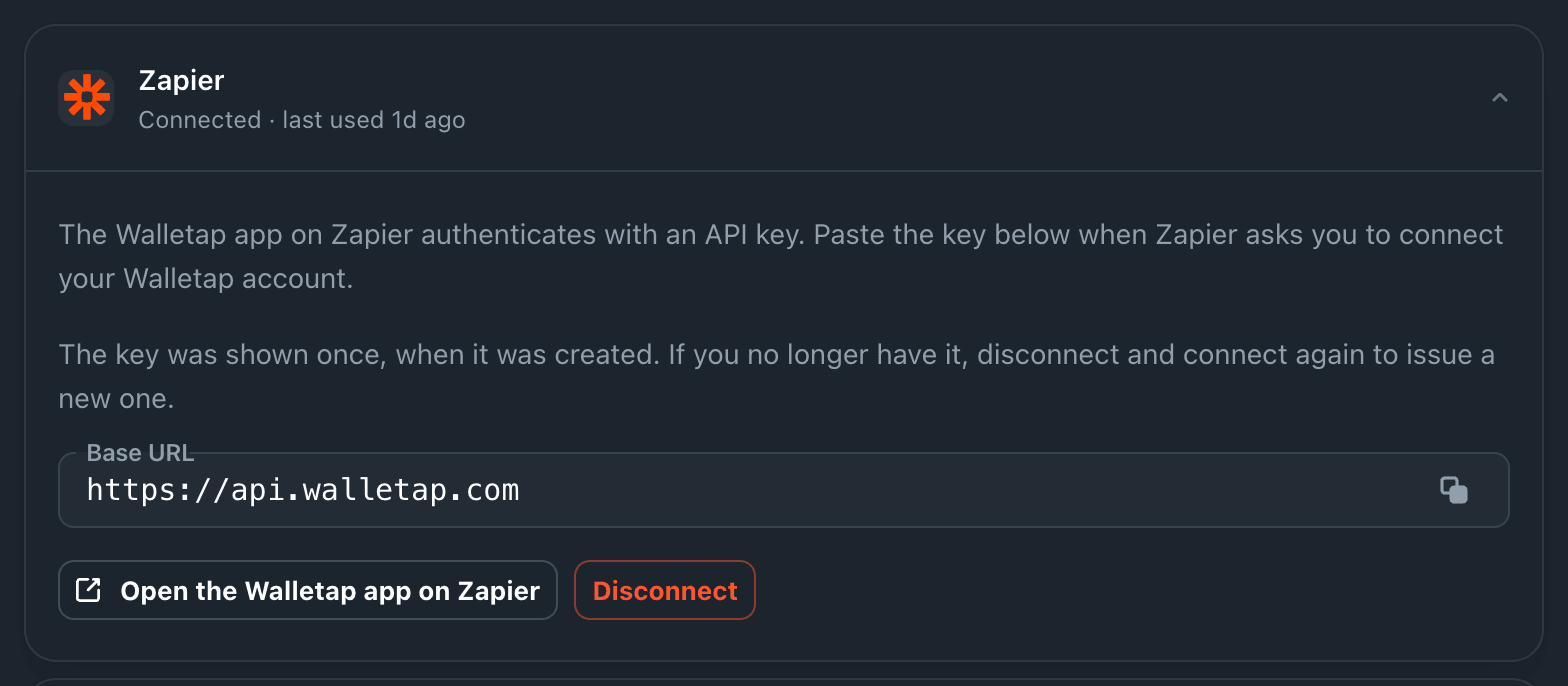
Click the row's link to the platform and paste the key where it asks. The row reads Connected · not used yet until the platform first calls Walletap, and from then on shows when the key was last used.
The key can create, update and read passes, read templates, and send notifications to pass holders. On an account with access badges, it can also issue a badge and read who holds one. It cannot touch billing, team members or account settings.
The key is also listed under SettingsAPI keys with the platform's name as its label.
Zapier#
Walletap has an app on Zapier. Click Open the Walletap app on Zapier in the row, start a Zap, and when Zapier asks you to connect your Walletap account, paste the key into API Key.
Actions#
| Action | What it does |
|---|---|
| Create Pass | Issues a pass from a template. Takes Template ID, and optionally External ID, Redemption value, Template fields, Custom Fields, E-mail, Phone number and Locale. |
| Update Pass | Changes a pass and pushes the change to the holder's wallet. Finds the pass by External Id and Template Id. Can set Template Fields, contact details, and Is Valid — setting it to false voids the pass. |
| Send Notification | Sends a push notification, with a Title and Content, to every holder of a template. |
| Issue Access Badge | Sends one person an invitation to add an access badge to their phone. Accounts with access badges only. |
Create Pass delivers the pass. When the Zap gives an email address or phone number, Walletap sends the pass link to it, following your account's delivery settings. Set Send to E-email or Send to Phone to false to stop it for that Zap.
Searches#
| Search | What it finds |
|---|---|
| Find Badge Holder | An access-badge holder, by Holder email |
| Find Badge Holder Passes | The badges a holder has, and whether each one's door credential is active |
Triggers#
| Trigger | When it fires |
|---|---|
| New Badge Issued | An access-badge invitation is issued for the badge you choose |
New Badge Issued watches one badge, so add one Zap per badge you want to watch. It fires when the invitation is issued, not when the badge is installed. The Hits field counts how often the invitation link was opened; 0 means nobody has opened it yet.
Issuing access badges from a Zap#
Issue Access Badge emails the invitation by default (Email the invite to the holder). Turn on Also send by SMS / Viber / WhatsApp and fill in Holder phone to text it as well. Invite valid for (days) accepts 1 to 365, and defaults to 30.
Check the Delivered output. The invitation link is created and returned even when nothing was sent, or a send bounced, and Delivery warning says which.
The badge must be published in the dashboard before a Zap can issue it. Badges that still need publishing are marked in the Badge list.
Make and Pipedream#
Make and Pipedream call the Walletap REST API directly, through Make's HTTP module or
a Pipedream HTTP request step. Use the Base URL from the row and send the key in
an X-API-Key header. The API reference lists every endpoint.
For example, to issue a Coffee Card to Maya Chen:
POST https://api.walletap.com/pass
X-API-Key: <your key>
Content-Type: application/json

{
  "passes": [
    {
      "templateId": "tmpl_123",
      "email": "maya.chen@example.com",
      "templateFields": { "memberName": "Maya Chen" }
    }
  ]
}
Issuing a pass this way delivers it: Walletap emails or texts the link to the
contact details on the pass, following your delivery settings.
Add "sendToEmail": false and "sendToPhone": false to the body to send nothing.
Disconnect#
Open the platform's row and click Disconnect, then confirm. The key stops working immediately, and every Zap, scenario or workflow that uses it fails from then on. To connect again, click Connect for a new key.
If something goes wrong#
The row says Connected · not used yet but the platform reports an error. The key on the platform is not the one Walletap created — usually a copy with a missing character. Disconnect, connect again, and paste the new key.
A run fails with a 401 error, such as Invalid API key or You are not authorized for this action. The key was disconnected, or disabled under SettingsAPI keys. Connect again and update the key on the platform.
A badge action fails because the badge is not published. Publish the badge in the dashboard, then run the Zap again. See access badges.
A pass is created but a value does not show on it. The field name in Template fields must match a field on the template exactly. See fields.