
How to launch a loyalty card for your restaurant, step by step
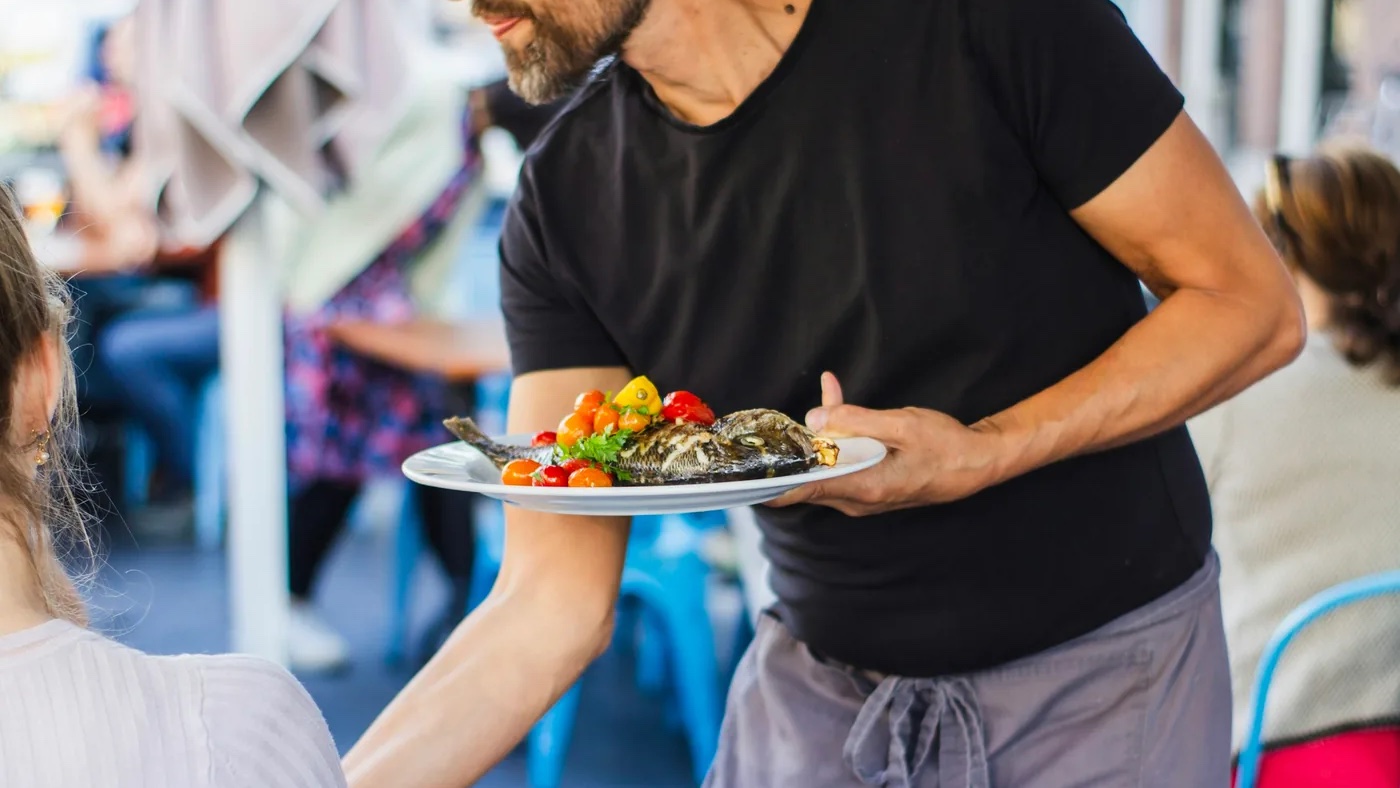
A restaurant loyalty card is a digital stamp or points card that guests save to Apple Wallet or Google Wallet, with no app to download, and that rewards them for coming back, for example with a ninth lunch on the house. A restaurant launches it without a new till and without an app of its own: the guest scans a QR code on the table, and the waiter adds a stamp by scanning the card on the guest's phone with their own phone.
This guide covers the whole path: from choosing the reward, through the dining room and takeaway orders, to the first messages to your guests.
Why a restaurant needs a loyalty card
A restaurant is not a café: guests don't come every day, so every return visit is worth more. Your staff know your regulars by sight, where they like to sit and what they order. But nobody knows how many there are, how often they come or who has stopped coming. When a guest stops coming, nothing tells you.
A paper stamp card doesn't fix that. It gets lost, stays at home and tells you nothing. A digital card lives on the phone the guest carries anyway, and the visit data stays with you, even when your staff change.
What a wallet pass is and how it works is explained in What is a wallet pass?. Everything about the program for restaurants is on Walletap Loyalty for restaurants.
What you need before you start
- A phone or tablet with a camera, your own or the business's.
- Internet at the venue.
- Your restaurant's logo and colours, or its Instagram, Facebook or web page.
- A decision on the reward: stamps or points, and what the guest gets.
You don't need a new till, a new app or a new device.
Step 1: Choose stamps or points, and the reward
First decide how guests collect:
- Stamps, if guests spend roughly the same each time: a set lunch, a pizza, a burger. One visit or one order, one stamp. A card holds 2 to 10 stamps, and 8 to 10 works well for a restaurant.
- Points, if the bill varies a lot, like dinner for two and dinner for eight. Guests earn points for what they spend. The card doesn't read your till, so the waiter types the points in at payment; decimals are accepted.
Then the reward. Three rules:
- Give food or a drink, not a percentage. "Ninth lunch on the house" is clear. "10% off" is not a reward, it's small change.
- Keep the reward close. A lunch regular should reach it in a month, not in half a year.
- A small reward on the way keeps interest up. On the way to a full card you can add a smaller milestone reward, such as a coffee after the fifth stamp.
Not every restaurant is the same, so the program doesn't have to be either:
| Restaurant | What to reward | Example |
|---|---|---|
| Set lunch | Every lunch, with a stamp | 8 lunches, the 9th on the house |
| Evening restaurant | Spending, with points | Points towards a dessert, an aperitif or a bottle of house wine |
| Pizzeria and fast food | Every order, eat-in and takeaway | 9 pizzas, the 10th on the house |
| Tavern and seasonal restaurant | Coming back next season | The card stays in the wallet, and in spring guests get a message |
Step 2: Create the card
The card carries your restaurant's name, logo and colours. In Apple Wallet and Google Wallet the guest doesn't see a "Walletap card", they see yours.
- Download the Walletap app to your phone.
- Personalize the card and choose the "Loyalty" type.
- Set the rules: stamps or points, the reward, and whether the card is valid at all your restaurants or only one.
The same design works in Apple Wallet and Google Wallet. You can change the rules and the look later, and the cards guests already have update on their own.
Step 3: Put the QR code on the table and on takeaway orders
The guest scans the QR code, taps "Add to Wallet" and the card is on their phone. No app and no password. Print the QR code on A4 paper or save it as a PDF. If you have more than one restaurant, each can have its own code.
Where to put the QR code:
- On the table, in a stand or on the menu. Guests scan it while they wait for their food or the bill, with no queue behind them.
- By the till and at the pick-up counter.
- On the takeaway bag or box, as a sticker.
- On the receipt, if your till can print a QR code.
- As a link in your Instagram bio, on your Google profile and on your website.
- In a message to guests who order by phone.
Step 4: How to add a stamp in the dining room, for takeaway and for phone orders
In the dining room nothing changes except one scan:
- The guest opens the card in their wallet.
- The waiter scans the QR code on the card with their phone.
- They choose the stamp and confirm. The card updates straight away.
The scan alone adds nothing: the stamp is saved only when a member of staff confirms. With points, the waiter chooses "Add", types the number of points and confirms. Any staff member with access can scan, each on their own device, and everything ends up in the same place.
For takeaway, the guest gets the stamp when they collect the order: a member of staff at the counter scans the card, just as in the dining room.
For phone orders and delivery, nothing is added on its own. Walletap is not connected to delivery apps. If a guest wants a stamp for such an order, open "Members" in the app, find the guest and choose "Update stamps" in their card's menu.
When the guest collects the last stamp, the card shows by itself that the reward is ready. The waiter scans it, the reward is marked as redeemed and the count starts again. No slips of paper and no redeeming the same reward twice.
When a QR code is enough and when NFC pays off is explained in QR or NFC? How to choose the right technology for your wallet pass.
Step 5: The first 30 days
The card only works once guests know about it:
- Have the waiter mention the card once, at payment. One sentence, not a sales pitch.
- Get the whole team on board, the dining room and the takeaway counter alike. If staff don't ask, guests don't scan.
- Post the card on Instagram and your Google profile. One link, two new channels.
- Send the first message in the second week. Guests close to a reward come back fastest.
Messages and automatic vouchers
A card in the wallet is also a channel to your guest. A message lands on the lock screen, with no app and no email nobody opens. For example:
- "🍽️ Lunch until 3 pm: your sixth stamp is waiting on your card."
- "🎉 Your card is full! A dessert or an aperitif with dinner is on us."
A tavern or seasonal restaurant invites last season's guests back with one message in spring, instead of starting from zero every season.
With a paid plan you can also switch on messages that go out on their own:
- a welcome voucher when a guest joins, once per guest;
- a birthday voucher, on the birthday or a few days before, if you add a birthday field to the sign-up form and the guest fills it in;
- a message to a guest who hasn't been back for a while, after a gap you choose, from 14 to 90 days, with or without a voucher;
- a reminder about a voucher the guest hasn't used yet.
Automatic messages arrive only through the card, never by text message, email or Viber, between 9 am and 8 pm and at most twice a week to the same guest.
If you've added your restaurant's address to the card, Apple Wallet can suggest it on the lock screen when the guest is nearby, if they've allowed location access. How to send messages guests want and what GDPR says about them is in the guide Wallet push notifications.
What you see after the first month
On your phone or computer you see:
- how many cards have been issued and how many regulars you really have;
- how often guests come and at what time;
- who has stopped coming and when;
- which reward is used most.
After a month, look at the numbers. If guests collect stamps but rarely reach the reward, add a smaller milestone reward or lower the number of stamps. The change also applies to the cards guests already hold.
What it costs
Walletap Loyalty has a free plan with no time limit and a limited number of cards, so you can try the program before paying anything. Prices for the paid plans are on Walletap Loyalty for restaurants.
Frequently asked questions
Does a restaurant need a new till for a loyalty card?
No. The card works independently of your till: the waiter scans it with a phone or tablet with a camera. Points for spending are typed in by hand, because the card doesn’t read the till.
Do guests have to download an app for a restaurant loyalty card?
No. The card is saved to Apple Wallet or Google Wallet, which are already on the phone. The guest scans the QR code on the table, taps “Add to Wallet” and the card is saved.
Stamps or points: which is better for a restaurant?
Stamps, if guests spend roughly the same each time, as with a set lunch or at a pizzeria. Points for spending, if the bill varies a lot, as with dinners. For stamps, a card of 8 to 10 works well.
How does a guest get a stamp for a takeaway or delivery order?
For takeaway, staff scan the card when the guest collects the order. For delivery and phone orders nothing is added on its own, because Walletap is not connected to delivery apps: you add the stamp by hand in the Walletap app, under “Members” and “Update stamps”.
How does a loyalty card bring guests back to a restaurant?
The reward is close, so guests come back to earn it. You can also send a message to their card, such as a spring invitation from a seasonal restaurant, and on a paid plan an automatic birthday voucher or an invitation after 14 to 90 days without a visit.
Want to see what your restaurant's card would look like? Open walletap.com/demo on your phone and add the demo card to your wallet, or get in touch and we'll show it to you in person, at your restaurant.