
How to use Walletap Loyalty
Here is how to get Walletap Loyalty running quickly and use it in day-to-day business. Start your loyalty program with Walletap.
Average reading time: 6 minutes.
What you need before you start
This is all it takes
A phone or tablet with a camera, yours or the one at work
Internet at the venue
An active Instagram, Facebook or website - or, if you have none, just your logo and brand colors
A decision on the reward: what the customer gets, and after how many stamps
You do not need a new till, a new app or a new device.
Step 1: Setting up your card
Your card, your brand, the design done for you
The card carries your name, your logo and your colors. There is no "Walletap card" in Apple or Google Wallet - there is yours.
You decide:
How many stamps earn a reward (usually 5, 8 or 10)
What the reward is: a free coffee, a treatment, a dessert, a discount
Whether the card is valid at every location or only at one
The design? It could not be simpler! Enter your website or social media page in the field provided, and the AI pulls in your logo, your brand identity and everything else it needs. All that is left for you is to check the details, adjust anything you would rather set by hand, and approve the card. That quick, that simple, and your card is done.
Step 2: How a customer gets the card
Five seconds. No app to install.
The customer scans the QR code, taps "Add to Wallet", and the card is on their phone. That is the whole process.
Where to put the QR code:
| Channel | Where it is used |
|---|---|
| Table stand / sticker | On the bar, the table, the reception desk |
| Link | Instagram bio, Google profile, website |
| SMS, WhatsApp or Viber | Sent to existing customers |
| NFC sticker | The customer taps their phone, nothing to scan |
| Physical NFC card | For customers without a smartphone |
Tip: The best results come from a QR code your staff show the customer at payment, with a line like: "Scan this, and every fifth one is on us."
Step 3: How a stamp is added
Three seconds at the till
The customer opens the card in their wallet
Your staff scan the QR code on the card
The stamp is added and the card updates straight away
The customer sees the new total with no refresh, no login and no waiting.
Who scans: any staff member with access. Each one works on their own device, and it all lands in the same place.
Have an NFC reader at the till? The customer just taps their phone.
Step 4: Redeeming the reward
A reward cannot be lost or faked
When the customer collects the last stamp, the card shows on its own that the reward is ready.
To redeem it:
Your staff scan the card
The reward is marked as redeemed
The counter starts again
No scraps of paper, no "I lost my card", no redeeming the same reward twice.
Step 5: Notifications
A message that actually arrives
A card in the wallet is a direct channel to your customer. The notification appears on the lock screen the moment they wake the phone.
Examples:
One more stamp to a free coffee. See you soon!
Your reward is waiting - valid until Sunday.
New appointments open for next week.
Important: notifications are sent through the card and are tied to it: the stamp count, a new reward, an offer running out. That is Apple and Google's rule, and the reason customers do not switch them off.


Step 6: What you see in your interface
At last you know who your regulars are
How many cards have been issued
How many stamps were added, and when
How many rewards have been redeemed
Which locations and which days work best
All on one screen, on a phone or a computer.
What it looks like for you
The same system, four different days
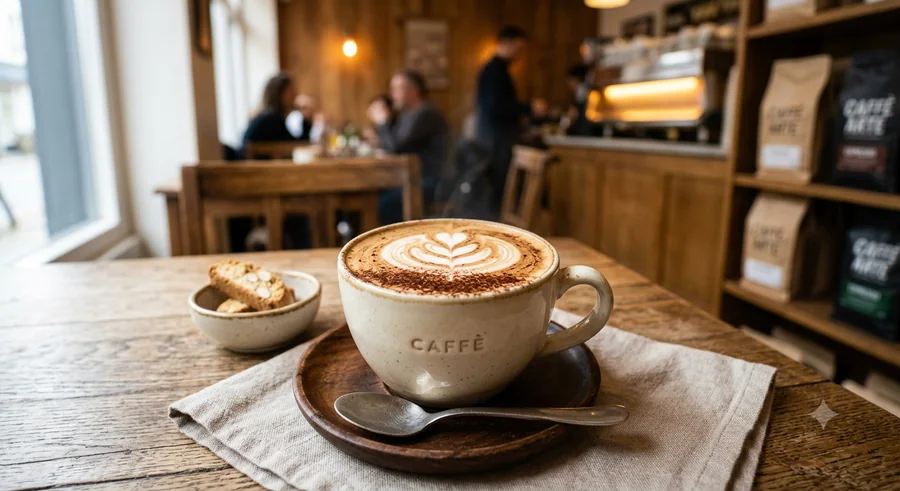
Café
The customer orders a coffee, pays, scans. Every fifth coffee is free. It costs your staff three seconds per customer, and it gives you a reason for them to come back tomorrow morning.
Typical setup: 5–10 stamps, reward = a free drink.
Loyalty for cafés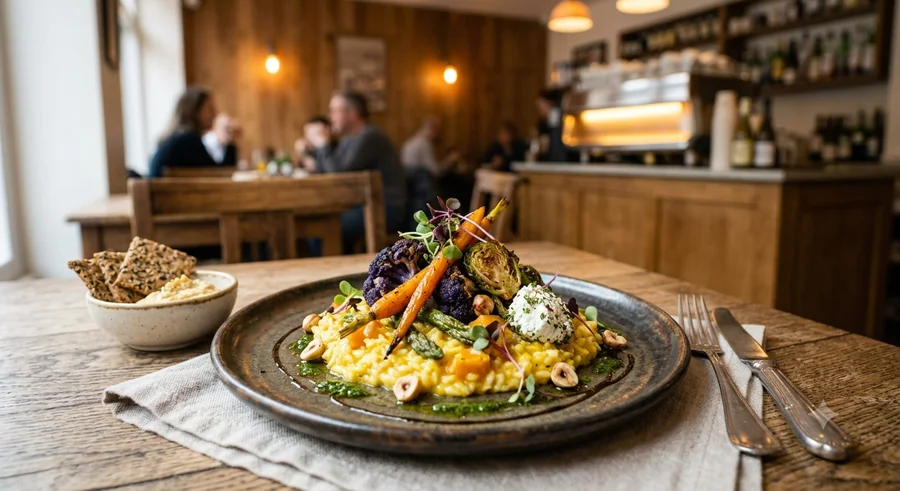
Restaurant
The card is scanned with the bill. After five visits the customer gets a dessert or a starter. A push notification on a Tuesday afternoon fills a quiet slot.
Typical setup: 5 visits, reward = a dish or a discount on the bill.
Loyalty for restaurants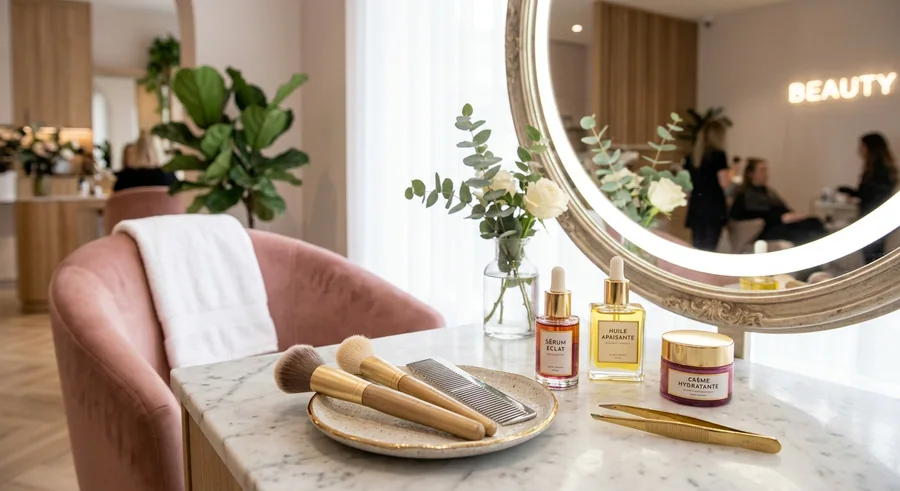
Salon
The card goes with the appointment. After five treatments the sixth is discounted. A customer who has not been in for two months gets a reminder through the card, not through an email nobody reads.
Typical setup: 4–6 treatments, reward = a free treatment or a discount.
Loyalty for salons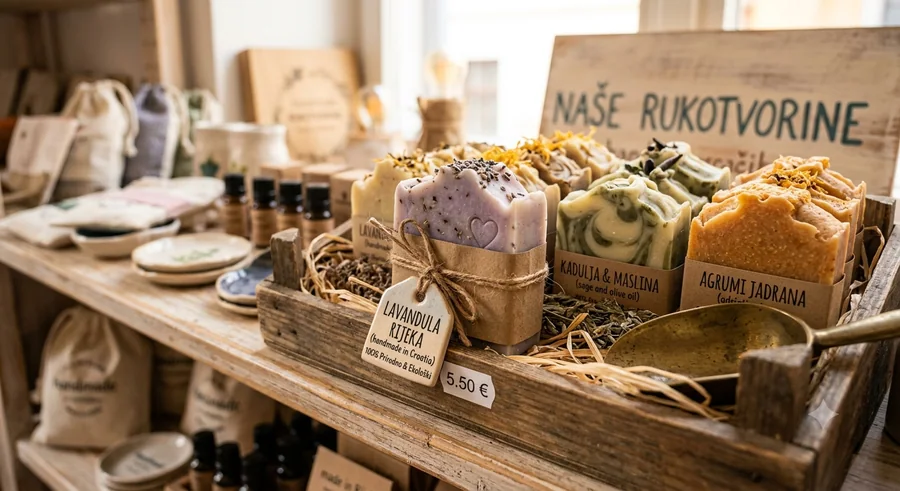
Small business
Car wash, bakery, florist, repair shop. Every service = a stamp. After ten, one is free. No plastic, no printing, no "I left my card at home."
Typical setup: 8–10 services, reward = a free service.
Loyalty for tradesThe first 30 days
How to make the program really take off
Tell your customers. A QR code on the table works. A staff member who shows it works three times better.
Set a reward people can reach. Nobody will collect 20 stamps. 5–10 they will.
Post it on Instagram and your Google profile. The same link, two new channels.
Get the team on board. If your staff do not ask, customers do not scan.
Send the first notification in week two. Customers who are close to a reward come back the fastest.
FAQ
No. Apple Wallet and Google Wallet are already on the phone.
No. A phone or tablet with a camera is enough. An NFC reader is an option, not a requirement.
They get a physical card with your branding. It runs in the same system.
Setting up the card takes under 10 minutes. Training your staff takes another 10.
Yes. The design, the wording and the rules can all change as you go; the cards update automatically and the customer has nothing to do.
Yes. One card, every location, one set of numbers. You can also restrict a card to a single location.
Yes. Data is processed in line with EU regulations, and you remain the owner of your customers' data.
More questions?
Get in touch - we will gladly show you live, on your phone, in your own venue.